
Anyone scanning larger maps
You’d ideally like to capture maps that fit within A3 in a single scan. So check that the device genuinely supports A3 scanning, rather than just A3 printing.


An all-in-one printer with genuine A3 scanning is the right choice if you want to capture a map that fits within A3 in a single scan. For maps up to A4, an A4 scanner may be enough. Also consider how to position delicate maps, which scan file formats are available, and how much space and ink the device needs: A3 printing doesn’t automatically mean A3 scanning.
You’d ideally like to capture maps that fit within A3 in a single scan. So check that the device genuinely supports A3 scanning, rather than just A3 printing.
You want to handle old, folded or damaged maps carefully, so consider the scanner glass and the instructions for using the automatic document feeder.
You mainly scan smaller maps and are weighing up the space available and expected ink use if you print infrequently against the convenience of a larger scanning area.
First, measure the largest map you want to scan in one go. Then consider how you’ll position the original, which scan file formats you need and how much space you have.
| What to consider | What to look for | Who is this most important for? |
|---|---|---|
| Scan size | Compare the maximum scan size with the dimensions of your map. Check the scanning specification separately from the stated print size. | If I want to capture a larger map in one go, the scanning area needs to be big enough. Around 36% of consumers put scan size first. |
| Careful handling | Check that the scanner glass suits the way you work and follow the instructions for the exact model. In a manual, Brother warns against feeding folded or torn paper into the automatic document feeder on the models covered. | With an old or delicate map, I want to choose how to position it rather than simply feed it through a mechanism. Around 29% of consumers prioritise careful handling of the original. |
| Digital map file | Check the optical scan resolution and supported file formats for the exact model. A stated print resolution is not the same as a scan resolution. | If I want to look at small details on the map later, I’ll check the scan settings and the files I can save. Around 21% of consumers prioritise how useful the digital file will be. |
| Space and printing costs | Check the dimensions of the device and compare its ink supply with your expected printing needs. Also take potential ink use from infrequent printing into account. | For my hobby room, I don’t want to take up more space than necessary, and I might not print very often. Around 14% of consumers give top priority to the space needed and the cost of occasional printing. |
A printer may handle A3 paper for printing but scan only up to A4. For example, Epson lists A3+ print input and A4 scanning for the EcoTank ET-15000.
Before choosing a model, compare its maximum scan size with the dimensions of your map.
If a map is too large for the scanning area, you may need to scan it in sections, which takes extra time to process.
The Brother manual for the models covered warns against feeding folded or torn paper into the automatic document feeder. Instructions can vary by model.
Check the manual for the exact device and consider using the scanner glass if you’re scanning a delicate original.
Consumentenbond notes that when you print infrequently on cartridge inkjet printers, relatively more ink may go towards cleaning than printing.
Compare expected ink use and maintenance with your printing needs, even if scanning is your main reason for buying.
These HP model examples include both an A3 scanning option and a separate A4 option.
The MFC-J6975DW is an example to consider if you’re looking for A3 scanning and extensive paper handling.
These examples include an Epson WorkForce model with A3 scanning and an EcoTank model where print and scan sizes differ.
The PIXMA TS7750i is an A4 option for smaller maps and general home use.
This selection includes an A3 model and A4 printer models. For each exact version, check that the stated scanning function and scanning area are suitable for the maps you want to digitise.
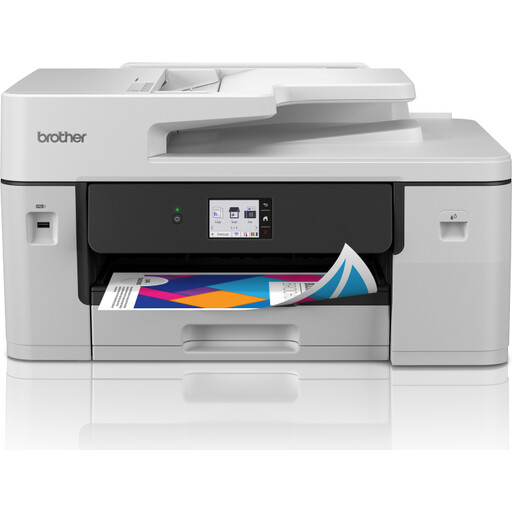 No image available
The product information lists A3 scanning, making it suitable if your map fits within that scan size.
The description mentions a 50-sheet automatic document feeder. Check the feeder instructions before putting maps into it.
 No image available
The flatbed scanner described is an option for positioning maps by hand, provided they fit within the scanning area.
The maximum scanning area is 216 × 297 mm. The stated optical scan resolution is 1200 × 1200 DPI; the output formats listed include JPG, PNG, TIFF and PDF.
 No image available
The product title describes an A4 inkjet printer. Before buying, check that this exact version has the scanning function you need and find out its scan size.
 No image available
The flatbed scanner described lets you position maps by hand, provided they fit within the scanning area.
The maximum scanning area is 216 × 297 mm. That’s not large enough for maps that need to be scanned in one go.
No, not necessarily. Epson lists A3+ print input and A4 scanning for the EcoTank ET-15000. Check the scan size for the exact version.
Don’t assume you can without checking the instructions for your specific model. A Brother manual warns against feeding folded or torn paper into the automatic document feeder on the models it covers. If you have a delicate original, check whether placing it on the scanner glass suits the way you want to work.
Check the scanning function, supported file formats and required software for the exact model. If you also print infrequently, consider the ink used during cleaning: Consumentenbond highlights the extra ink use of cartridge inkjet printers that are used infrequently.
According to the Dutch government, the seller must provide a solution if a product is faulty. For distance sales, you generally have a 14-day cooling-off period, although legal exceptions may apply.
The Dutch government says you may make a copy for personal use, but you may not distribute it or make it available to the public. Before sharing a specific map online, check whether you have the necessary rights or permission.