
Student with a paper map
They mainly want classmates to see small symbols and the legend, and need a stable overhead set-up.


If your map is on paper and small symbols need to be legible, consider a document camera that you can position above the map. Check that its capture area and focus are suitable for your map. If the legend is already digital, try sharing your screen before buying a camera. If you mainly want to appear on camera and only need to show paper occasionally, an adjustable webcam may work, but test beforehand whether the legend is readable from that angle.
They mainly want classmates to see small symbols and the legend, and need a stable overhead set-up.
They already have the legend on screen and want to present it directly, without pointing a camera at the display.
They want to switch between showing their face and their work on the desk, so they need to check the camera angle and shared image.
Choose this if: small symbols on a paper map are the priority and you can position the camera above your work.
Bear in mind: the space taken up by the arm or base. Also check that the map fits within the capture area.
Choose this if: the legend is already in a file, presentation or browser, and screen sharing is available in your meeting.
Bear in mind: the organiser’s or administrator’s settings may restrict sharing. Google Meet and Microsoft Teams both explain ways to present content or a screen.
Choose this if: you’re usually on camera and want to show paper on your desk from time to time.
Bear in mind: an angle that works for your face doesn’t guarantee that small map symbols will be legible. Check how the image looks to the recipient.
| What to consider | What should you check? | Who is this important for? |
|---|---|---|
| Small symbols on paper | Measure the map and check the capture area and focus of the model you’re considering. Test the smallest symbols in the shared image too. | If I want to show the whole map and its small legend, I’ll check the framing first. Around 36% of consumers say making a paper legend easy to read is their main need. |
| A digital legend | Try sharing the map window and check whether the meeting allows it and whether another participant can read the legend. | If I want to show a map that’s already on my screen, I’ll first check that screen sharing works. Around 29% of consumers prioritise presenting digital content directly. |
| Switching between your face and paper | Check whether the camera tilts down far enough, and test that the smallest parts of the legend remain sharp and visible. | If I want to show both myself and paper while explaining, the set-up needs to work for both. Around 21% of consumers make this flexibility their priority. |
| Connecting to a school computer | Check the USB connection, operating system, camera access and whether installing any extra software is allowed. | If I want to use the camera with a managed school computer, I’ll check the connection and software options first. Around 14% of consumers say hassle-free connectivity is their main need. |
Google Meet and Microsoft Teams let you present a window or screen, so you don’t always need a camera pointed at your display.
Try sharing your screen in the programme you’re using for the project first, and check that the organiser or administrator allows it.
A resolution specification doesn’t guarantee that small symbols will be legible in your framing or in the shared image.
Compare the capture area with the map and test the smallest symbols on a viewer’s screen.
Showing pupils on camera and making or keeping recordings involve privacy considerations.
Check your school’s policies before filming or recording. Where possible, keep other pupils and private information out of shot.
The V4K is designed to show paper from above, while the DO-CAM can switch between document camera and webcam use.
The HD Pro is a USB document camera designed for a simple desktop set-up.
The Fancy S Pro is an adjustable document camera that, according to CZUR, also supports webcam use and visualisation software.
According to AVer, the U50+ is a document camera that can also be used as a webcam.
The MX Brio is designed for webcam use and has a mode for showing work on a desk.
These cameras may be worth considering for a school project involving a map legend. If you’re using paper, check that the chosen camera angle and framing show the legend clearly.
 Image unavailable
A webcam may suit you if you want to appear on camera and show a map occasionally. Test whether the angle also captures the small legend.
The product name lists Full HD 1080P, a microphone and USB Plug & Play.
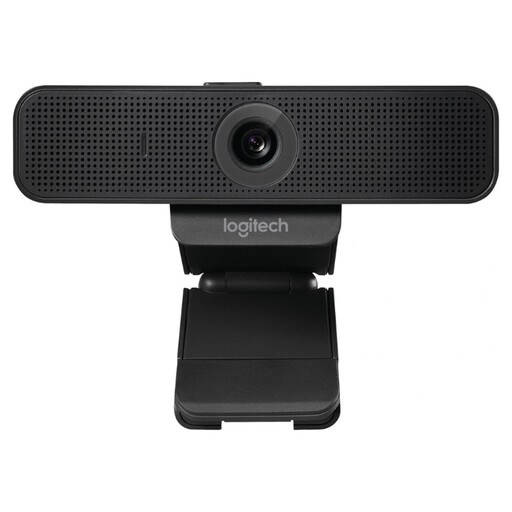 Image unavailable
A webcam may suit you if you mainly want to appear on camera. Check that your set-up shows enough of the map when you point to it.
The product name lists USB, 30fps and the colour black.
 Image unavailable
If you also want to show paper with a webcam, test whether the chosen angle shows the entire legend, and bear in mind how far the paper is from the camera.
The product name lists 4K UHD, 8 MP, autofocus, two built-in microphones and a privacy shutter.
 Image unavailable
This webcam may suit you if you’re looking for a camera to use with a computer. Separately check whether your map is legible from the chosen camera angle.
The product name lists 2K QHD and a microphone with noise reduction.
 Image unavailable
A document camera may suit you if you want to show a paper map from above. Check that the stated paper size is suitable for your map, and test the legend in the shared image.
The product name lists A3, OCR and compatibility with Windows and macOS.
Not if you only want to show the digital file: Google Meet and Microsoft Teams let you present content or share your screen. Check that the organiser or administrator allows screen sharing.
Place the paper within the capture area, point the camera at it and check the shared image. The HUE HD Pro has manual focus, according to HUE; you may need to refocus after changing the distance.
According to ACM ConsuWijzer, the statutory cooling-off period for an online purchase generally lasts up to 14 days after the product is delivered, with some exceptions. You’re also legally entitled to a product that meets what you could reasonably expect.
Don’t assume that you can: the Dutch Data Protection Authority refers to rules about showing pupils and teachers on camera, and making and keeping recordings. Follow your school’s policies and limit what the camera captures. Other requirements may apply depending on the recording and who makes it.