Choose a document camera if you want to demonstrate the paper and your hands from above, a webcam if you teach using a computer, or a mirrorless camera or camcorder if you want to record independently. Test it at your intended working distance to check that the paper, your hands and fine cutting lines stay in focus. Also make a test recording against the dark background: resolution alone won’t tell you whether the light paper retains its detail.
Who is this for?
Teacher at the worktable
Wants to show paper and actions clearly from above. According to IPEVO, the adjustable arm and wide field of view of the IPEVO V4K PRO 120 are designed to capture a larger work area; check that your whole table stays in shot at your chosen mounting height.
Live online teacher
Wants to share the cutting process directly through a computer. Check that the connection and software suit your setup. Elgato describes the Facecam Pro as offering manual and automatic focus, while Logitech describes the MX Brio’s Show Mode, which points the camera down at desk work.
Recorded tutorial creator
Wants to frame recordings independently and may want to record audio separately. Canon lists 4K 30p video and a 3.5 mm microphone input for the EOS R50. Sony lists interchangeable E-mount lenses and 4K 60p for the ZV-E10 II; with either option, you’ll need to match the lens to your working distance.
What should you look for?
Document camera
When: When the demonstration is mainly about the work surface and actions viewed from above.
Trade-off: Check that the field of view and working distance suit your table; a wide field of view doesn’t guarantee that fine cutting lines will be easy to see.
Webcam
When: When you teach or record using a computer and can set up a separate overhead mount.
Trade-off: Check the connection, system requirements and software; the camera also needs to be securely mounted above the work surface.
Mirrorless camera
When: When you want to record independently and choose your own lens and framing.
Trade-off: You’ll need to choose a lens and mount, and possibly external audio, separately; the camera specifications don’t prove that every lens will suit close-up work.
Camcorder
When: When you want to film independently with an integrated zoom lens.
Trade-off: Check the minimum focusing distance and how it can be mounted above the table; zoom alone doesn’t prove that it’s suitable for close-ups.
| What to consider |
What should you check? |
Who is this most relevant to? |
| Showing the whole work surface |
Compare the field of view at your planned mounting height with the size of your work surface. |
If I want to show the paper and my hands together from above, I want to see whether the whole work surface fits in shot. Around 27% of consumers put coverage of the work surface first. |
| Keeping fine cutting lines in focus |
Take a test shot of the paper and moving hands at your intended working distance. |
When viewers need to follow small cuts, I want to check that they appear sharp and large enough in shot. Around 27% of consumers give top priority to the clarity of fine details. |
| Paper against a dark background |
Assess a test recording using your actual lighting and check the paper details and shadows from your hands. |
If I’m filming light paper on a dark surface, I want to avoid losing detail in the paper. Around 20% of consumers prioritise retaining paper detail and contrast. |
| Computer and teaching workflow |
Check the connections, operating system, software and whether the camera can be mounted above the paper. |
For a lesson streamed directly through my computer, I want to make sure the camera and software work together. Around 13% of consumers choose connectivity and live sharing as their main consideration. |
| Recording independently and audio |
Check the exact lens, microphone connection, and any mounting and power accessories you’ll need. |
If I record lessons independently, I want to assess the framing and speech clarity as part of my complete setup. Around 13% of consumers put an independent recording workflow and spoken explanations first. |
Common pitfalls
-
Assuming 4K means cutting lines will be easy to see
Resolution alone doesn’t determine whether the work will look sharp and large enough at your working distance.
Test at the exact recording height with both paper and moving hands before choosing based on resolution.
-
Letting the dark background dictate the exposure
A test recording can show whether light areas of the paper retain detail; camera resolution can’t restore overexposed footage.
Film with the actual paper and lighting, and adjust the exposure if needed.
-
Assuming a camera is a complete overhead recording setup
Your chosen lens, mount and connection need to suit your working distance and recording method. You may also need to choose a microphone separately.
Check what’s included with the exact version and plan the whole setup, including a secure mount above the worktable.
Depending on the option you choose, you may need a suitable lens, mount, connection or separate microphone.
Brands to consider
IPEVO
Document cameras for demonstrating physical tasks, including the V4K PRO 120 for an overhead view.
- According to IPEVO, the V4K PRO 120 has an adjustable arm, autofocus and a wide field of view.
- Check that your whole table is visible at your mounting height, with enough detail.
Elgato
A computer-based webcam option with the Facecam Pro for those who want to control image settings themselves.
- Elgato lists manual and automatic focus, as well as control over exposure settings.
- Check the USB 3.0 and system requirements, and arrange a separate overhead mount.
Logitech
Computer-based desk presentation with the MX Brio and Show Mode.
- Logitech describes a downward-facing presentation mode and adjustment software.
- The camera angle doesn’t prove that the whole cutting process will be visible at the size you want.
Canon
An interchangeable-lens option with the EOS R50 for recording video independently.
- Canon lists 4K 30p video and a 3.5 mm microphone input for the EOS R50.
- Check the exact kit lens and other items you’ll need; the camera body alone doesn’t prove it’s suitable for every close-up.
Sony
An interchangeable-lens option with the ZV-E10 II for those who want to combine lens choice with video features.
- Sony lists E-mount compatibility and 4K 60p for this model.
- The suitable working distance and framing also depend on the lens you choose.
Panasonic
A camcorder option with the HC-VX3 for recording independently with integrated zoom.
- Panasonic lists 4K recording and 24× zoom for the HC-VX3.
- Check the close-up distance and how it can be mounted above the worktable; zoom doesn’t prove it’s suitable for macro work.
Joybuy products
This Joybuy selection features pocket and vlog cameras for recording video independently. For a paper-cutting lesson, check that you can position the camera securely above the worktable and frame the paper, your hands and the cutting lines in focus at your desired distance.
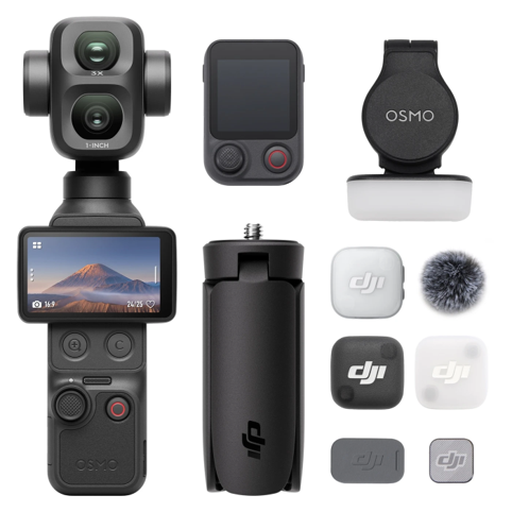 No image available
Osmo Pocket 4P – Vlog Combo – Black
An option for anyone considering a pocket camera for recorded explanations; check that it can be positioned securely and appropriately above the work surface.
View at Joybuy
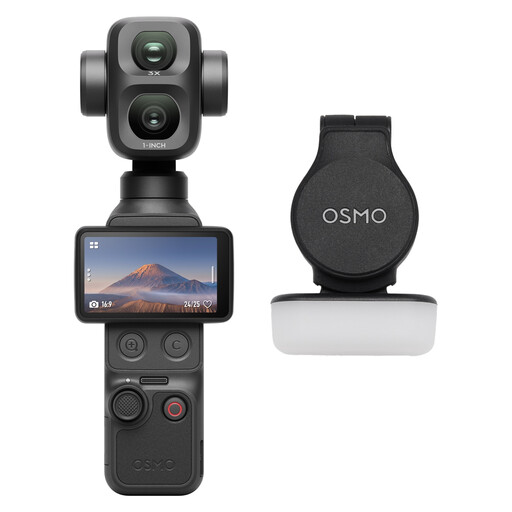 No image available
Osmo Pocket 4P – Standard Combo – Black
This version is an option for recording video independently; check that you can mount the camera above the table and capture the work in focus at your working distance.
View at Joybuy
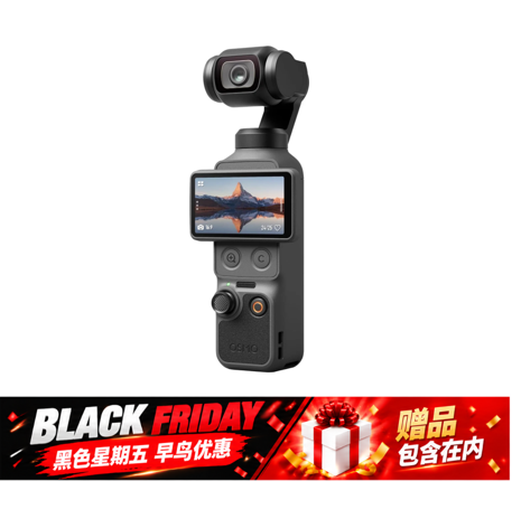 No image available
DJI Osmo Pocket 4 Standard Combo, 1″ CMOS, 4K/240fps
A pocket camera for anyone looking for a compact video setup; first check that you can mount it securely above your work and capture the cuts in focus.
The product title lists a 1-inch sensor, 2× zoom and a rotating screen. The product description identifies 4K/240fps as slow motion.
View at Joybuy
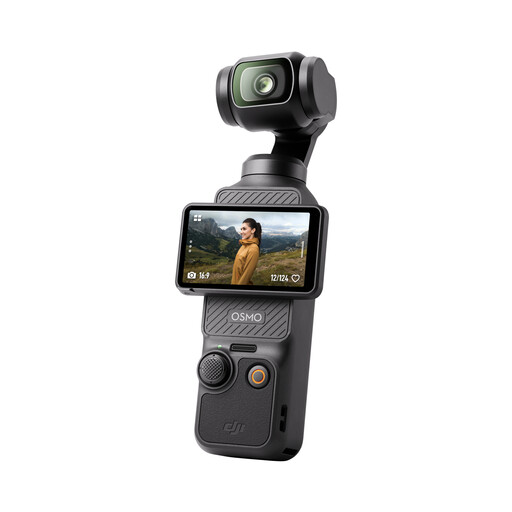 No image available
DJI Osmo Pocket 3, 1″ CMOS, 4K/120fps
A vlog camera for recording video independently; check that your chosen position shows the whole work surface and that your hands don’t obscure the cutting lines.
The product title lists a 1-inch sensor and 4K/120fps video.
View at Joybuy
 No image available
DJI Osmo Nano Standard Combo (64 GB), 4K/60, 143°
This vlog camera is an option for recording video independently; use a test recording to check whether your chosen field of view and camera position show the fine cutting lines large enough.
The product title lists 4K/60 and a 143° field of view.
View at Joybuy
Frequently asked questions
Do you automatically need a 4K camera to capture fine cutting lines?
No. First, check whether the cuts look sharp and large enough at your working distance. Resolution alone doesn’t prove that they will; also test with the paper and moving hands together.
How should you set up the camera against a dark background?
Make a test recording using the actual paper and lighting. Check that light areas retain detail and adjust the available exposure setting if needed; also watch for shadows from your hands.
Do you need a computer for the Elgato Facecam Pro?
Elgato lists a USB 3.0 connection and system requirements for Windows or macOS for the Facecam Pro. Also check that the camera works with your teaching or recording software.
What extra equipment might you need to record independently?
That depends on the camera and setup you choose. Check whether the exact version includes a suitable lens and mount, and whether you want to connect a separate microphone for spoken explanations.
Can you include identifiable pupils in a lesson video?
Not without taking privacy rules into account. The Dutch Data Protection Authority considers identifiable people’s images to be personal data; for footage in education, it highlights consent and good security. If you film only your hands and the paper, pupils won’t be identifiable in the footage.


