
Panorama editor looking for a clear overview
This user wants to see the full composition while keeping editing panels within easy reach. The balance between screen width and space for detail is therefore important.


An ultrawide monitor is a good choice if you want to view a panorama and editing panels across one wide workspace; a 4K monitor is an alternative if having more vertical pixels for checking details matters more. For print preparation, consider the colour space you need and whether your calibration workflow is suitable. Also check that the monitor will fit on your desk, offers enough adjustment and has the right connection for your laptop.
This user wants to see the full composition while keeping editing panels within easy reach. The balance between screen width and space for detail is therefore important.
This photographer wants to assess colours as part of a chosen print workflow, so considers colour space and calibration as well as screen size. BenQ and EIZO list these features for specific models.
This user may alternate between sitting and standing, so an adjustable viewing position and connections suited to their laptop are important. Arboportaal offers workplace advice on monitor positioning.
Choose this option: if you want to view a wide panorama alongside your editing panels. LG Netherlands lists a resolution of 3440 × 1440 pixels and an IPS panel for the 34BQ77QB-B.
Bear in mind: the ultrawide model reviewed has fewer vertical pixels than the 4K models mentioned; also check that its width and viewing angle suit your desk.
Choose this option: if checking joins, edges and retouching work matters more than having extra physical screen width. ASUS Netherlands lists a resolution of 3840 × 2160 pixels for the PA279CRV.
Bear in mind: a 27-inch 16:9 screen offers less physical width for viewing a panorama alongside panels. Check that the interface remains easy to read at your chosen scaling setting.
Choose this option: if you actually use Adobe RGB coverage and hardware calibration in your print workflow. BenQ lists these features for the SW272U; EIZO lists Adobe RGB coverage and calibration with ColorNavigator for the CS2740.
Bear in mind: a stated colour space alone does not guarantee a match with a print. Check which calibration process and equipment are suitable for your workflow.
Your priorities depend on what you want to see on screen at the same time while assembling and reviewing your panorama. So compare more than just the screen shape: consider resolution, adjustability and the connection you need too.
| What to consider | What should you check? | Who should pay particular attention? |
|---|---|---|
| Viewing the panorama and panels together | Compare the aspect ratio, resolution and physical width with the layout of your editing software. | If I want to see the panorama and panels side by side, I look at the available workspace width. Around 28% of consumers choosing a monitor for this purpose make a clear overview their main priority. |
| Colour for print | Check coverage of the colour space you use and the calibration options available for your workflow. | When I assess colours for my own print workflow, I want to know whether the colour space and calibration are suitable. Around 22% of consumers prioritise colour assessment for print. |
| Viewing position at a sit-stand desk | Check the height adjustment, tilt, stand dimensions and any VESA mounting options. | When switching between sitting and standing, I want to be able to adjust the screen to suit my viewing position. Around 22% of consumers make an adjustable workspace their main priority. |
| Fine details and edges | Compare the native resolution and check the panorama and edges at a suitable zoom level. | If I want to check joins, edges and retouching work, detail matters more than extra screen width. Around 17% of consumers put this kind of checking first. |
| Connecting a laptop | Compare your laptop’s video output and required charging power with the features of the exact monitor model. | I want to connect my laptop for both display and power; USB-C alone doesn’t tell me which features are available. Around 11% of consumers make laptop connectivity their main priority. |
A wider workspace does not automatically mean more vertical pixels. The LG 34BQ77QB-B reviewed has a resolution of 3440 × 1440 pixels; ASUS lists 3840 × 2160 pixels for the PA279CRV.
Compare the physical workspace width and the number of horizontal and vertical pixels with what you need to check in your panorama.
How colour space and calibration are used depends on your output and chosen workflow. Stated coverage alone does not guarantee a match with a print.
First decide what you’re editing for, then check how to calibrate the exact model.
Both the monitor and laptop must support the required video feature and charging power.
Check your laptop’s USB-C video feature and required charging power against the specifications of the exact monitor.
The 34BQ77QB-B is an ultrawide option for anyone looking for a wide workspace for a panorama and editing panels.
The SW272U is a 27-inch PhotoVue option for panorama editing as part of a colour-focused workflow.
The ProArt PA279CRV combines 27-inch 4K resolution with colour modes and laptop connectivity.
The ColorEdge CS2740 is a 27-inch 4K option for workflows where hardware calibration and Adobe RGB are important.
The UltraSharp U2725QE is a 27-inch 4K alternative to compare if adjustability and laptop connections matter to you.
These Joybuy products are designed for a wide ultrawide workspace for panorama composition and editing panels.
 No image available
Ideal if you want to view a panorama alongside editing panels across one wide workspace.
40 inch; 21:9; 5120 × 2160 pixels; IPS; 100 Hz; USB-C PD 65 W.
If your print workflow requires high Adobe RGB coverage, check that the stated coverage meets your needs.
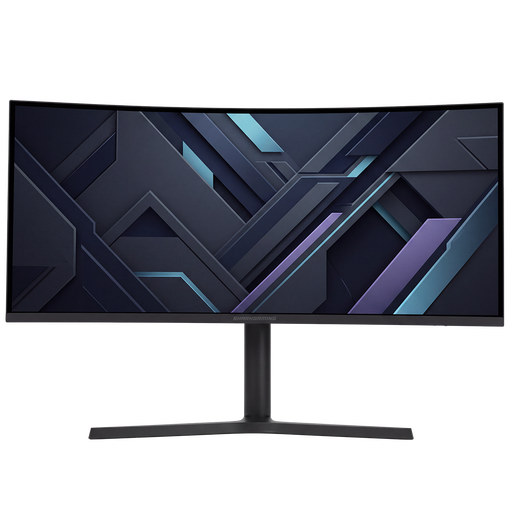 No image available
Ideal if you want a wide screen for panorama composition and an adjustable viewing position.
34 inch; 21:9; 3440 × 1440 pixels; height adjustment up to 10 cm.
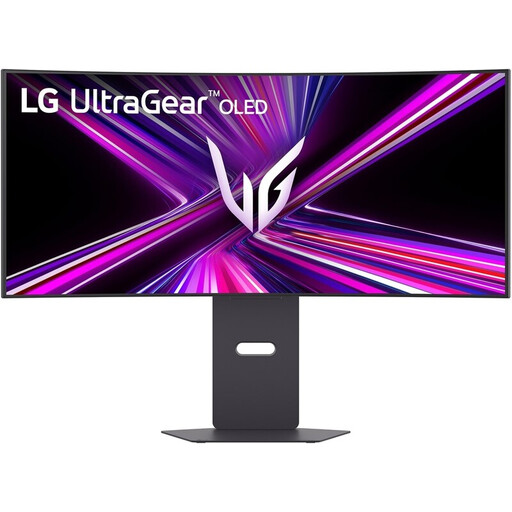 No image available
Ideal if you want a wide workspace for panoramas and the option to adjust the monitor height.
34 inch; curved; 3440 × 1440 pixels; 240 Hz; OLED; height adjustment.
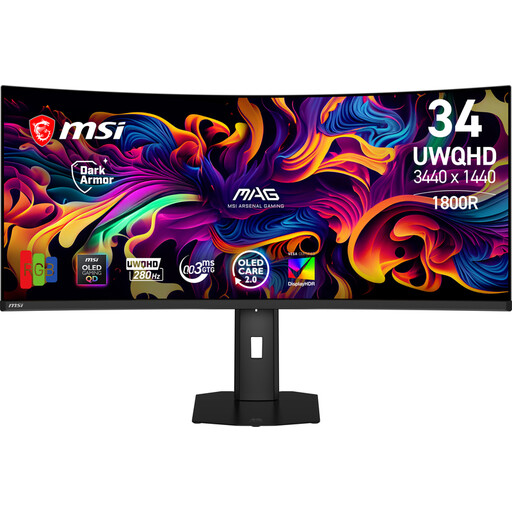 No image available
Ideal if you want a wide workspace for panoramas and the option to adjust the screen height.
34.18 inch; 3440 × 1440 pixels; 280 Hz; QD-OLED; height adjustment up to 110 mm.
 No image available
Ideal if you want a wide workspace for panoramas and panels, and need a height-adjustable stand.
45 inch; Dual QHD; USB-C dock; KVM switch; RJ45 (LAN); height-adjustable stand.
No, it depends on what matters most to you while editing. An ultrawide can make room for the panorama and panels; the 3840 × 2160 screens reviewed have more vertical pixels than the 3440 × 1440 ultrawide models reviewed. Choose according to your main editing needs.
Place the screen directly in front of you and adjust the height so that the top sits just below eye level. Arboportaal recommends looking slightly downwards; check the position again when you change working posture.
Review the panorama preview and check the composition and edges at a suitable zoom level. Adobe describes features including Auto Crop and Boundary Warp in Lightroom Classic; a larger screen does not replace this check.
For a standard consumer purchase online, ACM ConsuWijzer says you will generally have a statutory cooling-off period of up to 14 days after delivery; exceptions and return conditions may apply. The statutory guarantee is separate from any manufacturer’s warranty. If the product is faulty, contact the retailer.
For employees who work with display screens for more than two hours a day, Arboportaal outlines workplace requirements, including a height-adjustable monitor; these do not constitute a uniform product specification for every private buyer. The European Commission states that energy labelling and ecodesign requirements also cover computer monitors. Check the label for the exact model if you want to compare energy consumption.