A 34-inch ultrawide is a good fit if you often want to see a wide interview timeline alongside transcripts and notes, and have enough desk space. An adjustable 27-inch QHD or 4K monitor takes up less room; 4K is most relevant if you also review video footage. If you switch between projects on one computer, a KVM won’t help: Adobe describes saving and selecting workspaces in Premiere as a software feature.
Who is this guide for?
Editor working with a busy interview timeline
You want to see audio tracks, footage and editing panels at the same time, and often switch between projects. Adobe explains that you can save and select workspaces for each project in Premiere; this is a software feature, not a monitor feature.
Editor working with transcripts and footage
You compare quotes, notes and possibly video footage, and want to read text at a comfortable size. An adjustable screen and a practical window layout may matter more for this work than simply having a higher pixel count.
Laptop user with a permanent workstation
You regularly connect your laptop and want to position the screen properly. USB-C power delivery varies by model. Rules on display screen work may also apply to employees; Arboportaal explains the relevant requirements.
What should you look for when choosing?
Start by considering which windows you want to see at the same time. Then check the text size, laptop connectivity and adjustability for your workspace.
| What to consider |
What to look for |
Who is this most important for? |
| Timeline and window overview |
Compare the LG 34WR55QC-B’s 3440 × 1440 pixels with the Dell P2725DE’s 2560 × 1440 pixels; LG Netherlands and Dell Netherlands list these resolutions. Also measure the width of your available desk space. |
If I want to see an interview timeline, transcript and notes side by side, horizontal workspace is my first priority. Around 33% of consumers put this overview first. |
| Readable transcripts and image detail |
View one of your own transcripts at the size you prefer. Dell Netherlands lists 2560 × 1440 pixels for the P2725DE; ASUS Netherlands and BenQ list 3840 × 2160 pixels for the PA279CRV and PD2706U. |
If you mainly read transcripts and notes, you’ll want to check that the text is comfortable to read, and perhaps view video detail too. Around 27% of consumers give readability their top priority. |
| Laptop connectivity |
Check that your laptop can output video through the port you plan to use, what charging power it needs and which cable is required. If you use two computers, check whether you actually need a KVM feature. |
If I connect my laptop frequently, I want to know whether the connection and power delivery will work with my device. Around 20% of consumers start by considering their laptop connection. |
| Comfort during long work sessions |
Check the height adjustment, reflections and positioning in relation to windows. Arboportaal outlines rules that may apply to employees’ workstations. |
If you spend a long time editing and working with transcripts, you’ll want to adjust the screen to suit your workspace and reduce distracting reflections. Around 20% of consumers put workspace comfort first. |
Buying pitfalls
-
Buying a KVM to switch between projects more quickly
A KVM feature lets you share controls between computers. Adobe describes project-specific workspaces in Premiere for switching between projects on one computer.
First decide whether you switch between projects on the same computer or between two computers. Only in the second case should you consider whether KVM is relevant to your setup.
-
Choosing an ultrawide based only on screen size
A wide screen can show more windows side by side, but it also needs enough desk space. LG lists the 34WR55QC-B as 809 mm wide, including the stand.
Measure the space available and check whether you can position your transcript alongside the timeline at the text size you prefer.
-
Assuming every USB-C connection works in the same way
USB-C alone doesn’t tell you whether your laptop, cable and monitor combination will provide the video output and power delivery you need. Supported settings can also vary by monitor model and hub mode.
Check your laptop’s port capabilities, the cable you need and the monitor settings before relying on a single cable.
Relevant brands to consider
LG
The 34WR55QC-B is an example of an ultrawide setup for viewing a wide timeline alongside other windows.
- LG lists this model as 34 inches, with 3440 × 1440 pixels, height adjustment and 65 W USB-C power delivery.
- LG lists the width as 809 mm with the stand; this model doesn’t have a built-in KVM. So check both your available desk space and the features you need.
Dell
The Pro Plus P2725DE is a 27-inch QHD option with a USB-C hub, for a more compact laptop workstation.
- Dell Netherlands lists this model as 2560 × 1440 pixels, with height adjustment and 90 W power delivery via USB-C.
- Its stated resolution has fewer horizontal pixels than the 3440 × 1440 ultrawide mentioned above; consider the window layout you need.
BenQ
The PD2706U is a 27-inch 4K option for anyone who also reviews video footage.
- BenQ lists this model as having 3840 × 2160 pixels, 90 W USB-C power delivery and KVM. BenQ’s colour specifications are manufacturer claims, not independent colour measurements.
- KVM may be useful with two computers, but it won’t help you switch between projects on one computer. Also check that the text size is comfortable for reading transcripts.
ASUS
The ProArt PA279CRV is a 27-inch 4K option with colour modes for anyone who also reviews video footage.
- ASUS lists this model as having 3840 × 2160 pixels, a Rec.709 mode, an anti-glare surface, height adjustment and 96 W USB-C power delivery.
- Colour modes aren’t necessary for every editing task. Check the text size and don’t buy colour features based solely on manufacturer specifications.
Philips
The B Line 346B1C/00 is an example of another 34-inch ultrawide option with USB-C.
- Philips lists this model as having 3440 × 1440 pixels.
- Philips notes that the USB hub setting affects the supported combination of resolution and refresh rate. Check this setting if that combination matters for your workstation.
Monitors at Joybuy
This selection includes 34-inch ultrawide monitors for a wide timeline, plus 27-inch QHD and 4K monitors for a more compact editing workstation.
 No image available
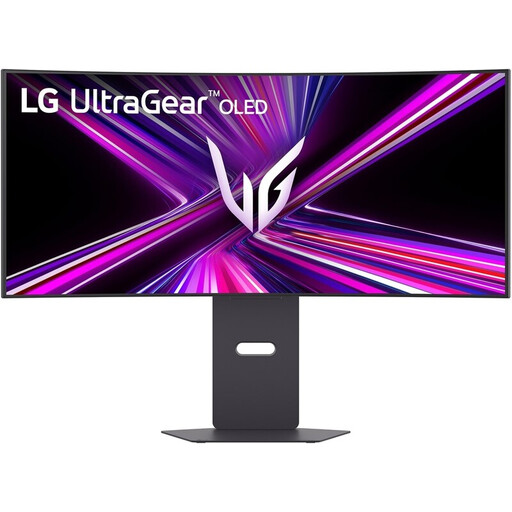
LG UltraGear 34GX900A-B, 34-inch curved WQHD monitor
The 34-inch ultrawide format suits a workstation where you want to see a wide interview timeline alongside transcripts or notes.
The product name lists 3440 × 1440 pixels and height adjustment.
Joybuy
 No image available
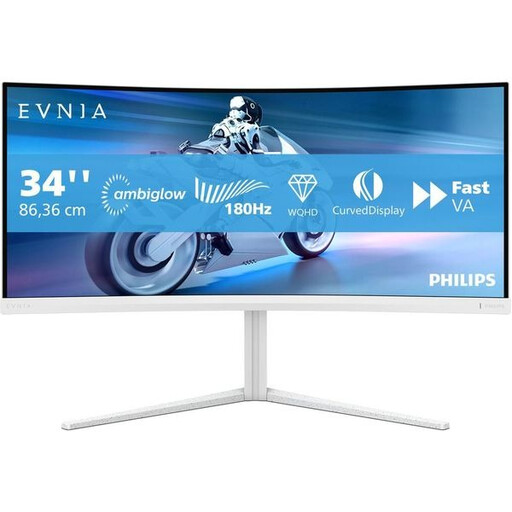
Philips Evnia 34-inch UWQHD curved gaming monitor
The 34-inch curved format is an option for viewing a wide timeline and other windows side by side.
The product name lists UWQHD, a VA panel, 180 Hz and Adaptive Sync.
Joybuy
 No image available
MSI Modern MD272UPHG, 27-inch 4K monitor
This 27-inch model is a compact option if you want to view higher-resolution footage as well as transcripts.
The product name lists 3840 × 2160 pixels and 4K UHD.
Joybuy
 No image available
Dell UltraSharp U2725QE, 27-inch 4K monitor
The 27-inch size suits a more compact setup for working with transcripts and viewing footage.
The product name lists 3840 × 2160 pixels and 4K UHD.
Joybuy
 No image available
Dell Pro Plus P2725DE, 27-inch QHD monitor
This QHD option is designed for a more compact workstation with editing panels and transcripts.
The product name lists 2560 × 1440 pixels and Quad HD.
Joybuy
Frequently asked questions
Do I need a monitor with KVM for frequently switching between projects?
Not if you switch between projects on one computer. Adobe describes saved workspaces for multiple projects in Premiere; only consider KVM if you also want to use the same controls with two computers.
Will video and charging always work through a single USB-C cable?
No. Check your laptop’s video output and charging requirements, the cable and the ports on the specific monitor. Philips also lists different supported refresh rates for the 346B1C/00 depending on the USB hub settings.
How do you set up a monitor for transcripts and editing?
Open one of your own transcripts, a timeline and, if needed, footage side by side. Set the text size before assessing the layout. Also adjust the screen height and its position in relation to windows; the right setup depends on your workspace.
Does a monitor need to be adjustable under Dutch workplace health and safety rules?
Requirements apply to employees’ display screen workstations; Arboportaal specifies a height-adjustable display. For more than 2 hours of display screen work per day, Arboportaal also lists requirements for using a laptop. Check whether these rules apply to your employment relationship and working situation.
Can I return a monitor bought online if the window layout doesn’t work for me?
For an eligible Dutch consumer purchase made at a distance, you generally have a statutory 14-day cooling-off period after delivery, according to ACM ConsuWijzer. Check whether you’re buying as a consumer and whether a statutory exception applies; business purchases and a retailer’s additional returns promise aren’t automatically subject to the same terms.


