First, check whether interruptions are caused by your internet connection, simultaneous use or weak Wi-Fi coverage: a new router won't increase the capacity of your internet connection. If interruptions mainly affect one fixed study spot, first try adjusting your existing settings or using an Ethernet cable. Choose a standalone router if one well-positioned unit will do the job, and consider an extra access point or mesh system if several rooms have poor coverage. The Consumers' Association recommends investigating Wi-Fi problems first; Zoom publishes separate requirements for the Zoom Web App.
Which solution is right for you?
Student on a busy network
Do video calls stutter mainly when other people at home are online too? First, investigate whether the shared internet connection or your local network is the bottleneck. The Consumers' Association recommends checking your Wi-Fi before replacing equipment; Zoom publishes requirements for the Zoom Web App.
Student in a room with weak coverage
If your study spot is behind walls or on another floor, compare the signal there with the signal near your router. The router's position, a cable or an extra Wi-Fi access point could all help; the Consumers' Association explains how to use Wi-Fi boosters where you need a signal.
Housemate who manages the network
If you set up and maintain the router with your housemates, consider access to settings, guest access and updates. ACM ConsuWijzer explains the rules around using your own network equipment; ASUS lists guest access as a feature of the RT-AX53U, among others.
What should you consider when choosing?
First identify where the problem lies, then decide whether to improve your existing connection, use a single router or extend coverage to several areas.
| What to consider |
What to look for when buying |
Who is this important for? |
| Simultaneous use |
Measure upload and download speeds when the network is busy, then compare the results with your learning platform's requirements. Zoom publishes separate requirements for the Zoom Web App. |
When other people at home are online at the same time, I want to know whether the internet connection or my Wi-Fi is affecting my lesson. Around 36% of consumers give simultaneous use their highest priority. |
| Coverage at your study spot |
Compare the connection near the router with the one in your study room; check whether you can run a cable or install an extra Wi-Fi access point there. |
If my study room is behind walls or on another floor, I need a reliable connection right there. Around 29% of consumers put coverage at their study spot first. |
| Shared management and security |
Agree on who will manage settings and updates, and check that the model you choose has the guest access and operating mode you need. |
When several housemates use the network, I want to agree clearly on who manages access and settings. Around 21% of consumers prioritise shared management and security. |
| Cost and installation |
First assess your existing router, then compare the connections you need, any extra access points and the installation effort involved. |
If I mainly want to fix an existing Wi-Fi or positioning problem, I don't want to replace equipment before I know what's needed. Around 14% of consumers start by avoiding unnecessary spending. |
Common buying mistakes
-
Assuming the highest Mbps figure guarantees better online lessons
The advertised Wi-Fi speed isn't the same as the speed of your internet connection. Your home, connected devices and simultaneous use all make a difference too.
Measure speeds near the router and at your study spot during a busy period before choosing a device.
-
Buying one router when the problem is mainly in rooms further away
A strong signal near the router doesn't automatically mean it will reach another room well. The position of the router and the connection between Wi-Fi access points also matter.
Work out where the signal is weak and see whether you can connect an extra access point by cable before deciding how many devices to buy.
You may still need a cable or an extra Wi-Fi access point for a study spot further away.
-
Confusing a standalone Wi-Fi router with a replacement modem
Adding a router behind your existing modem is different from using a device that also replaces the modem. If you use your own modem, connection settings and security requirements may apply.
Before buying, establish whether you're only adding Wi-Fi or replacing the modem too. If necessary, ask your provider for the connection details.
Brands to consider when making your choice
TP-Link
The Archer AX55 is a standalone Wi-Fi 6 router, while the Deco X50 is a mesh range designed to provide coverage in several areas.
- According to TP-Link, the Archer AX55 supports OFDMA for simultaneous data transmission. The Dutch product specifications list three gigabit ports per Deco X50 unit.
- These are model specifications, not a guarantee of lesson quality or coverage in your home. Check how many units you need and where you can position them.
ASUS
The RT-AX53U is a standalone Wi-Fi 6 router with access point mode and ASUS AiMesh support.
- ASUS lists three gigabit LAN ports, a guest network and traffic management for this model.
- ASUS warns that network capacity and your surroundings can limit how well traditional QoS works. Check that the mode you want is compatible with your existing network.
FRITZ!
The FRITZ!Box 7530 AX is a DSL router with Wi-Fi 6, mesh support and the option to use an existing internet connection via LAN.
- The manufacturer lists four gigabit LAN ports and guest access.
- Its DSL function doesn't automatically make this model the right choice if you only want to add Wi-Fi behind an existing modem. Check the connection and operating mode.
NETGEAR
The RAX10 is a standalone dual-band Wi-Fi 6 router with wired ports.
- NETGEAR lists five gigabit Ethernet ports and compatibility with older Wi-Fi devices.
- An advertised wireless speed doesn't tell you how well it will perform during simultaneous online lessons. Check the coverage where you plan to use the router.
Joybuy routers and mesh products
This selection includes standalone Wi-Fi routers and mesh systems for a shared network. Consider whether one router can reach your study spot, or whether you need coverage in several areas or a specific back-up connection.
 No image available
ASUS ZenWiFi BD4 Wi-Fi 7 mesh system, White, 2.4 GHz / 5 GHz
A mesh system to consider if you want to extend coverage to several areas.
The product description lists two nodes, the option of wired backhaul and a guest network. Check the positioning and whether you can run the cables you need in your home.
Joybuy
 No image available
ASUS RT-AX52 AX1800 Wi-Fi 6 dual-band router, Black, 2.4 GHz / 5 GHz
A standalone router to consider if you want to serve one well-connected study spot and use several devices at the same time.
The product description lists OFDMA, MU-MIMO, AiMesh compatibility and three gigabit Ethernet ports. A cable will only help if you can run it to your study spot.
Joybuy
 No image available
TP-Link Deco X50 Wi-Fi 6 mesh system, 3-pack, White, 2.4 GHz / 5 GHz
A set of three mesh access points to consider if you need a connection in several areas of your home.
The product description lists three gigabit ports per unit, OFDMA, MU-MIMO and the option of Ethernet backhaul. Positioning remains key to coverage in your rooms.
Joybuy
 No image available
Huawei eKit OptiX FG736 BE3600 dual-band Wi-Fi 7 mesh router
A mesh router to consider if you want to build a network across several areas.
The product description lists multiple units that can work together as one network, with management via the HUAWEI SmartLife app. Check which setup suits your home and how you want to manage it.
Joybuy
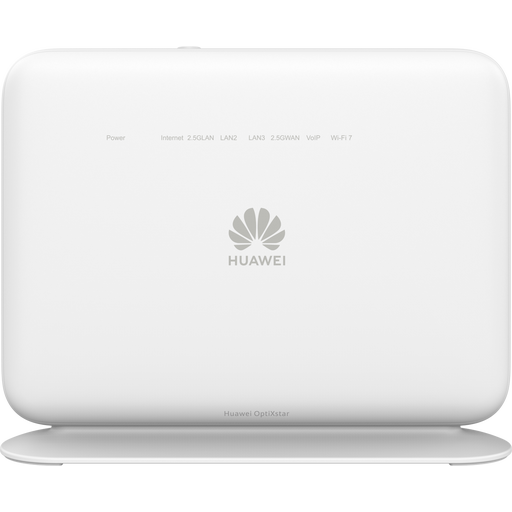 No image available
Huawei eKit OptiX LG8245B7N BE3600 dual-band Wi-Fi 7 4G Dongle Router
A router to consider if you want a 4G back-up option as well as your main connection.
The product description says it automatically switches to 4G if the primary connection fails. Check which dongle and connection you'll need for your setup.
Joybuy
Frequently asked questions
Should you buy a new router if your online lesson keeps stuttering?
Not straight away. Measure the connection at your study spot and near the router when the network is busy. It may be worth trying a different position, setting or wired connection first; a router won't increase the speed of your internet connection.
Can you use your own router in the Netherlands instead of your provider's?
Yes, ACM ConsuWijzer confirms that you can choose your own router. If you also want to connect your own modem directly to the network, check the required settings and security requirements with your provider. Fibre connections using PTP and PON may have different modem requirements.
How can you keep a shared router secure?
Agree on who manages the settings and updates, and keep the device up to date. Check whether the model you choose has guest access and configure it thoughtfully; a listed feature won't secure the network by itself.
What warranty applies to a router you buy in the Netherlands?
In addition to any manufacturer's or retailer's warranty, you also have a statutory guarantee. ACM ConsuWijzer explains that the seller must offer a solution if, under normal use, the product doesn't do what you could reasonably expect. The statutory guarantee doesn't automatically have a fixed term of two years.
Can you return a router bought online if it isn't right for your home?
ACM ConsuWijzer states that, in principle, products bought online come with a statutory cooling-off period that ends 14 days after delivery. Before using the router, check the terms and any exceptions that apply to your specific purchase.


