What should you look for when choosing?
Improve your existing router or set-up
Choose this if: a wired test gives a good result, but the existing Wi-Fi is poor mainly around the router.
Bear in mind: moving the router won’t necessarily solve persistently weak coverage caused by walls or multiple floors.
One standalone router
Choose this if: your workspace is fairly central and your provider’s connection and modem are compatible with a standalone router.
Bear in mind: the stated Wi-Fi speed doesn’t tell you how far the signal reaches or how well your connection will perform during a lesson.
Mesh with multiple nodes
Choose this if: tests show weak Wi-Fi in a lesson spot further away and several well-positioned nodes could be a suitable solution.
Bear in mind: you’ll have more equipment to position, and the layout of your home and placement of the nodes will affect the result.
For a language lesson, it’s useful to test the connection using a cable first, then check it where you take the lesson. For a specific device, also check which radio equipment requirements apply: the Dutch Authority for Digital Infrastructure describes stricter requirements for devices placed on the European market from 1 August 2025.
| What to consider |
What to check before buying |
Who is this important to? |
| Stable sound and video |
Compare a wired test with the connection where you take the lesson; identify the cause before choosing a router. |
If I don’t want to miss explanations or shared materials during a live lesson, I first want to know where the connection is faltering. Around 31% of consumers prioritise uninterrupted lessons. |
| Coverage where you take the lesson |
Check Wi-Fi coverage in the room in question and compare one router with a suitable set of mesh nodes. |
If I take lessons in another room, I want to be able to use Wi-Fi there. Around 25% of consumers give coverage in the workspace their highest priority. |
| Using multiple devices at once |
Check which wired connections and wireless features the specific model has; theoretical speeds don’t guarantee a particular speed for each user. |
If other people are working or streaming at the same time, I want their devices to stay connected while I’m taking a lesson. Around 19% of consumers put simultaneous use first. |
| Guest access |
Check whether there’s a guest network and what access it restricts; don’t assume it’s switched on automatically. |
If visitors only need internet access, I want to be able to check whether they can access my local network. Around 13% of consumers give separate guest access their highest priority. |
| Connection and extra equipment |
Check your modem, provider settings and pack size. Only choose extra nodes or additional features if they suit the way you’ll use them. |
If I want a device that works with my existing connection, I want to know what I can keep and what I’ll need to connect. Around 12% of consumers prioritise compatibility and the equipment required. |
Products at Joybuy
This selection includes standalone routers for a workspace and mesh sets for Wi-Fi coverage in multiple areas.
 No image available
TP-Link Deco X50 (3-pack), dual-band Wi-Fi 6
A mesh set may be suitable if your lesson spot is in another room and tests show weak Wi-Fi there. Check that the pack size covers the areas you want to reach.
Dual-band (2,4 GHz / 5 GHz); Wi-Fi 6 (802.11ax); white.
View at Joybuy
 No image available
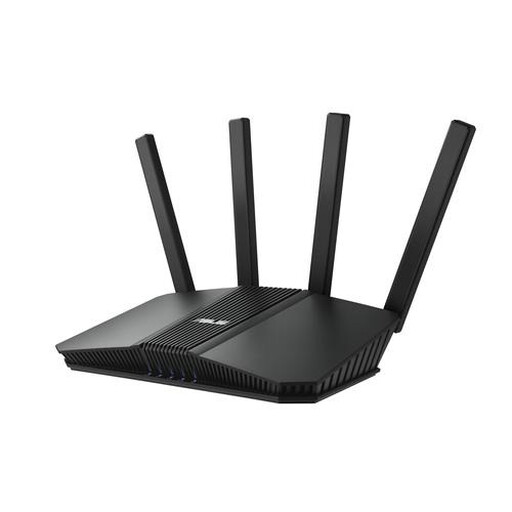
ASUS RT-BE82U BE6500 dual-band router, black
A standalone router may suit a single workspace if it’s compatible with your existing modem and provider settings. Check the coverage where you take your lessons.
Dual-band (2,4 GHz / 5 GHz); 2.5 Gigabit Ethernet.
View at Joybuy
 No image available
ASUS RT-AX52 Pro AX3000 dual-band router, black
A standalone router may suit a shared workspace if it’s compatible with your connection and provider settings. Compare Wi-Fi performance where you actually take your lessons.
Dual-band (2,4 GHz / 5 GHz); Wi-Fi 6; Gigabit Ethernet.
View at Joybuy
 No image available
TP-Link Deco XE75 tri-band mesh Wi-Fi 6E
A mesh system may suit you if you need coverage in several areas. Decide in advance where the units can go, then test the connection in those spots.
Tri-band (2,4 GHz / 5 GHz / 6 GHz); Wi-Fi 6E (802.11ax); three internal antennas.
View at Joybuy
 No image available
TP-Link Deco X50 (2-pack), dual-band Wi-Fi 6
This mesh set may suit you if your lesson spot is elsewhere in the home. Check whether two units will work for your layout, and test coverage where you need it.
Dual-band (2,4 GHz / 5 GHz); Wi-Fi 6 (802.11ax).
View at Joybuy
Frequently asked questions
Should you test your internet speed or your Wi-Fi before buying a router?
Test both separately: compare a wired test with the speed of your broadband connection, then check the connection where you take your lessons. This will help you tell whether the problem lies with your provider’s connection or the Wi-Fi in that spot.
Can you use your own router in the Netherlands?
Yes. According to ACM ConsuWijzer, you’re free to choose your router. A provider may refuse a device, for example, if it’s unsafe or damages the network; you may need your provider’s settings to connect it. This doesn’t tell you whether a particular model is compatible with your connection.
What requirements apply to a Wi-Fi router sold in the Netherlands?
The Dutch Authority for Digital Infrastructure states that radio equipment meeting the applicable European requirements receives a CE mark. The authority describes stricter requirements for devices placed on the European market from 1 August 2025. Check the exact version and when it was placed on the market; an older model declaration doesn’t necessarily confirm that the device being offered complies.
How can you tell whether a mesh set has enough nodes?
Check how many nodes are included in the specific pack and compare that with the places where you need Wi-Fi. Test the connection where you take your lessons and decide where the nodes can go; stated coverage isn’t a guarantee for your home.
What can you do if the connection drops during a lesson?
First, check the connection where you take your lessons and, if possible, try using a cable or moving the router to a better spot. Keep the router updated; ACM highlights updates as important for network security.


