
Language learner with a lesson that keeps cutting out
Uses live video and audio in their home office and wants to find out whether Wi-Fi or the internet connection is causing the interruptions.


Don’t rush to buy a new router: first, test the connection in your lesson space over Wi-Fi and Ethernet to see where it’s struggling. If a cable works well and your home office is within range of one router, a single router may be enough. Consider additional Wi-Fi points or mesh if walls or distance are weakening the signal. According to ACM ConsuWijzer, you can choose your own router, but check how it connects to your existing equipment and how you’ll keep it updated.
Uses live video and audio in their home office and wants to find out whether Wi-Fi or the internet connection is causing the interruptions.
Notices a weaker signal, particularly behind walls or on another floor, and is comparing a single router with multiple Wi-Fi points.
Wants to use their own router behind or instead of their provider’s equipment and is checking which connections and settings are required.
| What to consider | What should you check? | Who is this important for? |
|---|---|---|
| Connection stability during lessons | Compare Wi-Fi with Ethernet in the same spot, and check the upload connection too. Zoom recommends 1.2 Mbit/s in both directions for a one-to-one 720p HD video call. This is Zoom’s requirement, not a general requirement for every lesson app. | If I need uninterrupted video and audio during a live lesson, I want to find out first which part of the connection is struggling. Around 40% of consumers prioritise stability during lessons. |
| Signal in your workspace | Compare the signal next to your existing router with the signal in your home office. For mesh, check how many points are included and whether Ethernet backhaul is supported. | If I get a weak Wi-Fi signal in my home office behind walls or on another floor, I want to know whether extra Wi-Fi points can improve coverage there. Around 30% of consumers prioritise coverage. |
| Connecting and installation | Find out which of your provider’s devices will remain in place, and check the WAN and LAN connections you need, as well as the router or access point mode. | If I want to connect my own router to my existing equipment, I want to be able to find the right settings and connections. An estimated 20% of consumers prioritise easy installation above all else. |
| Security and maintenance | Check how firmware updates work, which Wi-Fi security options are available and whether any extra security features are paid for. | If I want to keep my network secure after lessons too, I look at updates and security settings. Around 10% of consumers put security and maintenance first. |
A quoted wireless data rate doesn’t automatically tell you which part of the connection is struggling during a lesson. The location, lesson app and internet connection all play a part too.
First, test the connection in your lesson space over Wi-Fi and, if possible, using a network cable. Then compare the routers’ connections and placement options.
Extra Wi-Fi points can help when the signal is weak in a particular spot, but they won’t fix a connection that also keeps cutting out over Ethernet.
Compare the connection in your home office with the one near your existing router before choosing extra points.
Deco X50, X50-PoE and X50-5G refer to different versions. A similar base name doesn’t confirm that they’re the same model or have the same features.
Check the full model name, number of points, ports and power supply for the version on offer. According to the Dutch Authority for Digital Infrastructure, since 1 August 2025, only wireless devices that demonstrably meet the applicable new requirements may be placed on the EU market. So also check the required CE marking and conformity information for the exact version you’re considering.
A manufacturer’s or seller’s warranty is not the same as your statutory rights. The features included in a security service may also vary by subscription.
ACM ConsuWijzer explains that the statutory guarantee in the Netherlands does not simply always last two years. Keep your proof of purchase and check which security features are available without a paid subscription.
TP-Link lists a free basic HomeShield plan and charges for the Pro plan. Check which features you need before choosing one.
The Archer AX55 is a standalone Wi-Fi 6 router, while the Deco X50 is a Wi-Fi 6 mesh system. The right product range for you depends, among other things, on where you’ll place it and which connections you need.
The RT-AX57 is a standalone Wi-Fi 6 router for anyone considering features such as access point mode or AiMesh expansion.
The FRITZ!Box 4060 is designed to be used with a separate modem. Telephony and smart home features are additional options.
Below are standalone routers and mesh systems for a home network. Choose between these options only after testing in your lesson space to see whether the main issue is Wi-Fi coverage or your internet connection. For the specific version, also check the required CE marking and conformity information.
 No image available
A mesh system to consider if the Wi-Fi signal is weak where you take lessons and you’d benefit from multiple points.
Dual-band Wi-Fi 5. The set includes three units; according to the product description, the Ethernet ports are limited to 100 Mbps.
 No image available
A standalone router to consider if one router can reach your home office and you need a wired connection.
Dual-band Wi-Fi 6, AiMesh compatibility and three gigabit Ethernet ports, as well as the WAN port.
 No image available
A mesh system to consider if you need multiple Wi-Fi points for your home office.
Dual-band Wi-Fi 6. The description lists three gigabit Ethernet ports per unit and support for optional Ethernet backhaul.
 No image available
A mesh router to consider if you’re looking for a mesh solution for your home network.
The product name specifies dual-band Wi-Fi 6 and mesh.
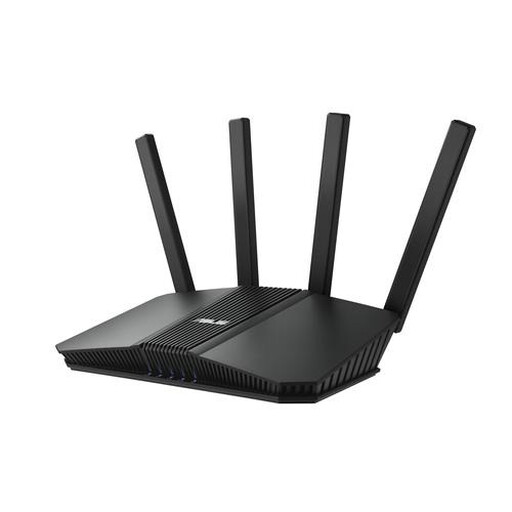 No image available
A standalone router to consider if one router can reach your workspace and you want to compare wired connection options.
Dual-band Wi-Fi 7, four Ethernet ports and 2.5-gigabit Ethernet. The description lists WPA3-Personal.
Compare the Wi-Fi and Ethernet connections in your lesson space. If the wired connection also keeps cutting out, changing your Wi-Fi router won’t necessarily solve the problem; speak to your provider about a possible connection issue. Zoom recommends 1.2 Mbit/s in both directions for a one-to-one 720p HD video call, but requirements vary by lesson platform and video quality.
Yes. ACM ConsuWijzer explains that you’re free to choose your router. Check which connection settings you need, and ask your provider for guidance if you can’t find them. If you’re replacing a fibre-optic modem, also check what type of fibre network you have.
According to the Dutch Authority for Digital Infrastructure, you don’t need a licence to use Wi-Fi at home if you use the designated frequencies and comply with the conditions of use. This is separate from the product requirements for wireless equipment.
Check how to update the firmware and enable automatic updates if available. VeiligInternetten also recommends changing the default login details and using a strong password.
No. ACM ConsuWijzer distinguishes between a manufacturer’s or seller’s warranty and your statutory rights. In the Netherlands, the latter don’t come with one fixed two-year period; what you can expect from a router depends, among other things, on the product. The seller is your point of contact.