
Atmosphere-loving player who games in the dark
You mainly play story-led adventures and pay close attention to dark landscapes, shadows and small light sources.


For historical adventure games in a dark room, OLED is the best fit thanks to its deep blacks and clear detail without LCD blooming, as long as you’re comfortable with the risk of burn-in from static elements that remain on screen for long periods. If you want to avoid this specific OLED risk, compare an LCD monitor with mini-LED and local dimming, but check tests of the exact model for blooming around small light sources. Only then choose a resolution, refresh rate and connections that your PC or console can actually support.
You mainly play story-led adventures and pay close attention to dark landscapes, shadows and small light sources.
You also use the same screen for long periods with windows or other static elements, and want to factor in the risk of OLED burn-in.
You want to see historical settings in detail and are looking for the right combination of resolution, refresh rate and connection for your device.
A good fit if: deep, consistent blacks and bright objects without LCD blooming are your priority.
Bear in mind: the same static elements on screen for long periods can cause burn-in; panel care features cannot eliminate this risk.
A good fit if: you want local dimming and would like to avoid the specific risk of OLED burn-in.
Bear in mind: dimming zones do not switch off individually per pixel, so blooming around small light sources may be visible.
A good fit if: connectivity, other uses or purchase price matter more to you than how dark scenes look.
Bear in mind: an HDR label alone doesn’t tell you how black uniformity and contrast perform in dark scenes.
| What to consider | What to look for when buying | Who should pay particular attention? |
|---|---|---|
| Black levels | Check independent tests of black uniformity and local dimming on the exact model; also look at small, bright objects in dark scenes. | If I want to make out night-time landscapes and small light sources clearly, black levels are a major priority for me. Around 36% of consumers give this their top priority. |
| Long periods of mixed use | Check the panel care and warranty terms for the exact model and retailer; consider how long static elements will remain on screen. | If I also use the screen for long periods with fixed windows or interface elements, I want to factor in the risk of OLED burn-in. Around 29% of consumers prioritise extended use without this specific OLED risk. |
| Sharpness and connectivity | Compare the output resolution, achievable refresh rate and ports on your PC or console; also consider your viewing distance and desk space. | If I want to see detailed environments, the resolution I choose needs to suit my device and the space on my desk. Around 21% of consumers give this combination their top priority. |
| Smooth motion | Check VRR support on both the monitor and your device, and look at tests at the frame rates you play at. | If I want smooth motion without paying for a refresh rate my device can’t make use of, I check which modes are supported. Around 14% of consumers prioritise smooth motion. |
A high maximum refresh rate won’t automatically improve how dark scenes look. The usable frame rate also depends on the chosen resolution, connection and capabilities of your gaming device.
First decide which aspects of picture quality matter to you, then check the modes supported by both the monitor and your PC or console.
Local dimming zones can leave visible halos around small, bright elements such as torches or subtitles in a dark room.
Look for an independent test of the exact model and pay attention to scenes with small light sources, not just a completely black screen.
Static elements can cause burn-in on OLED screens. Panel care features don’t remove this risk, and the manufacturer’s terms aren’t the same as your legal rights against the retailer.
Read the terms for the exact model before buying and keep a record of what the retailer has promised.
According to Dell, the Alienware AW2725Q is a QD-OLED model; the AW2725QF is a different model with LCD technology.
Check the full model code and panel technology on the product page before comparing specifications.
The Q27G3XMN/BK is an example of a 27-inch QHD monitor with VA and mini-LED, for anyone considering an LCD option with local dimming.
The ROG Swift OLED PG32UCDM Gen3 (PG32UCDM3) is a 32-inch 4K QD-OLED option.
The MPG 321URX QD-OLED is an example of a 32-inch 4K OLED monitor for anyone weighing picture sharpness against the risks of OLED.
The AW2725Q is a 27-inch 4K QD-OLED option to compare if a smaller 4K screen is a better fit for your desk.
The 27GS95QE-B is an example of a 27-inch QHD OLED monitor.
This selection includes LCD monitors with mini-LED and OLED monitors to compare for dark games. Check the picture modes you want and the capabilities of your PC or console for each model.
 No image available
An LCD option with mini-LED and local dimming to compare if you want to avoid OLED burn-in; local dimming zones can still show halos around small light sources.
Fast IPS; 1152 dimming zones. The listed modes are 4K at 160 Hz and FHD at 320 Hz.
Check which mode and refresh rate your PC or console supports through your chosen connection.
 No image available
A 4K OLED option to consider if black levels and detail matter to you; static elements left on screen for long periods can cause burn-in on OLED.
26.5 inches; 3840 × 2160; OLED; 120 Hz.
If you also use the screen for long periods with fixed windows, check the panel care and warranty terms for the exact model.
 No image available
This 4K QD-OLED monitor is a good fit if you’re comparing options where deep blacks and detail matter; bear in mind the risk of burn-in from static images displayed for long periods.
31.5 inches; 4K UHD; 165 Hz; USB-C.
Check that your device can achieve your preferred resolution and frame rate through its connections.
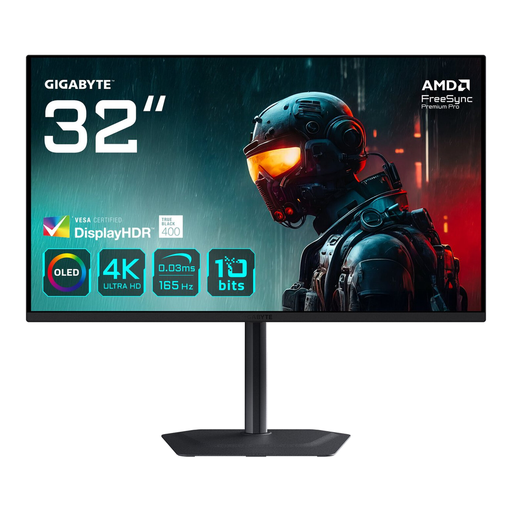 No image available
A 31.5-inch 4K OLED option for anyone weighing detailed game worlds and black levels against the risk of burn-in from static elements left on screen for long periods.
3840 × 2160; OLED.
Check which picture modes your PC or console supports, along with the panel care terms.
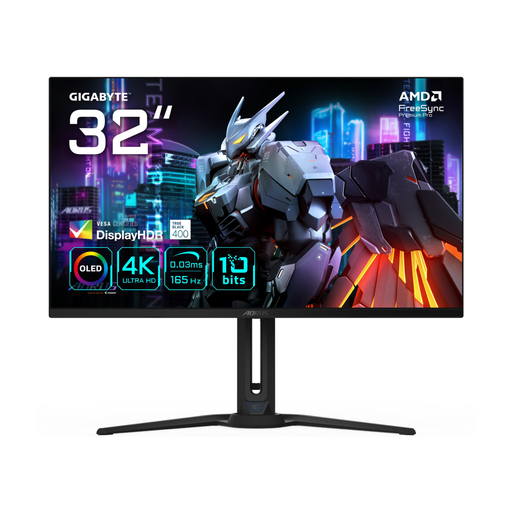 No image available
A 31.5-inch 4K OLED option to compare with mini-LED LCD if dark scenes and detail matter to you; OLED carries a risk of burn-in from static images displayed for long periods.
3840 × 2160; 4K Ultra HD; OLED.
Check the modes and connections supported by your gaming device before making refresh rate your deciding factor.
No. An HDR label alone doesn’t tell you how a monitor displays black. For the exact model, also check black uniformity and local dimming around small bright objects.
Compare the video ports and supported modes on your PC or console with those on the exact monitor. For example, MSI lists HDMI 2.1 and support for 120 Hz, VRR and ALLM on consoles for the MPG 321URX QD-OLED; that doesn’t mean every games console or game supports those modes.
Where possible, vary the content on screen and check your model’s panel care and warranty terms. OLED care features are designed to reduce risk, not to prove that burn-in is impossible.
With normal use, you have a legal guarantee against the retailer if the product doesn’t do what you could reasonably expect it to. ACM ConsuWijzer explains that this guarantee in the Netherlands doesn’t have a fixed two-year period; a manufacturer’s warranty is separate.
For a standard online purchase by a consumer, you generally have up to 14 days after delivery to change your mind. ACM ConsuWijzer explains this right; also check the relevant exceptions and returns terms.