
Teams assessing colour together
If you review reference images up close, check that the stated colour space matches your files and workflow. BenQ and EIZO publish model specifications for different colour workflows.


For reference images that colleagues assess up close for colour and detail, a colour-focused desktop monitor is a good fit. If the image needs to be visible from different parts of the room, a larger presentation display is better suited to the task. BenQ and EIZO publish specifications for colour-focused models, while Philips lists the Signage 5000 43BDL5050D/00 as a 42.5-inch display for 24/7 use. Check viewing distance, lighting, the colour space used in your workflow and the display setup. Screen size or a stated colour space alone cannot guarantee a consistent image in your workplace.
If you review reference images up close, check that the stated colour space matches your files and workflow. BenQ and EIZO publish model specifications for different colour workflows.
When colleagues view the image from different positions, viewing distance, ambient light and operating hours are all important considerations. Philips lists the Signage 5000 43BDL5050D/00 as a 42.5-inch display for 24/7 use.
With different people using the display, it’s useful to check that the connections and adjustment options suit their devices and viewing positions. For example, BenQ and ASUS list USB-C connections on the models discussed here.
Choose this option: when colleagues assess the colour and detail of reference images together, up close. Match the stated colour space to your files and workflow.
Bear in mind: a desktop monitor calls for a different viewing setup from a large presentation display. Specifications don’t measure how the image will look in your workplace.
Choose this option: when reference images need to be visible from different positions or the display will be left on for long periods. Philips specifies 24/7 use for the Signage 5000 43BDL5050D/00.
Bear in mind: screen size and stated brightness alone don’t tell you whether a model is suitable for making colour decisions in your workflow.
First, consider where and how your colleagues will view the image. Then compare the colour workflow, connections, setup and operating hours of specific models.
| Consideration | What to look for | Who should pay particular attention? |
|---|---|---|
| Colour and detail | Compare the colour space of your files with the coverage and picture settings specified for the exact model. | When I assess colour and detail with colleagues, I want the display settings to suit our files. Around 37% of consumers put colour and detail first. |
| Visibility around the room | Consider viewing positions, screen size, ambient light and where the display will be placed. | When colleagues need to view the screen from different positions, I look at how visible it is under the room’s lighting. Around 27% of consumers prioritise visibility from a distance. |
| Connecting and adjusting | Check the video connections, the laptop’s power requirements and whether the stand or bracket suits your setup. | When several colleagues need to connect their equipment, I want to know whether the connections and settings will work with their devices. Around 18% of consumers prioritise shared connections and setup. |
| Operating hours and aftercare | Compare the stated operating hours and energy label of the exact model. For business purchases, ask about the applicable service terms. | For a display that stays on for long periods, I want to consider its stated operating hours and service arrangements. Around 18% of consumers prioritise long operating hours and aftercare. |
The stated coverage relates to a specific colour space and model. It doesn’t guarantee how files will look with your chosen settings and office lighting.
Start by identifying the colour space of your files, then check the settings and calibration options for the exact model.
A 42.5-inch presentation display and colour-focused desktop models of around 27 inches are designed for different viewing setups.
Before choosing a display type, establish viewing positions, daily usage and whether colleagues will be assessing colour.
An unsuitable screen size or setup may mean the installation needs to be adjusted.
An anti-glare coating won’t automatically solve problems caused by lighting, blinds or the screen’s position in relation to windows. The Dutch Arboportaal highlights these factors for screen-based work.
Check the intended location under typical lighting conditions, even if your chosen model has an anti-glare coating.
The DesignVue PD2705U is a 27-inch desktop option for sRGB or Rec.709 workflows.
The ColorEdge CS2740 is a 27-inch-class 4K option for workflows that require Adobe RGB and calibration features.
The ProArt PA279CRV is a 27-inch 4K desktop option with stated wide colour-space coverage and USB-C.
The Signage 5000 43BDL5050D/00 is a larger professional display designed to be visible to a group.
The UltraSharp U2723QE is a 27-inch 4K desktop option with hub connections and an adjustable stand.
This selection includes desktop monitors for assessing colour and detail, as well as larger displays for visibility in a shared space. Compare the stated features with your workflow and intended setup.
 No image available
Could suit a shared desktop setup where reference images and different devices are both important. Check the connections and colour settings for your workflow.
27 inches; 4K UHD (3840 × 2160).
 No image available
An option to consider for a shared workspace where colour and detail assessment and an adjustable viewing position matter.
27 inches; 4K UHD (3840 × 2160); 120 Hz; HDR500; USB-C 90 W PD; HDMI; DP; PIP and PBP.
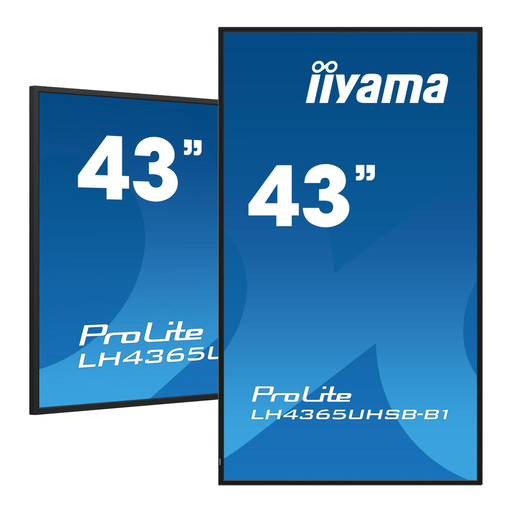 No image available
A larger display to consider when reference images need to be visible from different positions. Check its placement and the light in the room.
43 inches; 4K; stated brightness 800 cd/m².
 No image available
Could suit a desktop setup for reference images that also uses multiple computers. Check that the colour workflow and connections work with your equipment.
31.5 inches; 4K Ultra HD (3840 × 2160).
 No image available
A larger desktop option to consider when you need to view reference images on a spacious screen. If you display static images for long periods, bear in mind the stated warning about burn-in.
31.5 inches; 4K UHD (3840 × 2160); QD-OLED.
The product description warns that the QD-OLED panel may be susceptible to burn-in when static images are displayed for long periods.
No, it depends on the viewing distance and the task. A larger screen may be suitable when colleagues are viewing from different positions. For colour assessment, also check the colour space and settings of the exact model.
Check which video connection the source device supports, how much power the laptop needs, which cables are included, and whether the stand or bracket suits your setup. For example, BenQ lists USB-C video, 65 W power delivery and VESA 100 × 100 mm for the PD2705U. BenQ notes that the supplied signal cables may vary by region.
Compare the energy labels and stated operating hours of specific models with how you’ll use the display day to day. The European Commission uses an A to G energy label scale for electronic displays, including computer monitors and signage displays. For a shared installation, also check who will manage the picture settings and which service terms apply to the purchase.
Workplace regulations apply when employees carry out screen-based work. According to the Arboportaal, among other things, the screen must be height-adjustable and non-reflective, and lighting and its position in relation to windows must be taken into account. For employees who work with screens for more than 2 hours a day, the Arboportaal lists additional requirements. This does not mean that the same requirements automatically apply to a screen used only to display artwork passively.
No. Government guidance on consumer protection cannot automatically be applied to a business purchase. The Dutch government describes the legal guarantee as the right to a product that works properly. Before ordering, check whose name the purchase will be made in and which terms will apply.