
Blind noticeboard administrator
Creates and checks notices using a keyboard and speech output. First, it’s worth deciding whether a new monitor would add anything. Visio describes NVDA as software that lets you use a Windows computer without sight.


You don’t need a new monitor for a screen reader’s speech output: that comes from the computer and the software you use, as Visio explains. If you also have some residual vision, choose a monitor based on your own magnification and display settings. For a screen showing public notices, digital signage is a separate option. A monitor alone won’t make notices accessible to visitors who use a screen reader.
Creates and checks notices using a keyboard and speech output. First, it’s worth deciding whether a new monitor would add anything. Visio describes NVDA as software that lets you use a Windows computer without sight.
Uses magnification or customised display settings as well as speech, and wants a monitor that works with their preferred reading settings. Visio highlights that a larger screen doesn’t automatically make text larger.
Wants to show notices to visitors on a screen. Public display is separate from making notices accessible to manage and providing a digital alternative.
Choose this when: you use the computer without sight and the new screen has no separate purpose for visitors or someone looking at it visually.
Bear in mind: the publishing tool and notice content need to be accessible; a screen reader won’t make a purely visual noticeboard accessible by itself.
Choose this when: you create notices at a desk and use magnification, text or contrast adjustments as well as speech.
Bear in mind: a larger screen doesn’t guarantee larger text; try the monitor with your own settings and lighting.
Choose this when: visitors need to view notices on a separate screen.
Bear in mind: mounting, management, operating hours and energy use all factor into your choice. You’ll also need to provide an accessible digital alternative.
First decide whether the screen is for accessible administration, visual viewing or displaying notices to visitors. Then check the features that matter for that purpose.
| Consideration | What to look for when buying | Who is this important for? |
|---|---|---|
| Accessible content and controls | Try creating, publishing and reading back a notice using the screen reader you plan to use. Also check that information is digitally accessible outside any image or on-screen presentation. | If I manage notices using speech output, I want to know whether the publishing tool and content support the entire task. Around 36% of consumers put accessibility at the top of their list. |
| Readability with residual vision | Try your own magnification and text settings at the intended resolution and under the intended lighting; don’t compare screen size alone. | If I use magnification or residual vision, I want to view text in a way that works for me. Around 29% of consumers prioritise visual readability. |
| Public-facing noticeboard | Check the mounting, management options, stated operating hours and energy label for the exact model. Also consider the viewing distance. | If visitors need to see notices on a separate screen, I’m mainly concerned with the public display and where it will be placed. Around 21% of consumers put this need first. |
| Connectivity and adjustability | Check the computer’s video output, the model’s inputs and included cable, and whether you need height, swivel or tilt adjustment. | Once I know what the monitor is for, I want it to work with my computer and desk setup. Around 14% of consumers prioritise their administration setup. |
The screen reader runs on the computer and provides the speech output. A larger monitor won’t help the software read digital notices more effectively.
First, try the whole task using a keyboard and screen reader. Only buy a different screen if you have a specific need related to residual vision, visual checking or public display.
A new screen won’t fix an inaccessible publishing tool or notice content.
According to Koninklijke Visio, text doesn’t automatically appear larger on a bigger screen; your computer’s resolution and settings also make a difference.
Compare screens using your own magnification and text settings, and in the lighting conditions where you’ll use them.
A work monitor for an administrator’s desk and a digital signage display for public notices serve different purposes. Features of a particular signage model don’t automatically apply to work monitors.
Decide where the screen will go and how many hours it will be used, then check the specifications and energy label for the exact model.
Public display may also require suitable positioning and ongoing management.
The Dell Pro Plus P2725D is a 27-inch QHD work monitor for an administration setup where extra screen space and adjustability are useful.
The 27BA45QB-B is a 27-inch QHD work monitor for someone who works visually as well as using speech.
The FlexScan EV2781 may suit a workstation where its specified USB-C video and power delivery are compatible with the computer.
In this comparison, Philips offers both an office monitor for creating notices and a separate signage model for displaying notices publicly.
This selection includes work monitors for visually checking notices and a signage display for showing notices to visitors. A monitor doesn’t provide a screen reader; accessible controls and digital notice content need to be assessed separately.
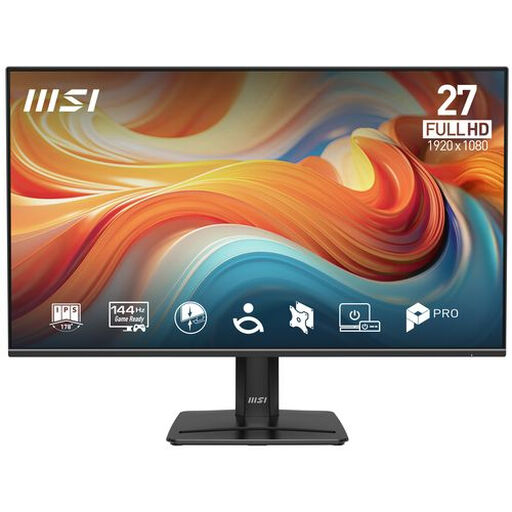 No image available
Could suit an administration setup where notices are checked visually; speech output requires screen reader software on the computer.
27 inch, 1920 × 1080 (FHD), IPS, 144 Hz, HDR Ready and Adaptive-Sync.
The stand is tilt-adjustable.
 No image available
An option for visually checking notices at a workstation; the monitor itself doesn’t provide a screen reader.
27 inch, 4K and IPS.
 No image available
Could suit a desk setup for creating and visually checking notices; speech output requires screen reader software on the computer.
34.1 inch, curved, WQHD, IPS, USB-C hub, webcam, 100 Hz and 90 W Power Delivery.
USB-C video and power delivery require a compatible laptop that supports DisplayPort Alt Mode and USB Power Delivery.
 No image available
Could suit a workstation where notices are checked visually; a screen reader remains software on the computer.
27 inch, 3840 × 2160, IPS, 120 Hz and HDR500.
USB-C with 90 W Power Delivery, HDMI and DisplayPort. The stand adjusts for height, swivel, pivot and tilt; USB-C power delivery requires a compatible computer.
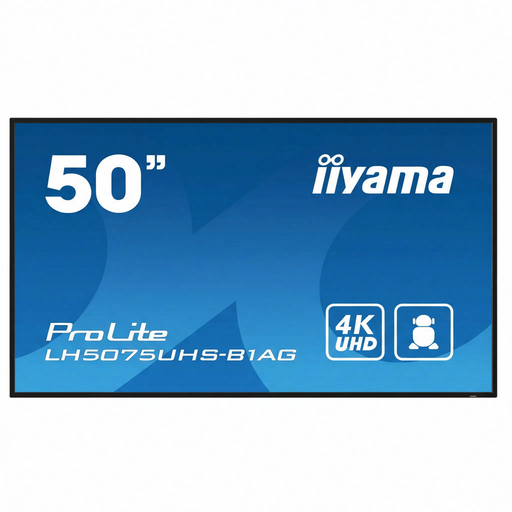 No image available
Designed for public display of notices; providing visitors with an accessible digital alternative is a separate consideration.
50 inch, 4K UHD, Android OS and built-in media player; the description states 500 cd/m² brightness and 24/7 use.
No, not for speech output itself: Visio describes NVDA as software that lets you use a Windows computer with a keyboard and speech output. If you also have some residual vision, assess separately whether another monitor’s display settings would work for you.
Create and publish a test notice using the screen reader you plan to use, then check whether the information is accessible outside any visible image or on-screen presentation too. DigiToegankelijk highlights keyboard controls and alternative text as considerations for digital content.
Try your own magnification and display settings under the lighting conditions at your workstation. For a separate screen for visitors, check the mounting, controls and stated operating hours for the exact model; don’t assume it has the same features as a standard work monitor.
Compare the energy labels for the exact models and factor in the planned hours of use. According to the European Commission, monitors and signage displays are covered by energy labels for electronic displays.
According to ACM ConsuWijzer, if a product breaks sooner than you could reasonably expect under normal use, the seller must provide an appropriate solution free of charge. If you’re buying on behalf of an organisation, check the applicable contract terms; the consumer guidance cited here doesn’t establish that every business purchase has the same terms.
It’s not possible to determine that for every community organisation based on this description. DigiToegankelijk explains that websites and apps belonging to government organisations must meet certain requirements. Whether those rules apply to the organiser and the specific publishing channel needs to be assessed for each situation. In the meantime, treat an accessible digital alternative as a separate design consideration, not a feature of the monitor.
If you process personal data, the Dutch Data Protection Authority says you need a lawful basis under the GDPR. Consent is one possible lawful basis, but it isn’t automatically the only one. Before publishing a notice, consider what information will be visible and which lawful basis applies to that specific processing.