What to consider when choosing
First decide which parts of your work you want to see at the same time: two windows side by side, more height for a scan, or an adjustable setup for one long page.
34-inch ultrawide
A good fit if: you usually keep the scan and index form open at the same time and mainly need more horizontal space. Philips lists the 346E2CUAE/00 as a 21:9 screen with a resolution of 3440 × 1440.
The trade-off: its 1440 vertical pixels give you less height than the 2160 pixels on the 4K models discussed here. Also check that the screen will fit on your desk.
31.5-inch 4K
A good fit if: you want to see a large part of the newspaper scan while leaving room for transcription. Dell, BenQ and EIZO list 31.5-inch models with a resolution of 3840 × 2160 pixels.
The trade-off: a 16:9 screen is less wide than a 21:9 model, and the layout you can use also depends on your software and text zoom.
27-inch 4K with pivot
A good fit if: you often focus on one long scan or column of text and want to try using the screen in portrait orientation. Dell lists the P2725QE as a 27-inch 4K screen with pivot adjustment.
The trade-off: in portrait orientation, there’s less horizontal space for a second window. Check that this suits the way you work.
The KB describes historical newspapers in Delpher as scans with OCR and word coordinates. Think about which scan and data-entry fields you want to refer to at the same time; the percentages below show the main priority for each scenario.
| What to consider |
What should you check? |
Who will find this important? |
| Scan and data-entry field side by side |
Try your own scan viewer and data-entry form at your preferred zoom level; compare the aspect ratio and resolution. |
If I keep both windows open, I don’t want to keep switching between them. For around 36% of consumers, space for two windows is the top priority. |
| Keeping the page and details readable |
See how much of your scan stays visible when the text is set to a comfortable reading size. |
When small print matters, I want to enlarge it without losing sight of the overall page. Around 29% of consumers prioritise being able to read page details. |
| An adjustable workspace |
Check the height adjustment, screen position in relation to windows, and whether you can read the text without adopting an uncomfortable posture. |
When indexing for long periods, I want a readable setup that I can adjust to suit my workspace. For around 21% of consumers, workspace adjustment is the main priority. |
| Connections and choosing the right model |
Check your computer’s video output, which cable you need, and whether you need power delivery via USB-C. |
When connecting a monitor to my computer, I want to know in advance which connections and features I really need. Around 14% of consumers prioritise connectivity and choosing the right model. |
Monitors at Joybuy
This selection of Joybuy products includes ultrawide screens and 4K monitors for viewing newspaper scans and index fields, including a pivot option for tall pages.
 No image available
Philips 34B2U5900C/00 34-inch curved dual-mode business monitor
The 34-inch 21:9 layout is designed to give you a wide workspace, with room for several applications side by side.
The specified WUHD mode is 5120 × 2160 at 120 Hz; the other Dual Mode setting is 2560 × 1080 at 240 Hz. The resolution depends on the mode you select.
Joybuy
 No image available
INNOCN CB27U1 27-inch 4K UHD monitor
A 27-inch 4K monitor with pivot adjustment could be a good fit if you want to view a tall scan in portrait orientation.
It has a resolution of 3840 × 2160; the product description lists a 90° rotatable, height-adjustable stand and PIP/PBP display. Check that your computer supports the resolution and connections you want.
Joybuy
 No image available
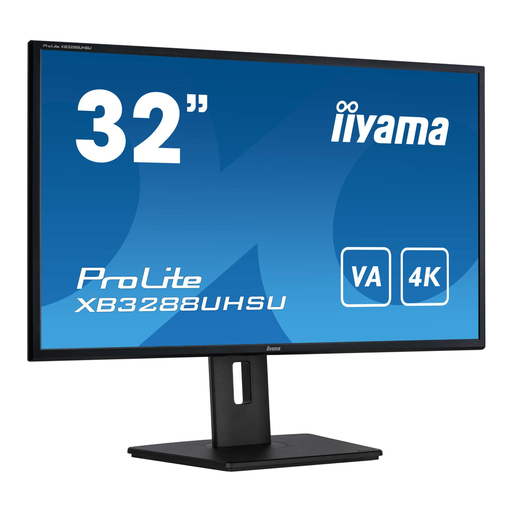
iiyama ProLite 32-inch 4K VA monitor
The 32-inch screen could be a good fit if you want to view a large part of a scan and adjust the screen orientation to suit a tall page.
The product description lists a resolution of 3840 × 2160 pixels, HDMI and DisplayPort connections, and a height-adjustable stand with pivot. Check which connection your computer uses.
Joybuy
 No image available
Philips E Line 346E2CUAE/00 34-inch ultrawide monitor
The 21:9 layout is worth considering if you want to place a newspaper scan and index fields side by side across a wide screen.
Philips lists a resolution of 3440 × 1440 pixels; the product description mentions USB-C, MultiView and an adjustable stand. Its vertical resolution is lower than the 3840 × 2160 offered by the 4K options discussed here.
Joybuy
Frequently asked questions
Do you need Picture-by-Picture for one scan and one data-entry form?
Not necessarily. EIZO lists Picture-by-Picture for the EV3240X; you can also arrange two windows from one computer as normal windows. First, try checking whether your scan viewer and data-entry programme fit side by side at your preferred zoom level.
What should you check when connecting and setting up your monitor?
Check that your computer can output the resolution you want through its video connection. For video over USB-C, BenQ lists DisplayPort Alt Mode for the PD3205U; its up to 90 W power delivery is only relevant if it suits your laptop. Then adjust the windows and text size so they’re easy for you to read.
What applies to online purchases and faults in the Netherlands?
For a distance purchase by a consumer, you generally have a 14-day cooling-off period, according to the Rijksoverheid. The retailer is also responsible for the statutory warranty if a product is faulty. The ACM states that this warranty has no fixed time limit in the Netherlands; what you could reasonably expect from the product is what matters.
Are there legal workplace requirements for indexing newspapers?
For employees, Arboportaal states that if you work at a screen for more than two hours a day, the screen and keyboard must not be attached to each other. This is not a general product specification or a uniform purchasing requirement for every private buyer.


