Who might need a switch?

Student using a shared residential network

First, you’ll want to find out whether your room’s network allows you to connect your own wired printer and whether your devices can communicate with each other. Facilities can vary between residences; the University of Twente, for example, describes different network facilities for residents.

Student with one Ethernet socket

You want to connect a printer and other devices by cable without having to configure a switch. Remember to include the connection to the existing network when counting the ports you need. HP Support describes a network switch as one way to connect an Ethernet printer.

Student with several wired devices

You need more wired connections in addition to the printer, so you’re comparing five-port and eight-port switches. Bear in mind that the cable to the existing network also uses a port.

What should you look for?

No additional switch

Choose this if: your router already has a spare port, you don’t need to connect any additional wired devices or your printer doesn’t have an Ethernet port.

Bear in mind: a switch doesn’t add an Ethernet port to the printer itself.

Five-port unmanaged switch

Choose this if: you have a permitted Ethernet connection and want to connect up to four devices by cable, in addition to the uplink.

Bear in mind: the uplink uses one of the five ports; also check the power supply and which cables you need.

Eight-port unmanaged switch

Choose this if: you want to connect more wired devices than a five-port switch can accommodate.

Bear in mind: the extra ports may be unnecessary if you only have a printer and laptop; they won’t remove network restrictions.

Managed switch

Choose this if: you’re allowed to manage the network yourself and need a specific feature, such as VLAN settings.

Bear in mind: configuration requires some know-how, and your own settings won’t override the residential network’s policies.

What to consider What to look for when buying Who is this important for?
Printer accessible on the residential network Check that the printer has Ethernet, that there’s a suitable uplink and that devices are allowed to communicate with each other on this network. If I first want to know whether my computer and printer can communicate, I’ll check network access before buying anything. Around 36% of consumers prioritise printer accessibility.
Enough wired connections Count the uplink, printer and other devices, then compare the total with five or eight ports. If I have several devices that need a wired connection as well as the printer, I want enough ports left once the uplink is connected. Around 29% of consumers choose mainly on the basis of the number of Ethernet ports.
Simple, quiet placement Check whether each model is fanless, what kind of power supply it uses and where it can be placed. If the switch will be near my desk or bed, I’ll look for a simple setup and check whether it might make fan noise. Around 21% of consumers give placement and ease of use top priority.
Room to expand or manage your own network Choose extra ports to meet your calculated connection needs; check whether you’re allowed to and want to configure management features yourself. If I want to connect more devices later or need an approved management feature, I’ll compare that specific requirement with the model’s features. Around 14% of consumers focus mainly on room to expand or managing their own network.

Avoiding common buying mistakes

  • Buying a switch to get around network isolation

    Network isolation can prevent your computer and printer from communicating. Extra ports won’t change that network rule; HP Support describes isolation as a possible cause of setup or printing problems.

    Ask the network administrator whether devices on your residential network are allowed to communicate with each other.

  • Assuming five ports means five device ports

    The connection to the existing network uses a port, leaving a maximum of four for connected devices on a five-port switch.

    Count the uplink and all the devices you want to connect by cable at the same time before choosing the number of ports.

  • Assuming a model has PoE or management features because a similar one does

    A standard switch, a PoE model and a model with management features aren’t automatically interchangeable. For example, TP-Link lists VLAN features for the TL-SG105E; these aren’t automatically available on the unmanaged TL-SG105. NETGEAR doesn’t specify a PoE budget for the GS305v3.

    Check the full model number and compare its listed features with what you actually need.

Brands to compare

TP-Link

The models mentioned include unmanaged five- and eight-port switches, as well as a separate managed model.

  • TP-Link lists five gigabit ports and plug-and-play setup for the TL-SG105; the TL-SG108 has eight ports.
  • VLAN settings are a feature of the TL-SG105E and shouldn’t be attributed to the unmanaged TL-SG105.

NETGEAR

The GS305v3 is an option for a simple five-port setup.

  • NETGEAR specifies five gigabit ports and a fanless design for the GS305v3.
  • These are manufacturer specifications for this version, not the result of an independent performance test.

D-Link

The DGS-105 is an unmanaged option for a small wired setup.

  • D-Link lists five gigabit ports and plug-and-play setup for the DGS-105.
  • When buying, check the exact revision and the delivery terms.

Zyxel

The GS-100 series includes compact unmanaged models with five or eight ports.

  • Zyxel lists five ports for the GS-105B V5 and eight for the GS-108B V5; the manufacturer describes the series as fanless.
  • Series specifications don’t automatically apply to every other Zyxel model.

Joybuy products for this setup

This selection includes unmanaged five- and eight-port switches, as well as models with PoE or management features for wired devices. Check that each model’s features are suitable for your network and equipment.

TP-Link TL-SG105 5-port metal gigabit switch

TP-Link TL-SG105 5-port metal gigabit switch

Suitable for a simple wired setup with a printer and other devices. TP-Link lists five RJ45 gigabit ports and plug-and-play setup; one port is needed for the uplink.

View at Joybuy
TP-Link 5-port gigabit desktop switch with PoE

TP-Link 5-port gigabit desktop switch with PoE

An option if you need PoE as well as standard wired connections. Check that the PoE feature and power supply are suitable for the devices you want to connect.

View at Joybuy
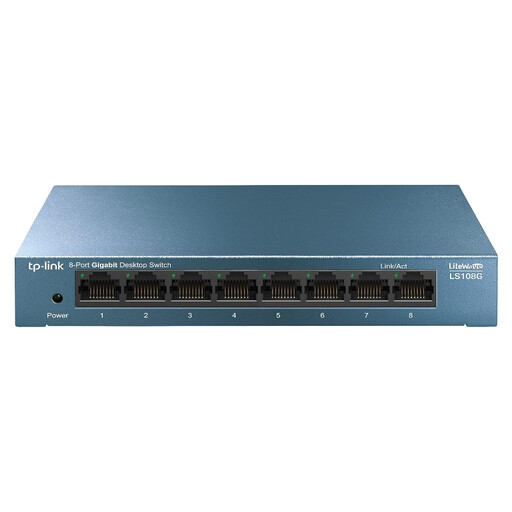
TP-Link LiteWave LS108G unmanaged switch

TP-Link LiteWave LS108G unmanaged switch

Worth considering if you want an unmanaged setup for a printer and several wired devices. Include the uplink when working out how many ports you need.

View at Joybuy
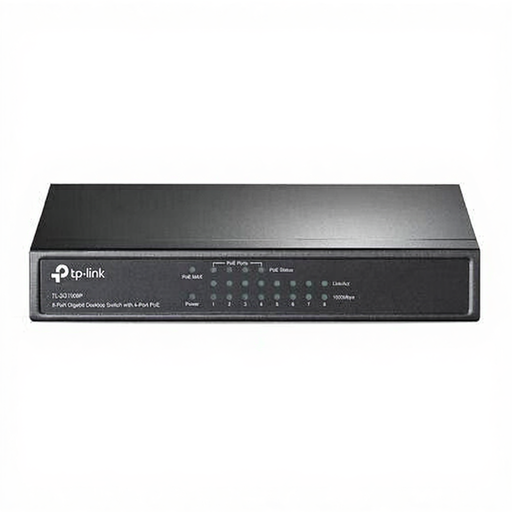
TP-Link TL-SG1008P unmanaged gigabit switch with PoE

TP-Link TL-SG1008P unmanaged gigabit switch with PoE

An option if you want to connect several wired devices and need PoE. Check in advance that your devices are compatible with the PoE feature, and follow the guidance to place the switch somewhere well ventilated.

View at Joybuy
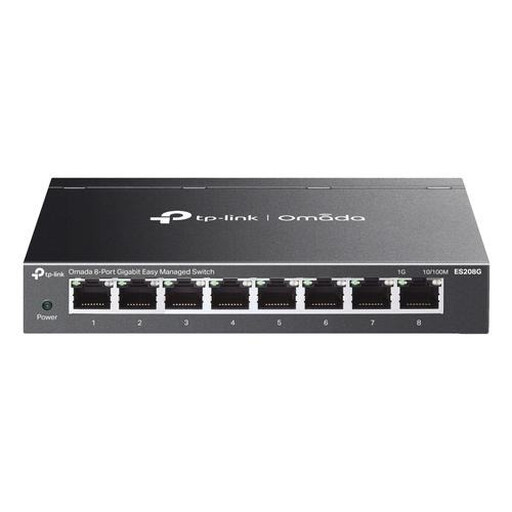
TP-Link Omada ES208G managed L2 gigabit network switch

TP-Link Omada ES208G managed L2 gigabit network switch

Suitable only if you’re allowed to manage the network yourself and genuinely need management features. Your own settings won’t override the connection rules of a managed residential network.

View at Joybuy

Frequently asked questions

Can I connect a printer without an Ethernet port directly to a switch?

No, not using an Ethernet cable. Check the printer’s connections and, if necessary, use another connection method that’s suitable for that printer model; a standard Ethernet switch won’t add an Ethernet port to the printer.

How do I connect the printer, and what should I check if it doesn’t appear?

If your printer has an Ethernet port, connect the cable to the printer and a network port, then install the appropriate printer software. If you have problems, check the cable and connection lights, and see whether your computer and printer can communicate over the local network; isolation settings may prevent this.

What are my rights when buying a switch online?

When you buy from a business online in the Netherlands, you’re often entitled to a statutory 14-day cooling-off period, as stated by the Government of the Netherlands. Faulty products are also covered by a statutory guarantee; the Government of the Netherlands notes that there is no fixed statutory guarantee period in the Netherlands.

What should I look for in electrical equipment for the Dutch market?

According to Business.gov.nl, suppliers of electrical and electronic equipment must comply with the applicable European safety requirements. Government guidance also emphasises that a CE mark is not a quality mark; if in doubt, check the exact version and power supply for the model.
