
Connecting a printer and workstation
You already have a working network connection in your garden office and want to connect wired devices without configuring a switch. HP explains how to connect a printer with Ethernet to a router, switch or hub.


If you already have a working network connection in your garden office and want to connect a printer with Ethernet or a print server, an unmanaged gigabit switch is usually the simplest option. First, check how the printer connects: a switch won’t make a USB printer network-ready on its own. Remember to include the uplink when counting ports, and choose PoE or VLAN management only if your equipment or network plan requires it.
You already have a working network connection in your garden office and want to connect wired devices without configuring a switch. HP explains how to connect a printer with Ethernet to a router, switch or hub.
You still need to work out how your main network will reach the garden office. The cable route and installation are important decisions to make before adding a switch.
You want to power a compatible PoE device or use VLANs as well as printing, for example. Choose a switch that suits your equipment and network configuration; TP-Link and Zyxel describe these features for specific models.
First, check whether there is already a connection between your home and garden office, and how the printer or print server connects. Then choose the number of ports and any features that suit the connected equipment.
| What to consider | What should you check? | Who should pay particular attention? |
|---|---|---|
| Printer connection | Check whether the printer has Ethernet or needs a separate, compatible USB print server. HP explains how to connect via Ethernet to a switch; StarTech.com notes limitations for certain printers and features when using a USB print server. | If I want to use a USB-only printer, I’ll first check the connection and the features I need. Around 37% of consumers prioritise printer or print server compatibility. |
| Connection between buildings | First, work out the route, connections and conditions for the link to the garden office. Dutch rules apply to mechanical digging; the Land Registry and the Dutch government provide information about them. | If the garden office doesn’t yet have a usable connection to my home network, I’ll arrange that before choosing a switch. Around 36% of consumers prioritise the connection between the buildings. |
| Ports and PoE | Count the connection to the main network, the print server and any other devices. For PoE equipment, check the standard required and the power output of the exact version. | If I want to connect more wired devices or power a compatible device through the network cable, I’ll work out the number of ports and PoE requirements in advance. Around 18% of consumers prioritise expansion or PoE. |
| VLAN and management | Choose a managed switch only if your network plan calls for settings such as VLAN and you can configure it to work with your other network equipment. TP-Link and Zyxel list VLAN features for specific models. | If I want to segment my network deliberately, I’ll check that the switch and other equipment support the configuration together. Around 9% of consumers prioritise network management features such as VLAN. |
A switch with Ethernet ports won’t add a USB connection or printer protocol by itself. For a USB printer, network printing also depends on the compatibility and features of a separate print server.
Check the exact printer model, its connections and the printing features you need before choosing a switch.
You may need a compatible USB print server as well as the switch.
In this setup, the connection to the main network uses one of the switch’s ports. That means a five-port model won’t have all five ports available for devices in the garden office.
Count the uplink, print server and other wired devices separately before deciding how many ports you need.
If there aren’t enough connections, you may need a switch with more ports.
A switch in the garden office won’t replace the network connection to your home. Humidity and temperature may also matter where you plan to install the equipment.
First, plan the cable route and choose a suitable dry location within the operating conditions specified for the exact model.
The cable, connection equipment and any installation work are separate parts of the setup.
TP-Link publishes different PoE specifications for the TL-SG1005P: one manufacturer page lists PoE+ with 65 W total, while another lists PoE with 56 W total. The model name alone doesn’t tell you which version you need.
Compare the hardware version, PoE standard and total power output of the version on offer with your devices’ requirements.
The wrong version may not power a planned PoE device to the required specifications.
The range includes unmanaged gigabit switches, models with VLAN settings and PoE versions.
NETGEAR describes the GS305v3 as an unmanaged switch for a straightforward wired network expansion.
The DGS-105 is an unmanaged five-port gigabit switch for a small wired network.
Zyxel describes the GS1200-5 as a web-managed gigabit switch for users who need settings such as VLAN.
These are wired switches for a print server and any additional network devices; some versions add PoE or network management. Before buying, check that the features and connections suit your equipment.
 No image available
A good choice if you want a straightforward wired network expansion without having to configure the switch.
Five RJ45 ports with 10/100/1000 Mbps; the product description says it’s plug-and-play. This isn’t a USB print server, and the product information warns against water, damp and extreme temperatures.
 No image available
Suitable for a network with a compatible PoE device, alongside the wired connection for the print server.
The product description lists five gigabit ports, four of which support PoE. Check the PoE standard and version of the product on offer; this isn’t a USB print server.
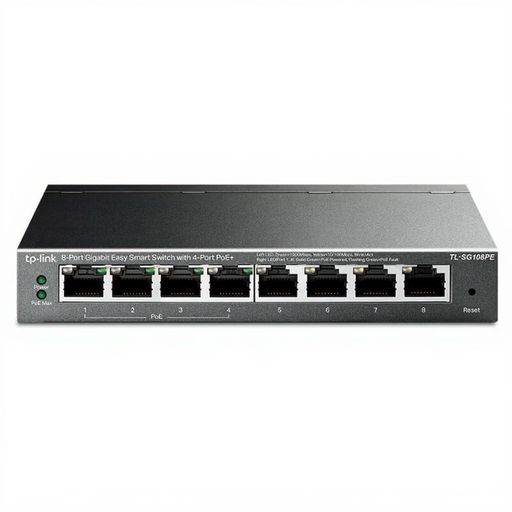 No image available
A good choice if you need more wired connections or compatible PoE connections in addition to the print server.
The product title lists eight gigabit ports and four PoE ports; the product description mentions network management. Check that the management features suit your network plan. This isn’t a USB print server.
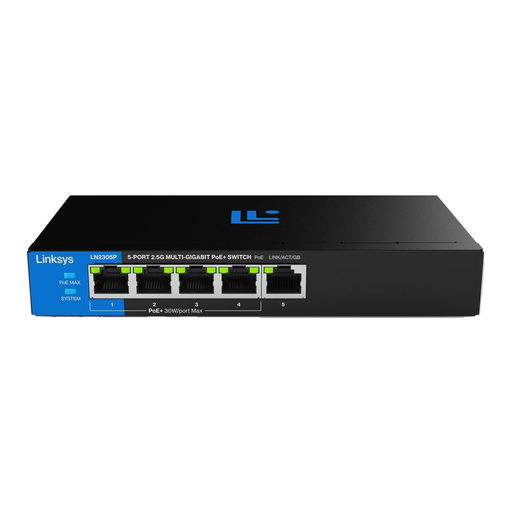 No image available
Suitable for a setup with a compatible PoE device and network equipment that supports the listed port speed.
The product description lists five ports supporting speeds of up to 2.5 Gbps, four PoE+ ports and a total PoE budget of 60 W. This isn’t a USB print server.
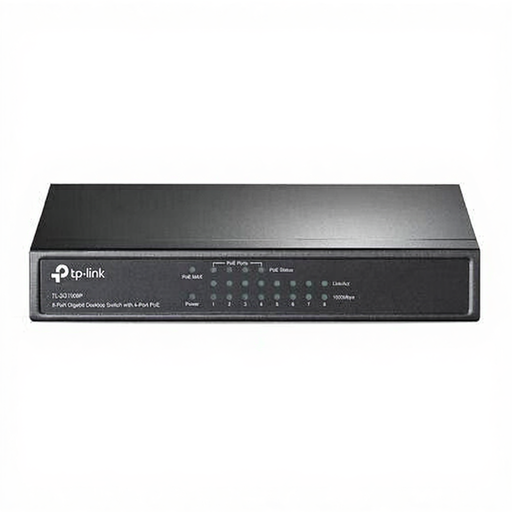 No image available
A good choice if you need more wired connections and want to connect compatible PoE equipment.
The product description lists eight RJ45 gigabit ports and four PoE ports. Check your devices’ PoE requirements; this isn’t a USB print server.
No, not via its USB connection: the switches discussed here have Ethernet ports. A separate USB print server may work if it’s compatible with your printer; also check that it supports the printer features you need.
Connect the printer’s Ethernet port to the switch, then connect the switch to your existing network. Install the printer on the computers or devices you use, following the instructions for the exact printer model.
First, check the operating conditions for the exact model and the location where you plan to install it. TP-Link lists an operating temperature of 0–40 °C and non-condensing humidity for the TL-SG105E; this doesn’t confirm that it’s suitable for condensation or frost.
According to the Land Registry, digging by hand with a spade around your home doesn’t need to be reported. A notification is required for mechanical digging; the Dutch government says it must be submitted at least three working days before the work begins.
When you buy as a consumer, you’re entitled to a legal guarantee as well as any commercial warranty. ACM ConsuWijzer explains that, under the applicable conditions, the seller must resolve problems with a faulty product free of charge, for example by repairing or replacing it.