
Home worker with one network printer
Wants to know whether a spare router port will do. The printer needs a suitable Ethernet connection. HP explains how to connect a printer to a router, switch or hub via Ethernet.


If your printer has an Ethernet port and your router has a spare LAN port in a suitable location, you can connect the printer directly. A switch is most useful if you need extra wired connections at your home workspace; remember to allow for one port to connect to the router. Only choose management features or PoE if you need them for another device or a specific network setup, and bear in mind that you’ll still need to install the printer after connecting it.
Wants to know whether a spare router port will do. The printer needs a suitable Ethernet connection. HP explains how to connect a printer to a router, switch or hub via Ethernet.
Wants to connect the printer and, for example, a computer by cable in the same place. So, count the ports needed for your devices as well as the connection to the router.
Has a particular reason for network management or PoE, in addition to printing. Check the features and hardware version of the specific model; these aren’t standard requirements for a network printer.
First, check whether the printer can be connected by cable and whether a spare router port will do. Only then decide how many extra ports or special features your workspace needs.
| What to consider | What to look for | Who should consider this? |
|---|---|---|
| Printer connection | Check whether your exact printer model has an Ethernet port and whether there’s a spare, accessible LAN port on your router. | If I first want to know whether I can connect the printer to my network without an extra device, I check my printer’s connections and installation requirements. Around 42% of consumers choosing a setup put this basic connection first. |
| Number of ports | Count the printer and any other wired devices, and reserve one switch port for the cable to the router. | If I want to connect several devices by cable at my workspace, I also count the connection to the router. Around 25% of consumers choosing a setup prioritise extra ports. |
| Quiet placement | Check the design of the exact version, the available placement options and which power adapter is included. | If I’m placing the switch right next to my desk, I want to know whether the model is fanless and where I can plug in the adapter. Around 17% of consumers choosing a setup prioritise quiet placement. |
| Management features | Decide which setting you need and check whether the model and hardware version support that feature. | If I need a specific network configuration as well as printing, I want to know which settings I’ll need to manage myself. Around 8% of consumers choosing a setup prioritise network management. |
| PoE for another device | Check whether that device supports PoE and whether the switch you choose can provide the required power. | If I want to power a compatible device over Ethernet as well as connect my printer, I check the requirements of both devices. Around 8% of consumers choosing a setup prioritise PoE. |
A printer with Ethernet can be connected directly to a router port. A switch mainly adds more connections; it isn’t automatically needed for printing.
First, check the printer connection, available LAN ports and distance. Only buy a switch if you need extra ports in a convenient location.
An extra device also needs a suitable power adapter and may require an additional Ethernet cable.
The cable between the switch and router uses a switch port too. That means not all ports are available for printers and other devices.
Count all the devices you want to connect, plus one port for the router connection, before choosing between five and eight ports.
If you choose a switch with too few ports, you may need to replace it with one that has more connections.
Extra network features are designed for specific devices or settings; a standard Ethernet printer doesn’t need them just to work.
Decide in advance which device needs power over Ethernet or which setting you want to use. Bear in mind that a managed switch needs configuring.
On its Dutch product pages, TP-Link lists different adapter outputs for the TL-SG1005D: 5 V DC / 0,6 A and 9 V DC / 0,6 A.
Check the power adapter and hardware version of the exact unit you’re buying; don’t assume which adapter it needs based on the model name alone.
If the replacement adapter isn’t suitable, you may need to buy one that is.
The relevant range includes basic five-port switches, a configurable TL-SG105E and models with PoE ports.
The GS305v3 has five ports, while the GS308v3 has eight for setups with more wired devices.
D-Link says the DGS-105GL is designed to make it easy to expand a home or small-business network.
This selection includes switches for adding wired connections, from basic models to versions with PoE or management features.
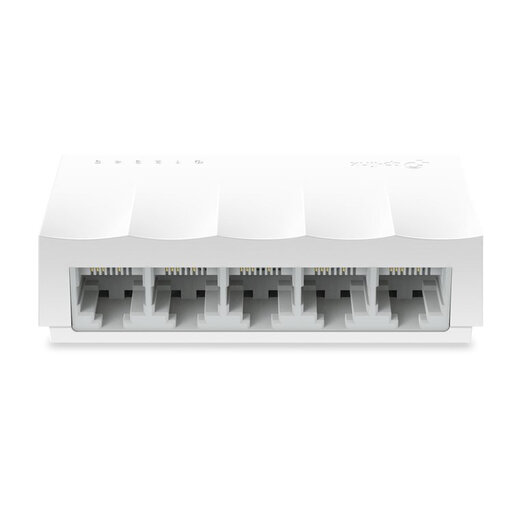 No image available
An option for adding extra wired connections; check that the port speed suits your network devices.
Five 10/100 Mbps ports; unmanaged and fanless according to the product name. This model isn’t a gigabit switch.
 No image available
A five-port option for a wired home workspace; remember to count the port to the router when working out how many ports you’ll have for devices.
Five gigabit ports and a metal casing according to the product name.
 No image available
Consider this type only if you want to connect a PoE-compatible device as well as your printer.
The product name lists five gigabit ports and PoE. Before use, check which ports provide PoE and how much power the exact version can supply.
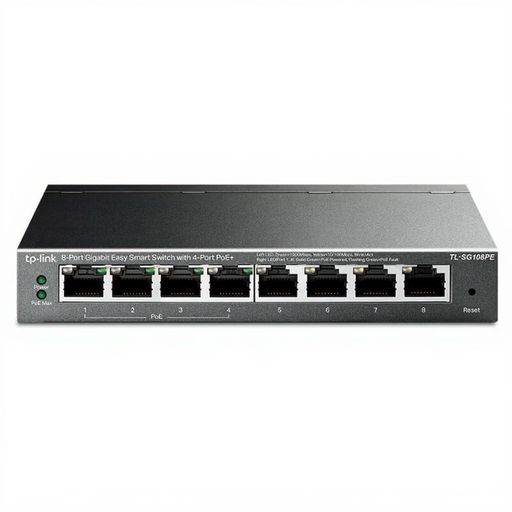 No image available
An option if you want to connect more wired devices and also have a compatible PoE device.
The product name lists eight gigabit ports and four PoE ports. Check that the PoE features and power output suit your device.
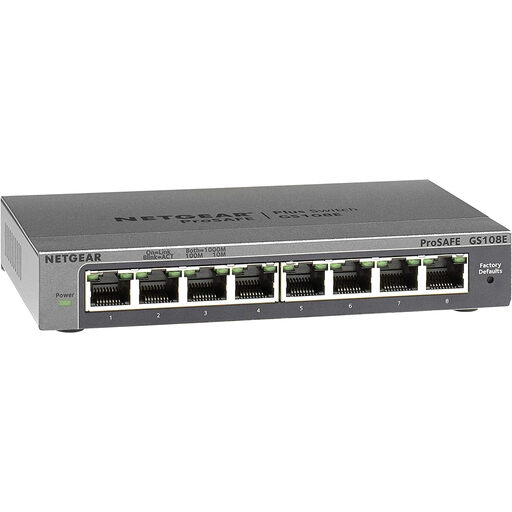 No image available
An option if you’re looking for management features as well as printer connections; decide in advance which settings you’ll actually use.
Check the ports and management features of the exact version before connecting it to your network devices.
Yes, if your printer has an Ethernet port and you can use a spare, accessible LAN port on your router. A switch mainly adds extra connections.
Connect the switch to your local network and plug the Ethernet printer into a spare port. Then follow the installation instructions for your printer model on your computer or mobile device. If you have problems, check the cable, connection lights and network settings.
No, connecting directly to a standard switch requires an Ethernet port on the printer. A USB printer needs a separate, compatible network solution; a standard Ethernet port on the switch isn’t a USB print server.
For a standard online consumer purchase in the Netherlands, you’ll generally have a statutory cooling-off period of up to 14 days after the product has been delivered, according to ACM ConsuWijzer. The seller must also offer a suitable solution if, under normal use, the product doesn’t meet what you could reasonably expect.
The Dutch government states that electronic devices placed on the EU market must carry a CE marking. Check the product information and safety instructions for the switch and power adapter on offer; information about one model doesn’t prove that another unit has the same features.