Who is this buying guide for?

Editor of interviews and 4K footage

You want to edit your own footage and interviews, and choose a laptop to suit your editing software’s resolution, effects and requirements. Adobe gives different recommended specifications for Premiere in HD and 4K.

Manager of local source material

You collect photos and video files from local residents or archives and want to keep working files separate from the originals. The Library of Congress advises creating new media copies of personal digital video when needed to prevent data loss.

Filmmaker on location

You take footage with you to interviews or screenings and need to weigh portability against screen space and connections.

What should you look for when choosing?

What to consider What should you check? Who is this important for?
Editing performance Check the resolution and effects against the requirements of your exact software version and laptop configuration. For Premiere on Windows, Adobe recommends 16 GB RAM for HD and 32 GB or more for 4K and above. If I’m editing interviews and 4K footage, I want enough memory and graphics capability for my software, without choosing a more powerful configuration than my projects require. Around 33% of consumers prioritise editing performance.
Source files and storage Assess how much footage you have, how much SSD space is free and which connections your external drives need. Proxies are smaller working copies; keep the originals separate and make additional copies. I want to manage photos, interviews and editing files without keeping the only copy of the originals on my laptop. Around 25% of consumers prioritise storage and source files.
Reviewing picture and sound Compare the screen size and resolution with the amount of space you need for your timeline. Also check the connections for the monitor or audio equipment you use. When checking footage and interviews, I want to see details clearly and listen to audio using my usual equipment. Around 25% of consumers prioritise reviewing picture and sound.
Taking it on location Compare the weight, screen size and connections of the exact configuration with the equipment you’ll be taking with you. If I regularly take my laptop to interviews or screenings, I want to be able to work without carrying more screen space than I need. Around 17% of consumers prioritise portability.

Common buying mistakes

  • Confusing the minimum system requirements with a suitable 4K configuration

    Being able to install a programme doesn’t automatically mean the laptop is right for your project’s resolution and effects. Adobe has different recommendations for Premiere on Windows in HD and 4K.

    First, choose your editing software and source resolution. Then compare the full configuration with the requirements for how you plan to use it.

  • Using proxies or the internal SSD as your only copy

    Proxies are working copies, not replacements for the original video files. Without separate copies, you could lose your source footage.

    Keep the originals separate from your editing files and make recoverable copies before you start editing in earnest.

    Creating and managing copies takes extra storage space and time.

  • Assuming every model in a product range has the same configuration

    Memory, graphics chip, screen and storage can vary between configurations. A model with a similar product name may not have the same specifications.

    Check the full model number and the specifications of the configuration you’re planning to buy.

  • Assuming available archive material is free to publish

    Being able to view a photo or music file, or use it while editing, doesn’t automatically mean you can include it in a film that’s made public.

    Check the rights and any permissions required for each protected work before you publish it.

    Depending on the material, getting permission or finding a replacement can involve extra work.

Brands to consider

ASUS

The ProArt P16 range includes configurations you can compare when looking for a Windows laptop for creative work with a dedicated NVIDIA graphics card.

  • For the H7606WX-SE003X configuration, ASUS lists a Ryzen AI 9 HX 370, RTX 5090 Laptop GPU, 4K OLED screen and 2 TB SSD.
  • These specifications apply to that configuration. They aren’t an independent performance test and don’t describe every ProArt P16.

Lenovo

The Yoga Pro 9i range is worth comparing if you’re looking for a 16-inch Windows laptop with dedicated graphics.

  • For item number 83SF003UMH, Lenovo lists 32 GB memory, a 1 TB SSD and an RTX 5060 laptop GPU with 8 GB memory.
  • The memory is soldered on; these configuration details don’t automatically apply to other Yoga models.

Apple

MacBook Pro is a macOS option if your chosen editing software and file formats are compatible with the platform.

  • Apple lists hardware features for H.264, HEVC and ProRes in the MacBook Pro specifications reviewed.
  • Memory and storage vary by configuration; these specifications don’t show how quickly your neighbourhood film will be edited.

Dell

The Pro Max Plus 16 is a configurable mobile workstation range for anyone who needs specific professional configuration options.

  • Dell lists a range of processor and operating system options.
  • Check the final configuration. The available workstation options don’t mean you need a workstation for straightforward editing.

Joybuy laptops for video editing

Joybuy laptops suited to editing local photos and video files.

MSI Titan 18 HX AI A2XWJG-492NL laptop

MSI Titan 18 HX AI A2XWJG-492NL, 64 GB, 6 TB SSD, RTX 5090

The large screen and card reader could be useful when editing lots of footage. At the listed weight of 3,6 kg, this laptop is less convenient to carry around regularly.

This configuration lists 64 GB RAM, an RTX 5090 Laptop GPU with 24 GB memory and 6 TB SSD storage.

The 18-inch UHD+ Mini LED screen lists 100% DCI-P3; the configuration also includes an SD Express card reader and HDMI 2.1.

Joybuy

ASUS ProArt P16 H7607BA-SE181X laptop

ASUS ProArt P16 H7607BA-SE181X, 128 GB, 1 TB SSD

This configuration could suit an editing project where plenty of memory and space for working files are important.

The product listing specifies 128 GB RAM and a 1 TB SSD.

The description lists a 16-inch 4K OLED screen with 100% DCI-P3, an SD Express card reader and USB4 connections.

Joybuy

Lenovo Yoga Pro 9 15N1X11 83SR0030MH laptop

Lenovo Yoga Pro 9 15N1X11 83SR0030MH, 64 GB, 2 TB SSD

This configuration could suit editing with multiple source and project files, as well as working on the built-in screen.

The product listing specifies 64 GB RAM and a 2 TB SSD.

The 15.3-inch screen is OLED, with a resolution of 2560 × 1600.

Joybuy

Thunderobot 16 gaming laptop with Intel Core i7-14700HX

Thunderobot 16, i7-14700HX, RTX 5070, 32 GB, 1 TB SSD

The listed screen resolution and connections could be useful if you edit on the laptop screen and connect your own equipment.

The product title specifies 32 GB RAM, an RTX 5070 and a 1 TB SSD.

According to the product title, the 16-inch IPS screen has a resolution of 2560 × 1600 and 100% DCI-P3; the title also lists HDMI.

Joybuy
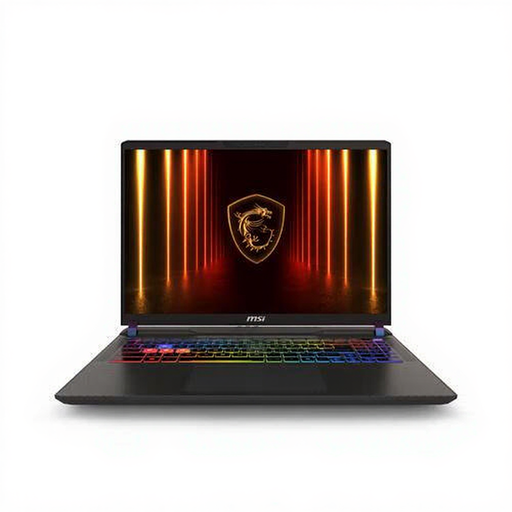
MSI Vector A16 HX A8WIG-025NL laptop

MSI Vector A16 HX A8WIG-025NL, 16 GB, 1 TB SSD, RTX 5080

This configuration could suit editing projects where an SD card reader and connections for local source material are important.

The product title specifies 16 GB RAM, a 1 TB SSD and an RTX 5080 with 16 GB VRAM.

For Premiere on Windows, Adobe recommends 32 GB or more for 4K and above. Check this recommendation if that’s your software and use case. The description lists an SD card reader, HDMI and USB connections.

Joybuy

Frequently asked questions

Is 8 GB RAM enough for this film?

It depends on your software and source footage. Adobe lists 8 GB as the minimum for Premiere on Windows and recommends 16 GB for HD or 32 GB or more for 4K and above. Don’t apply these figures to other software or a Mac configuration without checking first.

How can I edit demanding video footage on a more modest laptop?

In Premiere, you can create proxies: smaller working copies of high-resolution video clips. Keep the originals separate and check that your software and files support this workflow; Adobe notes that some file types have limitations.

Should I keep the original interviews and photos after the film is finished?

Yes, if you want to be able to restore or reuse the local material later. Keep the originals separate from your editing files and make additional copies. The Library of Congress recommends creating new media copies when needed to avoid data loss.

Who can help if a laptop I buy in the Netherlands is faulty?

If a product is faulty, contact the seller about your statutory rights. According to the Government of the Netherlands, there is no fixed statutory warranty period in the Netherlands: what you can reasonably expect from the product is what matters. A manufacturer’s warranty doesn’t replace these rights.

Can I use borrowed historical photos and music in a public neighbourhood film without permission?

Don’t assume that available source material is free to publish. According to the Government of the Netherlands, you generally need the creator’s permission to use copyright-protected photos, films and music. A private copy for personal use may not be distributed or made public. Check the rights for each work and how you intend to use it.

Can I publish footage showing identifiable local residents?

It depends on who makes and publishes the footage and the circumstances. The Dutch Data Protection Authority states that the GDPR may apply when footage is made and published professionally or by an organisation, and that a lawful basis is needed; consent is one example. This doesn’t mean consent is required for every private recording.
