What should you look for when choosing?
Two-bay NAS
A good fit if: you want to keep a manageable collection of handouts in one central place and the selected drives offer enough usable storage.
Trade-off: mirroring can help if one drive fails, but it reduces usable storage and is no substitute for a separate backup.
NAS with more drive bays or a faster network connection
A good fit if: you expect to store a growing project archive alongside your handouts, or several colleagues to use it at the same time, and your network supports the connection.
Trade-off: extra bays and a 2.5GbE port give you more configuration options, but don’t in themselves indicate how quickly files will copy across your network.
One-off handover without your own NAS
A good fit if: you’re handing over just one set of files to a client and don’t need central storage or ongoing management.
Trade-off: an existing transfer method with suitable security may require less setup, but won’t automatically provide central management or a recoverable file history.
Start with recovery and access management, then decide how often you’ll copy files and how much storage you need.
| Concern |
What to check |
Who is this most relevant to? |
| Restoring handouts and versions |
Check version recovery, a separate backup destination and whether you can restore a file. |
I want to be able to recover an earlier version if a file is accidentally overwritten before the handover. Around 36% of consumers prioritise the ability to restore files. |
| Sharing only the right files |
Check folder permissions and sharing options; review the final documents before sending them. |
I want to share only the intended handouts with the right client and account for any personal data. Around 29% of consumers prioritise controlled client access. |
| Copying files easily |
Check the transfer method, supported file systems and configured copy direction. |
I regularly copy new workshop files and want to know in advance which source and destination folder the copy task will use. Around 21% of consumers prioritise easy, repeat copying. |
| Complete storage setup |
Check whether drives are included, how much usable storage there is and how you’ll arrange a separate backup. |
I want to know in advance which drives I’ll need and how much storage the chosen configuration will provide. Around 14% of consumers prioritise a complete storage setup. |
Products on Joybuy
Here you’ll find NAS models with extra drive bays for central storage, alongside external USB drives for a one-off transfer without your own NAS.
 No image available
Synology DiskStation DS1525+ NAS
Suited to central file sharing and an archive that needs several drive bays.
The product description lists five drive bays, expansion to fifteen drives and two 2.5GbE ports.
Hard drives aren’t included. Plan a separate backup too; a NAS isn’t a backup in itself.
View product
 No image available
Synology DiskStation DS1825+
Suited to a central storage setup where eight drive bays are useful.
The product description lists eight bays and two 2.5GbE ports.
Compatible drives must be installed and storage configured before use. Plan a separate backup too.
View product
 No image available
Synology DiskStation DS925+, without hard drives
Suited to central file sharing if four bays and room to expand match the needs of your archive.
The product description lists four bays, expansion to nine bays and two 2.5GbE ports.
Hard drives aren’t included and must be purchased separately. Your files will also need a separate backup.
View product
 No image available
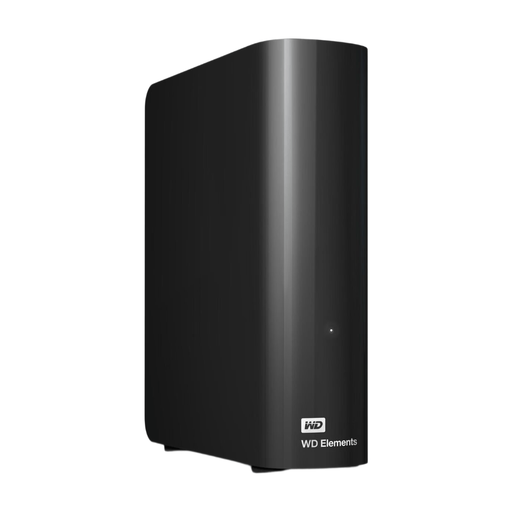
WD Elements Desktop 6 TB
Suited to a one-off file transfer from a computer if you don’t need your own NAS.
The product description lists 6 TB, USB 3.0 and an included power adapter, and describes copying files from a Windows PC.
This is an external USB drive, not a NAS for centrally managed network storage. It may need to be reformatted for use with a Mac, which will erase any data on it.
View product
 No image available
WD My Passport 6TB White
Suited to a one-off transfer or a separate copy you want to keep with a computer.
The title lists 6 TB, password protection and automatic backup software; the product description lists USB 3.0.
This is a portable external drive, not a NAS for centrally managed network storage. Password protection and encryption must be activated using software.
View product
Frequently asked questions
Is RAID 1 enough to keep your final handouts safe?
No. The National Cyber Security Centre distinguishes between protection against drive failure and a backup. Keep separate copies and check that you can actually restore the right version.
Can you copy files directly from a USB stick to a NAS?
That depends on the model, software, settings and file system. Synology describes USB Copy between a supported NAS and recognised external storage; QNAP lists a USB Copy button for the TS-233. Before transferring files, check the source, destination folder and result.
Are hard drives included with a NAS?
It varies by model and configuration. UGREEN says that drives for the DH2300 and DXP2800 are sold separately. Check what’s included, drive compatibility and how you’ll store a separate backup.
Can you simply give a client workshop documents containing personal data?
Not without assessing how the data is being used. According to the Dutch Data Protection Authority, sharing personal data with someone else must be compatible with the purpose for which it was collected or rely on another applicable legal basis. Protect the data appropriately and check documents for hidden personal data. Whether a particular transfer is permitted depends on the content and the original purpose.
Is there one fixed GDPR retention period for all workshop handouts?
No. The Dutch Data Protection Authority states that the GDPR does not set a specific general retention period. The applicable period depends on the purpose and any other legal requirements, and is relevant only to personal data actually contained in the files.


