
Maker with an irreplaceable catalogue
Wants to be able to restore photos and catalogue files after an error, fault or incident. The Dutch National Cyber Security Centre and Synology recommend keeping a copy off the NAS for recovery.


A NAS is a good fit if you want to manage your catalogue from several devices or automate backups. If everything is stored on one computer and you can copy it regularly, an external drive may be enough. Even with a NAS, keep a separate copy on another device, and choose storage capacity and access settings to suit your files and workflow. The Dutch National Cyber Security Centre lists an external drive as a possible backup option; Synology also recommends backing up to another destination.
Wants to be able to restore photos and catalogue files after an error, fault or incident. The Dutch National Cyber Security Centre and Synology recommend keeping a copy off the NAS for recovery.
Doesn’t want to store the catalogue in the cloud and wants to decide who can access it. If the files contain customer data, appropriate security remains important; the Dutch Data Protection Authority stresses the importance of checking which personal data you process.
Regularly adds photos and files, and wants to plan storage capacity and backup retention accordingly. Usable capacity also depends on the drives and configuration you choose.
A good fit if: you want to manage your catalogue from several devices or automated backups are important to you.
Bear in mind: setup, drives and management all take time; a NAS is no substitute for a separate backup.
A good fit if: your catalogue is stored on one computer and you don’t need central network access.
Bear in mind: it’s easy to forget to copy files manually, so stick to a regular backup schedule.
First, work out where your catalogue is stored and who needs access to it. Then choose your storage capacity and backup schedule, and plan a recovery copy on another destination.
| Consideration | What to look for when buying | Who should give this more thought? |
|---|---|---|
| Recoverability | Check whether you can copy files to a separate device, and test that you can restore your files from it. Synology recommends backing up to another destination. | If I want to restore my catalogue after a fault or error, a separate copy is more useful than a second drive in the same NAS. Around 36% of consumers give recoverability top priority. |
| Local management and access | Check which backup features work locally and how you can manage access to shared folders. Match your security settings to the data in your files. | If I want to work without cloud storage, I want to decide who can open my catalogue, especially if it contains customer data. Around 29% of consumers prioritise local management and access control. |
| Room to grow | Allow for your current catalogue, expected growth and retention period. Check the usable capacity of the drive configuration you’re considering. | If I keep adding new photos and saving older versions, I want enough room for my growing archive. Around 21% of consumers give storage capacity for growth top priority. |
| Automation and shared access | Find out which devices you’ll be backing up from, who needs to open the files and whether the backup task you want can run locally. | If I use the catalogue on different devices, I don’t want to keep copying files manually. Around 14% of consumers prioritise automation and shared access. |
A problem with the NAS or its location could affect both drives at once. That’s why Synology also recommends backing up to another destination.
Plan for a separate backup device and check that you can restore your files from it. If possible, keep that copy in a different location.
You’ll need a separate backup device; storing it elsewhere also requires suitable arrangements for keeping and managing it.
Drive support depends on the exact model and software version. According to the installation guide, installing a drive containing existing data in the Synology DS225+ will erase that data.
Check the compatibility information for your model and software version, and make a copy of any existing data before installation.
Even when storing files on your own equipment, you need to choose appropriate access and security measures if your catalogue contains customer data. The Dutch Data Protection Authority advises checking which personal data you process.
Decide who can open the catalogue and secure your files and backups in a way that’s appropriate for the data they contain.
The DS225+ is a two-bay NAS for central file management and backups. Synology also describes backing up to an external USB device.
According to the official specifications, the TS-233 has two drive bays, a gigabit network port and a USB copy button.
For the DRIVESTOR 2 Pro Gen2 (AS3302T v2), ASUSTOR lists a 2.5-gigabit network connection and Btrfs/iSCSI snapshots.
This selection includes NAS devices for local backups and external drives for an easy copy from one computer.
 No image available
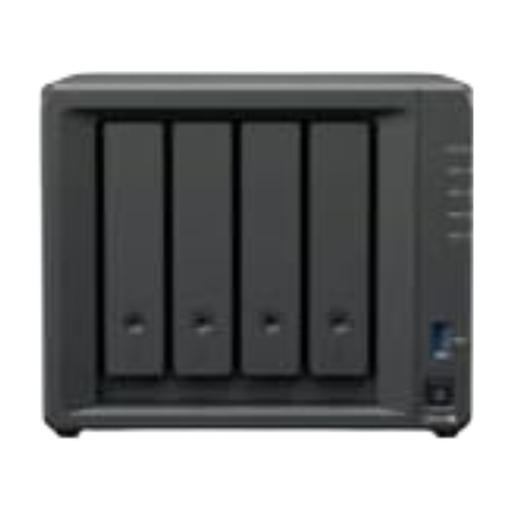
Suitable if you want to manage and back up catalogue files using a NAS.
Hard drives aren’t included, so you’ll need to choose and install them separately.
 No image available
Suitable if you want to back up catalogue files to a NAS and be able to restore earlier file versions.
Bear in mind that you’ll need to connect and configure DSM and the storage pool.
 No image available
Suitable if you want to manage backups from several devices on a NAS.
You’ll need to install compatible drives and configure DSM before use.
 No image available
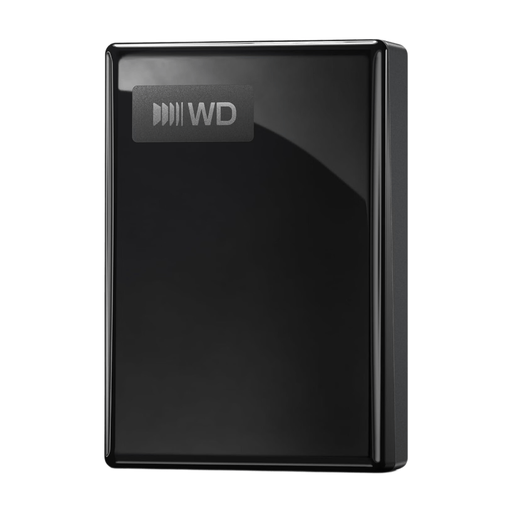
Suitable if you want to keep a local copy of photos and files from one computer.
The title lists 5 TB. You’ll need to install the Acronis software mentioned to schedule backups.
 No image available
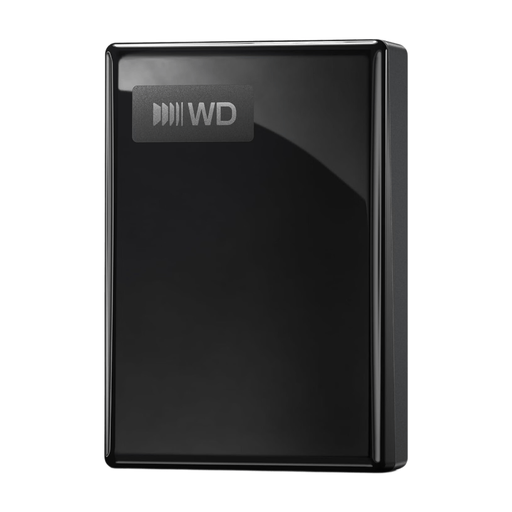
Suitable if you want to keep a local backup of photos and files from a computer.
The title lists 1 TB. You’ll need to install the Acronis software mentioned to schedule backups.
No, a RAID setup isn’t a substitute for a separate backup. Synology also recommends copying files to another destination; keep a copy there and test that you can restore your files.
Yes, if you want to install a drive containing existing files in the Synology DS225+. The installation guide says that the data on that drive will be erased during installation, so make another copy first.
Check which drives are compatible with the model and whether you need a separate backup device. For consumer purchases in the Netherlands, statutory warranty is separate from any manufacturer’s warranty; according to the Dutch Government, the seller is your point of contact if there’s a problem with a product. If you’re buying for business, check the applicable terms separately.
No, the Dutch Data Protection Authority doesn’t say that cloud services are prohibited in themselves. If you process personal data as a business, such as customer details, decide which security measures are appropriate for your situation; storing data locally doesn’t remove that responsibility.