
Studio preparing to move
Wants to protect scripts before packing and restore them after the move. The Netherlands National Cyber Security Centre advises making backups and testing recovery.


A NAS is the better choice if several team members will need central access to scripts and versions after the move. For a one-off transfer, an external drive may be simpler. First, measure the size of your archive and check which drives are compatible with your chosen NAS. Keep a separate backup too, and test that you can restore your files before the move: mirroring across two drives is no substitute for a backup.
Wants to protect scripts before packing and restore them after the move. The Netherlands National Cyber Security Centre advises making backups and testing recovery.
Wants one central place for documents after the move, with appropriate access for staff. Check what sharing and version-management features your chosen NAS model offers.
Wants to catalogue the existing collection and allow room for new files. As Stichting Theater in Nederland explains, a theatre collection may contain other production documents as well as scripts.
A good fit when: your team needs one shared location and the usable capacity is right for the collection you have catalogued.
Consider: an empty enclosure needs suitable drives and setup; mirroring reduces usable capacity and is no substitute for a separate backup.
A good fit when: your inventory shows that you need space for more drives or future growth.
Consider: extra bays give you more configuration options, but are not, on their own, a reason to choose more storage.
A good fit when: you already have a suitable NAS enclosure and want to add or replace storage.
Consider: an internal drive is not a standalone network archive; check the exact drive variant and its compatibility with the enclosure.
A good fit when: you mainly need a one-off transfer or a copy stored separately, and shared network access is not required.
Consider: one connected drive is not a complete backup strategy; keep a separate copy too and test that you can restore it.
| Consideration | What should you check? | Which consumers? |
|---|---|---|
| Recovery around the move | Make a separate copy and test that restored scripts open before you leave. | If I want to protect files before packing, I want to know that restoring them will work. Around 33% of consumers prioritise recoverability. |
| Shared access and versions | Check network access, user permissions and whether the exact model offers the version or snapshot features you want. | When several staff members need the same scripts, I want to manage access centrally. Around 27% of consumers prioritise shared access. |
| Usable capacity and growth | Measure your current collection, allow for additions and compare the usable capacity of your planned configuration. | For an archive that will keep growing, I want to plan space based on the collection, not just the stated drive capacity. Around 20% of consumers prioritise room to grow. |
| Simplicity and a complete setup | Check what comes with the enclosure, and factor suitable drives and separate backup storage into your choice. | If I want to prepare for the move with as little setup as possible, an external drive may be simpler for a one-off transfer. Around 20% of consumers prioritise simplicity. |
A mirrored setup can help if one drive fails, but it does not protect against every cause of file loss.
Before the move, keep a separate copy, preferably in another location, and test that you can restore scripts from it.
You will need a separate backup medium or another backup destination.
An empty enclosure does not include the internal drives that will store your archive.
Check what is in the box and choose compatible drives; also plan separate backup storage.
You will also need suitable internal drives and a backup destination.
According to Synology, usable capacity depends on the number of drives in use and the RAID configuration.
Measure your collection and compare it with the usable capacity of the configuration you actually plan to use.
Scripts and attachments may contain personal data or copyright-protected text. A central storage location does not, in itself, give you permission to store or share everything.
Limit access to the relevant groups and check the purpose for keeping the files and the associated rights before sharing them.
NAS enclosures for centralised document management. The DS223 is a two-bay example; the DS925+ has four drive bays.
The TS-233 is a two-bay NAS to consider for central storage shared by a small team.
NASync enclosures to compare if you are looking for central storage for a small team.
NAS drives for an existing enclosure or as a separately chosen component in a new setup.
IronWolf is a range of internal drives for NAS use, including for a suitable enclosure with free drive bays.
The N300 range offers internal NAS drives to compare by exact model code and capacity.
These products suit three options for your script archive: an external drive for transfers, an internal NAS drive for an existing enclosure, and NAS enclosures for central storage or expansion.
 No image available
An external drive for a transfer or a separate copy when shared network access is not needed.
4 TB; USB Type-A / Micro-USB B; USB 2.0/3.2 Gen 1 (3.1 Gen 1). The product description mentions connecting it to a Windows PC and dragging and dropping files.
 No image available
A NAS enclosure for a central archive when file sharing and room to expand matter.
The product description lists eight drive bays, file sharing and backup options via DSM, and expansion with an expansion unit. The enclosure requires suitable drives and DSM setup.
 No image available
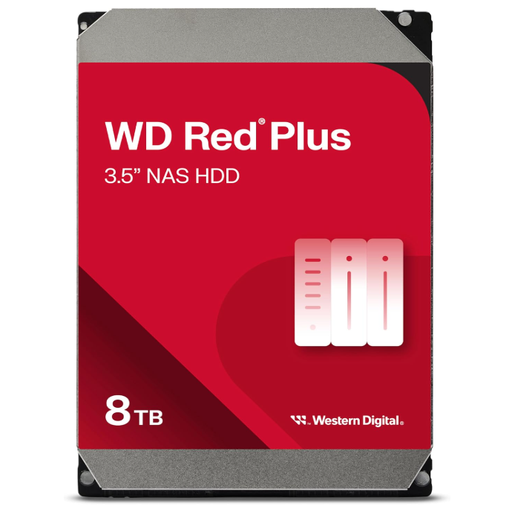
An internal drive for adding storage to an existing NAS enclosure that supports this model.
8 TB; SATA 6 Gb/s; CMR; 5640 RPM; 256 MB cache. This is not standalone network storage; check compatibility with the exact enclosure.
 No image available
A NAS enclosure for central file sharing when your collection needs room to expand.
The product description lists five drive bays and expansion to fifteen. HDDs must be chosen separately; setup requires compatible drives, a network connection and DSM configuration.
 No image available
A NAS enclosure for a central script archive if you want to compare four drive bays and room to expand.
Four drive bays, with expansion to nine according to the product description. Hard drives are not included; drive installation and DSM and network configuration are required.
Carry out a restore and open a few of the restored scripts. The Netherlands National Cyber Security Centre advises checking backups technically and, where appropriate, actually restoring files.
No. Compatibility is not guaranteed just because a drive is labelled ‘NAS’. Check the connection, drive size and compatibility information for the exact enclosure; Western Digital also advises checking with the NAS manufacturer.
If files contain personal data, the Dutch Data Protection Authority says organisations must not keep them for longer than necessary for their purpose. The GDPR does not set one specific retention period for all data, so you should determine and justify the period for the data in question.
Do not assume that it can. The Dutch government states that permission is needed to make digital copies of and share copyright-protected publications. An applicable reprographic rights scheme may cover certain internal copies, subject to its terms. Check the rights and agreements for the scripts in question before granting access.
Choose suitable internal drives and plan a separate way to store backups. Check what comes with the enclosure and whether your chosen drives are compatible with the exact model.