Choose your NAS set-up based on how you’ll copy files: a shared network folder is a good fit if you want to select files on the workstation first, while direct USB importing requires a configured copy task. Set access permissions for each user or role, and keep a separate backup alongside your NAS. The National Cyber Security Centre recommends keeping multiple versions of important business data. If voices are recognisable, your organisation should assess how they are processed and secured in line with the applicable GDPR rules.
Who is this NAS set-up for?
Copying recordings
You regularly transfer audio files from a shared workstation or USB storage and want to check that they’ve ended up in the right place. QNAP describes a configurable USB copy task for the TS-233, while Synology documents access to shared folders via SMB.
Managing shared access
You set up folders and accounts for multiple users and want to tailor access permissions to their roles. The Dutch Data Protection Authority recommends defining and documenting employees’ access rights when personal data is processed.
Managing a recording archive
You want to be able to find and restore files, and are considering the drives, NAS enclosure and backup you’ll need. The National Cyber Security Centre recommends keeping multiple versions of important business data.
What should you look for when choosing?
Copying via a network folder
A good fit if: you want to select, rename or check files on the workstation first, and have access to a NAS folder.
Things to consider: this option depends on how the workstation and network are set up; configure user permissions separately.
Copying directly from USB
A good fit if: your recordings are on a compatible USB storage device and you want to skip the workstation when importing them.
Things to consider: set the copy mode and destination folder, and check how the task handles existing files; a USB button alone won’t determine this.
| What to consider |
What should you check? |
Who is this important for? |
| Copying method |
Where the source files are stored, and whether the task uses the right destination folder and file names. |
If I want to select and check files on the workstation first, I want to understand the copying steps in advance. Around 25% of consumers put the copying method first. |
| Access permissions |
Whether the NAS supports accounts and shared folders, and what permissions each user needs. |
When several people use the same computer, I want to manage their access to NAS folders by role. Around 25% of consumers prioritise individual access. |
| Recording privacy |
Whether people are recognisable, who is responsible for processing the recordings, and what access and retention period are appropriate for the purpose. |
If recordings contain recognisable voices, I want to carefully decide who can access them and how long they’re needed for. Around 20% of consumers make privacy their top priority. |
| Recovery and backup |
Which files the backup includes, where it’s stored and whether recovery has been tested. |
If recordings are important for my work, I want a separate recovery copy in case of accidental deletion or a fault. Around 20% of consumers put recoverability first. |
| Complete set-up |
Whether the offer includes a NAS enclosure, drives or just an internal drive, and what else you’ll need for a backup. |
Before I decide, I want to know what else my set-up needs. Around 10% of consumers start by looking at everything included in the purchase. |
Common mistakes
-
Mistaking a standalone NAS drive for a complete NAS
An internal drive on its own doesn’t create a shared network folder. A diskless NAS enclosure also requires you to choose drives separately.
Check whether you’re buying an internal drive, a NAS enclosure or a bundle, and whether the drive you’ve chosen is compatible with the NAS.
-
Assuming a USB Copy button automatically runs the right task
The configured mode determines the copying direction and destination; the button won’t set these options for you.
Set up the task and check a test copy, including the destination folder and how existing files are handled.
-
Confusing drive mirroring with a separate backup
A second drive in the same NAS isn’t automatically a separate recovery copy. The National Cyber Security Centre recommends keeping multiple versions of important business data on different media.
Plan a backup outside your primary NAS storage and test that you can restore your files.
-
Giving every user the same access
If recordings contain recognisable people and are processed as personal data, it matters which employees can access them. The Dutch Data Protection Authority stresses that access rights should match what employees need for their work.
Assess whether people are recognisable and, where applicable, set up accounts and folder permissions by role.
Brands to consider
These brands are relevant for NAS enclosures or internal drives in the set-up described. The features listed apply to the product ranges and models specified; they’re not an assessment of the brand as a whole.
Synology
Relevant two-bay models include the DS223 and DS224+, which are designed for shared files and backups.
- Synology documents SMB access from a workstation; for the DS223, the manufacturer also lists Btrfs and snapshots.
- Check the drives and exact model separately; these features aren’t an independent performance test.
QNAP
The TS-233 is a two-bay NAS for anyone who wants to import recordings directly from a USB device.
- According to QNAP, the TS-233 has a USB Copy button and two drive bays.
- Configure the copy task in advance. According to QNAP, the model has one gigabit network port, not a 2.5GbE port.
ASUSTOR
The Drivestor 2 AS1102T is a two-bay NAS for a shared storage set-up.
- ASUSTOR lists SMB, a 2.5GbE port and two USB ports for this model.
- The stated 1 GB of memory isn’t expandable. Having a 2.5GbE port alone doesn’t tell you what copying speeds you’ll get in practice.
UGREEN
The NASync DXP2800 is a diskless two-bay NAS with 2.5GbE.
- UGREEN lists an Intel N100, 8 GB DDR5 and a 2.5GbE connection for this model.
- Drives are sold separately. The stated specifications alone don’t tell you what speed or level of security you’ll get with this workstation.
Seagate
IronWolf is a range of internal NAS drives, not a NAS enclosure for shared network access.
- A Seagate datasheet lists CMR for the IronWolf models covered in it.
- Check the exact drive model and its compatibility with your chosen NAS; the datasheet doesn’t automatically apply to every current variant.
Joybuy products
This selection includes internal drives for a NAS set-up. You’ll need to choose a NAS enclosure for shared folders separately.
 No image available
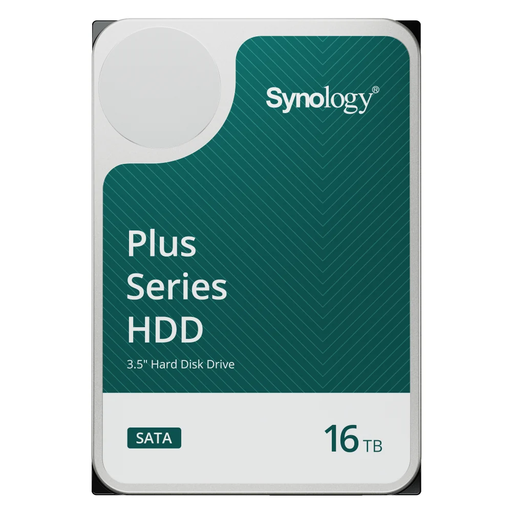
Synology SATA HDD 16 TB, 7,200 rpm
An internal drive for a NAS set-up; shared access also requires a compatible NAS or another host.
16 TB; SATA 6 Gb/s; 7,200 rpm. The product description mentions use in Synology NAS systems.
View at Joybuy
 No image available
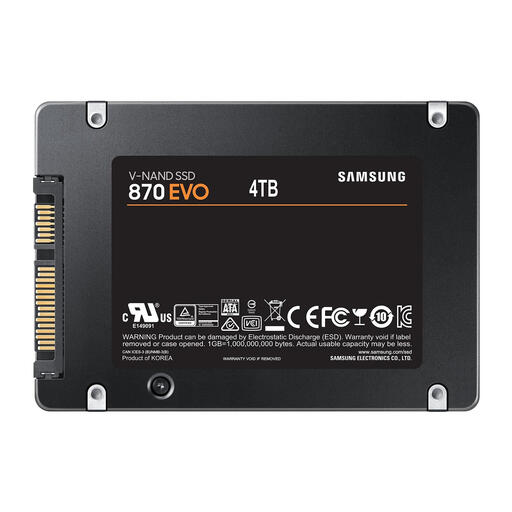
Samsung 870 EVO 4 TB SATA III
An internal SSD for a set-up that requires a SATA SSD; check that it’s compatible with your chosen NAS or host.
4 TB; SATA III connection.
View at Joybuy
 No image available
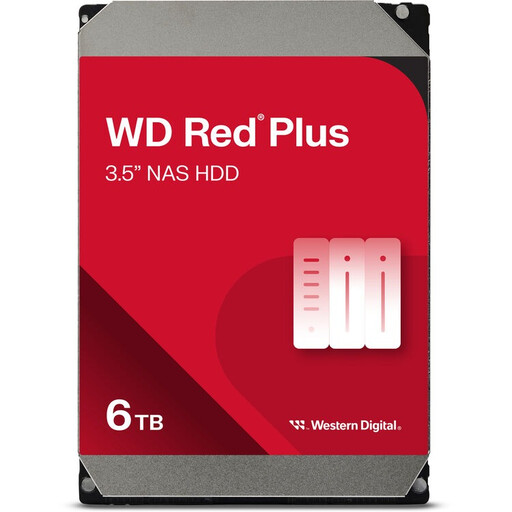
WD Red Plus 6 TB, 256 MB cache
An internal drive for a NAS set-up; check the exact model is compatible with the NAS enclosure.
6 TB; SATA III; 256 MB cache. The product description mentions NASware technology.
View at Joybuy
 No image available
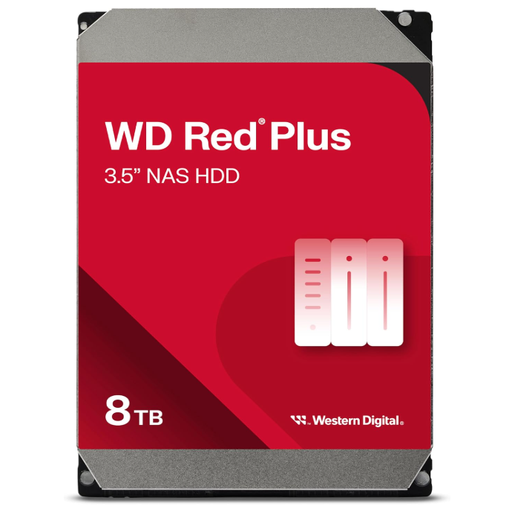
Western Digital WD Red Plus 8 TB
An internal hard drive for a NAS set-up; shared network access also requires a NAS or another host.
8 TB; 5,640 rpm; SATA 6 Gb/s; CMR; 256 MB cache. Check the exact drive model for compatibility.
View at Joybuy
Frequently asked questions
Can I copy files directly to a NAS folder from a shared Windows workstation?
Yes, if the NAS has an accessible SMB folder, SMB is enabled and your account has the necessary permissions. Synology documents access via Windows File Explorer; for another model, check its specific set-up.
Does the USB button on a QNAP TS-233 automatically copy files to the right folder?
No, you need to set up the copy task first. QNAP explains how to choose the operating mode, destination and copy action in HBS 3; after the first import, check that the files are in the intended folder.
Is a NAS with two mirrored drives enough as a backup?
Don’t rely on the NAS as your only recovery option. The National Cyber Security Centre recommends keeping multiple copies of important business data on different media, with one copy in another location. Then test that you can restore your data.
Are voice recordings always personal data, and is consent always required?
Not always. According to the Dutch Data Protection Authority, audio recordings in which someone is recognisable may be personal data. If an organisation processes such recordings, it must identify an applicable GDPR legal basis. Consent is one possible basis, but it isn’t automatically the only one.
How long can an organisation keep recordings of recognisable voices?
The Dutch Data Protection Authority states that the GDPR doesn’t set a specific general retention period for personal data. Don’t keep recordings for longer than necessary for their purpose, and check whether any other applicable rules specify a time limit.


