Who is this choice relevant to?

Creator with a small project archive

You archive individual projects and want a separate recovery copy in addition to the NAS. Check whether the usable capacity will be sufficient after choosing your drive configuration and redundancy. Synology and the Digital Trust Center advise paying attention to backups and recovery.

Studio with a growing collection of source material

You store multiple recordings and project versions. Usable capacity, drive compatibility and expansion options are therefore more important than raw capacity alone. Synology and QNAP offer examples of NAS models with multiple bays; check the specifications for each model.

Team that frequently hands work over to clients

You regularly move large project folders and want to check that the client receives the agreed media and project files. Match the network connection to the entire network path and agree the contents of the handover in advance.

What should you look for when choosing?

Compact NAS with two bays

A good fit when: you store a limited number of projects and the usable capacity is sufficient.

Bear in mind: there is less room for extra drives in the enclosure; you’ll still need a separate backup.

NAS with four or five bays

A good fit when: source material, projects and project versions need more usable space in total.

Bear in mind: your choice of drives and a separate backup are part of the overall setup.

NAS with 10GbE

A good fit when: you regularly transfer large files over a network that supports 10GbE.

Bear in mind: your computer, cabling, switch and drives all help determine what the full network path can handle.

Consideration What should you check? Who is this important for?
Recoverability Check that you can back up to a separate destination and restore a project. Synology and the Digital Trust Center recommend keeping a separate backup and checking that you can recover your data. I don’t want a fault or failure just before handover to affect my only project copy. Around 33% of consumers prioritise recoverability.
Usable capacity Measure the complete project folders, decide which versions you’ll keep and calculate the space needed for your chosen drive configuration. Check compatibility for the exact drives you plan to use. I keep source material and multiple versions, and want to leave room for new projects. Around 27% of consumers prioritise capacity.
Complete project folder Agree which source files and project versions will be included; after copying, open the project from the handover folder. Adobe describes a feature in Premiere for collecting and copying project files and the media used. I want the client to be able to open the agreed editing project with its associated media. Around 20% of consumers prioritise a complete handover.
Network throughput Check the connections on the NAS, computer and any network equipment in between as a whole. A stated port speed isn’t a measure of the actual transfer speed. I often move large project folders and want to know whether my network can handle the transfer. Around 20% of consumers prioritise speed.

Common pitfalls

  • Mistaking redundancy for a separate backup

    Data can still be lost, even if it has local version history. Without a copy on a separate destination, a problem with the NAS could affect your archive.

    Plan a separate backup and test that you can restore a project before clearing away your working files.

    Allow extra storage and time for backups and recovery tests. Synology and the Digital Trust Center recommend checking that recovery works.

  • Assuming raw capacity or the number of bays equals usable space

    Available space depends on the drives and the configuration you choose. A NAS may also be supplied without hard drives.

    Calculate the space required for the project folders you want to keep and check drive compatibility for the exact model.

    You may need to factor hard drives and any future expansion into your setup separately.

  • Handing over only the exported video

    An agreed editing project may also need the project files and the media used. Adobe describes a way to collect and copy those files in Premiere.

    Agree with the client what will be included and check that the project opens from the copied folder.

    Collecting missing media and sending it again may require extra preparation time.

  • Choosing a 10GbE port without checking the network path

    The NAS port specification alone doesn’t tell you what transfer speed you’ll achieve in practice. Your computer, cabling, switch and drives also play a part.

    Check these components together and find out whether the model you’ve chosen needs a 10GbE expansion module.

    You may need additional network equipment or a model-specific expansion module.

Brands to compare

Synology

The DS225+ is a compact two-bay option; the DS925+ and DS1525+ have four and five bays respectively, for larger archives.

  • Synology says Hyper Backup can back up to a separate destination. The manufacturer lists built-in 2.5 GbE and optional 10 GbE for the DS1525+.
  • Check drive compatibility for each model and keep a backup outside the NAS.

QNAP

The TS-464 is a four-bay NAS for storage, backup and collaboration across multiple projects.

  • QNAP specifies two 2.5 GbE ports and an optional 10 GbE expansion for the TS-464.
  • The TS-464 is supplied without HDDs; check the drives and any expansion card separately.

UGREEN

The NASync DXP4800 Plus is a four-bay model with built-in 10GbE for a compatible network.

  • UGREEN lists built-in 10GbE and 2.5 GbE connections.
  • Port specifications alone can’t predict the transfer speed of your entire network. Check your drives and backup process too.

ASUSTOR

The LOCKERSTOR 4 Gen3 (AS6804T) is a four-bay model for a network that can make use of 10GbE.

  • ASUSTOR lists two 10GbE and two 5GbE ports for this model.
  • Without checking the entire network, the ports alone don’t tell you the actual project transfer speed or how recoverable your data is.

TerraMaster

The F4-424 Pro is a four-bay NAS to compare if your studio is considering a different NAS environment.

  • TerraMaster recommends choosing compatible drives for this model.
  • Manufacturer claims about performance and data security aren’t an independent comparison and don’t replace a recovery plan.

Joybuy products

This selection includes NAS enclosures for archives of different sizes and internal drives for a compatible NAS. Check the exact configuration and drive compatibility before choosing a setup.

Synology DiskStation DS1525+ NAS

Synology DiskStation DS1525+ NAS

An option for a growing archive where you’d like extra drive bays; Synology lists five bays for this model.

Supplied without HDDs; choose compatible drives separately.

View at Joybuy

Synology DiskStation DS1825+

Synology DiskStation DS1825+

A possible choice for an archive that may grow. Check that this version has the drive bays, compatibility and expansion options you need.

View at Joybuy

Synology DiskStation DS925+ without hard drives

Synology DiskStation DS925+, without hard drives

An option for multiple projects and versions; Synology lists four bays and two 2.5 GbE ports for the DS925+.

Supplied without hard drives. Check that your chosen drives are compatible with this model.

View at Joybuy
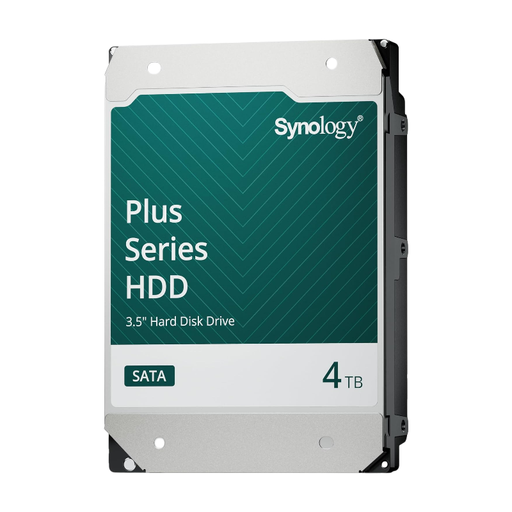
Synology 4 TB internal SATA HDD

Synology SATA HDD, 4 TB

An internal drive for storage in a compatible Synology NAS; this is not a NAS enclosure or a standalone backup solution.

Capacity: 4 TB. Check compatibility with your exact NAS model.

View at Joybuy
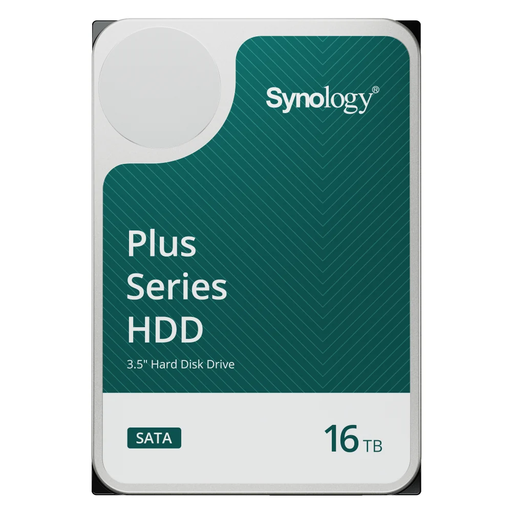
Synology 16 TB internal SATA HDD, 7,200 rpm

Synology SATA HDD, 16 TB, 7,200 rpm

An internal drive for a compatible Synology NAS when you need more storage per drive; on its own, it isn’t a NAS or a backup solution.

Capacity: 16 TB. Check compatibility with your exact NAS model.

View at Joybuy

Frequently asked questions

Is RAID in a NAS enough as a backup for handing work over to a client?

No. RAID isn’t a replacement for a separate backup to another destination. Synology recommends keeping one; also test that you can restore the project before clearing away your working files.

How do you make a Premiere project transferable?

In Premiere Project Manager, use the ‘Collect Files and Copy to New Location’ option to copy the project and the media used to a new location. Adobe notes that you can exclude unused clips, so agree whether they’re needed and check the new project folder.

Are hard drives and a faster network connection included with a NAS?

It varies by model and version. QNAP states that the TS-464 is supplied without HDDs. Check what’s included in the offer and whether the network expansion you want comes with the specific model or needs to be purchased separately.

Do you need to keep video projects featuring identifiable people for a set period?

The Dutch Data Protection Authority states that the GDPR doesn’t set a general, specific retention period for personal data. Identifiable people in video footage may count as personal data; don’t keep it for longer than necessary and make sure it’s appropriately secured. For each project, decide on a period that fits its purpose and the agreements in place.

When is a data processing agreement needed for external storage or transfer?

If a service provider processes personal data on your behalf and acts as a data processor, you and the processor must record the relevant details in writing, according to the Dutch Data Protection Authority. For each project, assess the role of the service provider involved.
