If you mainly work locally and want to store large project folders in one place, start by checking the usable capacity and planning a separate backup. If you edit directly from shared NAS storage, the speed of the entire network connection matters; for larger Premiere projects, formats above HD or several users working at the same time, Adobe recommends 10 Gbps or faster. For Premiere, keep the media cache on a local drive and check drive compatibility and any network upgrades you may need before buying.
Who is a NAS suitable for?
Videographers with a growing footage library
You want to store large folders of source footage, exports and project files in one place, so you can find them later. Usable capacity, expandability and a separate backup may matter more than the fastest port. The National Cyber Security Centre advises making and testing backups.
Editors working from shared storage
You want to access video files directly over the network. In that case, both the NAS and the entire network connection matter. Adobe also recommends keeping the media cache on a local drive.
Small editing teams
You share project media between workstations and want to work with files together. When choosing a NAS, consider not just storage capacity but also your network setup and how you manage shared files.
What should you look for when buying?
First, decide whether you’ll mainly use the NAS to store and transfer projects, or whether you want to edit directly from it. This will determine how much attention to give to usable capacity, network equipment and backups.
| What to consider |
What should you look for? |
Who should prioritise this? |
| Usable capacity and room to grow |
Add up your project folders and anticipated growth, then check the usable space available with your chosen drive configuration. |
If my source footage, project files and exports keep growing, I want to know how much space will actually be left after configuring the drives. Around 29% of consumers prioritise capacity and room to grow. |
| Network speed and workflow |
Decide whether you’ll edit directly from the NAS or copy files locally first, then check the connection from the NAS to your workstation. |
If I want to work directly from shared storage, the entire connection needs to suit my projects and workstations. Around 29% of consumers prioritise network speed and editing over a network. |
| Backup and recovery |
Plan a backup outside your primary NAS and test that you can restore your source footage and project files. |
If project material would be difficult to recreate, I want to know whether I can genuinely recover it if it’s lost. Around 24% of consumers put recoverability first. |
| Complete setup and compatibility |
Check whether drives are included and whether you’ll need to buy a network card, switch or adapter separately. Consult the compatibility list for the exact model. |
When I’m putting together a complete setup, I want to know in advance which extra parts I’ll need. Around 18% of consumers prioritise the total cost of their setup. |
Common buying mistakes
-
Confusing raw storage capacity with available project space
Usable capacity depends on the drives and the RAID configuration you choose. The stated maximum capacity therefore doesn’t tell you how much space you’ll actually have left for projects.
Work out the usable space for your drive configuration and allow for new footage and exports.
-
Assuming two network ports combine to make one faster connection
Port trunking doesn’t automatically give one workstation a single 10GbE connection. The switch, cabling and workstation’s network connection all matter too.
Check the speed of every connection in your complete setup, and compare built-in 10GbE with the option to add it later.
-
Keeping every copy of your projects on the same NAS
A NAS with drive redundancy isn’t the same as a separate backup. Deletion, damage or ransomware can also affect project files on the NAS.
Keep a copy on a separate device or at another location, and test restoring both your source material and project files.
-
Checking drive compatibility without checking the model and software version
Support conditions can depend on the exact NAS model and software version. Since DSM 7.3, Synology has offered greater flexibility for third-party drives in 2025 DiskStation Plus models.
Before buying, check the current compatibility list, DSM version and drives for your exact model.
Brands to compare
Synology
The DiskStation DS925+ has four drive bays and built-in 2.5GbE. The DS1525+ has five drive bays, and a 10GbE module is available separately for this model.
- Synology says these models offer expansion options and storage management features.
- Usable capacity depends on the drives and RAID configuration. Throughput figures are based on Synology’s internal tests and don’t guarantee the speed you’ll get for your editing projects.
QNAP
The TS-464 has four drive bays, two built-in 2.5GbE ports, M.2 slots and a PCIe expansion option.
- QNAP lists an optional 10GbE network card.
- A claimed speed using port trunking isn’t the same as the speed of a single 10GbE connection to one workstation.
UGREEN
According to UGREEN, the NASync DXP4800 Plus combines four drive bays with built-in 10GbE and 2.5GbE ports.
- With a built-in 10GbE port, you don’t need a separate NAS network card for that connection.
- Drives are sold separately. The speed of the entire network connection still matters, and the stated specifications aren’t an independent performance test.
ASUSTOR
The Lockerstor 4 Gen2 AS6704T has four drive bays and 2.5GbE. ASUSTOR lists a PCIe expansion option for 10GbE.
- The expansion option may be useful if you want to move to a faster network later.
- Network and expansion options vary between versions, so check the full model number.
NAS models at Joybuy
These NAS options are designed to store and expand large project folders in one place, with models that also offer the option of working over a network. Check which drives and network equipment you’ll need for your setup.
 No image available
Synology DiskStation DS1525+ NAS
An option for storing large project folders in one place, with the potential to add network expansion.
Hard drives aren’t included. The 10GbE expansion module is sold separately.
View at Joybuy
 No image available
Synology DiskStation DS1825+ NAS
An option for storing large project folders in one place and considering a shared network setup.
Check the connections and any network expansion required for your workstations and projects.
View at Joybuy
 No image available
Synology DiskStation DS925+, without hard drives
A good fit if you want to store project folders in one place and share or transfer files over a network.
Hard drives aren’t included. Check which drives are supported and the usable capacity of your configuration.
View at Joybuy
 No image available
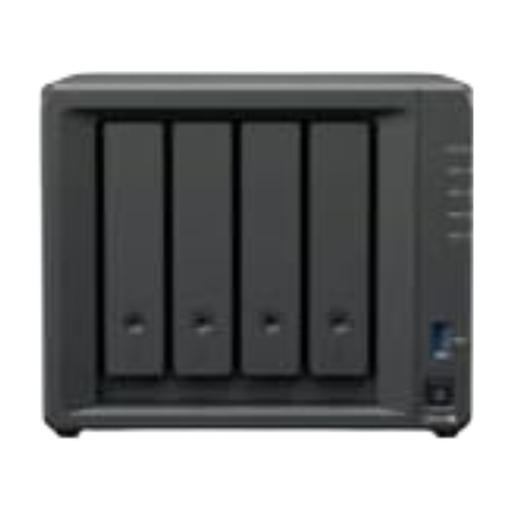
Synology DiskStation Intel Celeron J4125 Q NAS
An option for storing and transferring files centrally if you don’t need to edit directly from shared storage.
The listed connections are 1GbE. For larger shared Premiere projects, formats above HD or several users working at the same time, Adobe recommends 10 Gbps or faster. The stated total storage capacity won’t necessarily all be usable.
View at Joybuy
Frequently asked questions
Can I work with Premiere projects directly from shared NAS storage?
Yes, but the entire connection needs to suit your workflow and project size. Adobe specifies 1 Gbps for HD workflows and recommends 10 Gbps for shared 4K workflows. For larger Productions, formats above HD or several users working at the same time, Adobe recommends 10 Gbps or faster. Keep the media cache on a local drive.
Is drive redundancy in a NAS enough for a backup?
No. Drive redundancy doesn’t replace a separate backup. The National Cyber Security Centre advises making and testing a backup, so keep another copy outside your primary NAS and check that you can restore your project files and source footage.
What costs and warranty rights should I check?
Check whether the enclosure is supplied without drives and whether you’ll need extra drives, network equipment or a 10GbE module. Consumers buying in the Netherlands are covered by the statutory guarantee as well as any seller’s warranty; the Netherlands has no fixed statutory guarantee period. The Dutch government and ACM ConsuWijzer explain these guarantee rights.
Do privacy rules apply to landscape footage on my NAS?
This depends, among other things, on the footage, how it’s used and whether people can be identified. The Dutch Data Protection Authority distinguishes between personal or household use and business use; the exception for personal or household use doesn’t apply to business use. Organisations processing personal data must decide on appropriate security measures based on the risks.


