
Creator with a review deadline approaching
You need to be able to restore the final film and project files in time. So first, choose a copying and recovery routine you can carry out before the review.


First, choose a NAS setup that lets you restore your film and project files before the review. Then work out how much usable space you need for footage and versions. Two drive bays may be enough for one self-contained project, while four or five give you more room if you also want to keep future productions. RAID is no substitute for a separate back-up, and a faster network port only helps if the rest of your network can support it.
You need to be able to restore the final film and project files in time. So first, choose a copying and recovery routine you can carry out before the review.
You’re keeping source footage and earlier versions as well as this film. Usable capacity and room to expand later may matter more than the drives’ raw capacity alone.
You want to make files available to the people involved while managing access, especially when people are recognisable in the footage.
A good fit when: you mainly want to store one production from one or a few computers, and the calculated usable capacity is enough.
Trade-off: there’s less room to add drives later; with mirroring, you won’t have access to the full raw capacity.
A good fit when: you also want to keep source footage, project files and versions of future productions in one place.
Trade-off: work out the number of drives you need and the usable RAID capacity separately. More bays don’t automatically mean faster transfers or an external back-up.
| Consideration | What to check before buying | Who is this important for? |
|---|---|---|
| Restorable back-up | Plan a second, separate destination and check that you can carry out a test restore. | If you need a final film and project files before the review, you’ll want to know that you can restore them. Around 29% of consumers prioritise restorability. |
| Usable archive space | Add up your footage and versions, then calculate the usable capacity for your chosen drives and RAID configuration. | If you’re also keeping source material and earlier versions, you’ll want to know how much space will remain after configuring your storage. Around 23% of consumers prioritise archive space. |
| Transfer time | Check the network connections on your NAS, computer and any equipment in between. Manufacturer measurements don’t guarantee the speed you’ll get with your setup. | If you’re moving large film files with a deadline approaching, the entire network path affects transfer time. Around 18% of consumers prioritise transfer time. |
| Access and sharing | Check whether you can set access permissions and administrator roles for the people who need the files. | If you share material with a small team or work with recognisable people in the footage, you’ll want to manage access carefully. Around 18% of consumers prioritise controlled sharing. |
| Complete setup | Check whether drives are included, which drives are compatible and whether you have a separate back-up destination. | If you only want to buy the capacity your archive and routine require, compare the complete setup rather than just the NAS enclosure. Around 12% of consumers prioritise the size of the complete setup. |
A mirrored configuration can help if a drive fails, but it doesn’t automatically create a separate copy outside the NAS or your location.
Set up a second destination and, before the review, test that you can restore a relevant file.
Your chosen RAID configuration affects how much of the installed drive space is available. And a NAS supplied without drives isn’t a complete storage setup.
First calculate how much usable space you need, then check that the exact drives are compatible with your chosen enclosure.
The NAS connection is just one part of the transfer path; your computer and any network equipment in between matter too. Published throughput measurements depend on the test conditions.
Map out the whole network path and use your own transfer times to decide whether you need to upgrade.
The DS225+, DS925+ and DS1525+ have two, four and five drive bays respectively.
The TS-264-8G is a two-bay NAS with two 2.5 GbE ports.
The NASync DXP2800 is a diskless, two-bay model with 2.5 GbE.
The Drivestor 2 Pro Gen2 (AS3302T v2) is a two-bay model with 2.5 GbE.
WD Red Plus is a drive range to consider alongside a suitable NAS enclosure, not a complete NAS.
IronWolf and IronWolf Pro are drive ranges for NAS setups, not NAS enclosures.
These products are suited to a NAS setup for film footage: from NAS enclosures with different numbers of drive bays to internal drives that you can pair with a suitable enclosure.
 No image available
A five-bay NAS for a growing archive of productions and versions.
The product description says it can be expanded to fifteen drive bays. It also lists DSM back-up tools and two 2.5 GbE ports. Hard drives aren’t included.
 No image available
A NAS for anyone who wants to store material from multiple productions in one place.
The product description lists eight drive bays, expansion with an expansion unit and two 2.5 GbE ports. The quoted sequential throughput speeds don’t guarantee the speed you’ll get with a specific network setup.
 No image available
A four-bay NAS for a central storage setup with back-up features.
The product description lists expansion to nine drive bays and two 2.5 GbE ports. This version is supplied without hard drives.
 No image available
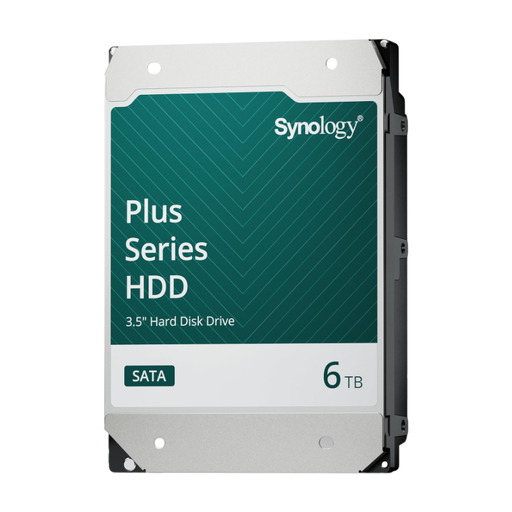
An internal NAS drive for a setup where you choose the storage capacity yourself.
The product information lists 6 TB, CMR and SATA 6 Gb/s. This is an internal drive, not a standalone NAS; check that the exact model is compatible with your chosen enclosure.
 No image available
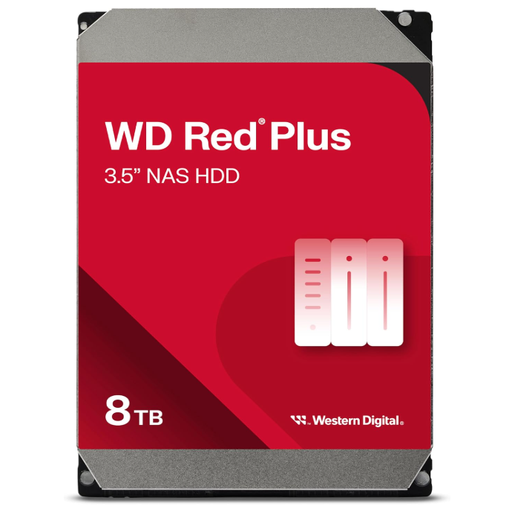
An internal NAS drive for anyone choosing capacity and drive type for an existing or newly configured setup.
The product title lists 8 TB, CMR, SATA 6 Gb/s, 5,640 rpm and 256 MB cache. This is an internal hard drive, not a NAS enclosure; check compatibility with your NAS model.
No, RAID 1 doesn’t create a separate copy outside the NAS. In a two-drive setup, RAID 1 writes the same data to both drives and can help protect you if one drive fails. For a separate copy, also keep a back-up at a location outside the NAS and test that you can restore files.
Don’t do this without first making another copy and checking the installation instructions for your exact NAS model. The Synology DS1525+ installation guide warns that a drive containing existing data may be formatted and erased during installation.
That isn’t a blanket rule for DiskStation Plus with DSM 7.3. Synology describes greater flexibility for third-party HDDs, but recommends checking the compatibility list. Check the exact NAS, DSM version and drive before ordering.
Check how many drives you need for your chosen storage configuration, whether they’re compatible with the NAS and whether they’re included. QNAP says the TS-264-8G is supplied without HDDs. For a separate back-up, also consider a second destination and the terms that apply to the exact product.
According to the Dutch Data Protection Authority, recognisable people in footage count as personal data. Whether the exception for purely personal or household use applies depends on who is filming and how the material is used or shared; it doesn’t apply to professional use. An organisation processing this kind of footage must decide on appropriate security measures based on the risks. The Dutch Data Protection Authority states that the GDPR doesn’t specify a general, fixed retention period for personal data.