Joybuy products
This selection includes Synology NAS enclosures with different numbers of drive bays, as well as a WD Red Plus drive, which can only be used for storage in a suitable NAS enclosure.
 No image available
Synology DiskStation DS1825+
An option to consider if you need plenty of internal drive bays for a growing teaching library.
The product description lists eight drive bays, expansion with an expansion unit and two 2.5GbE ports. The network ports alone don’t tell you whether the rest of your network supports those speeds.
View at Joybuy
 No image available
Synology DiskStation DS1525+
An enclosure with multiple drive bays to consider if you want to set up more internal storage.
The product description lists five drive bays, expansion with an expansion unit and two 2.5GbE ports. Hard drives aren’t included and must be chosen separately.
View at Joybuy
 No image available
Synology DiskStation Intel Celeron J4125 Q
A NAS with two drive bays to consider if its capacity suits the amount of teaching material you have.
The product description lists support for 2.5-inch and 3.5-inch drives, as well as user account and shared folder features. The NAS is supplied without drives.
View at Joybuy
 No image available
Synology DiskStation DS925+, without hard drives
A four-bay option to consider if you need extra internal drive bays for growth or multiple drives.
Synology lists four internal SATA bays and two 2.5GbE ports for the DS925+. The product description says it can be expanded to nine bays with an expansion unit. This version is supplied without hard drives.
View at Joybuy
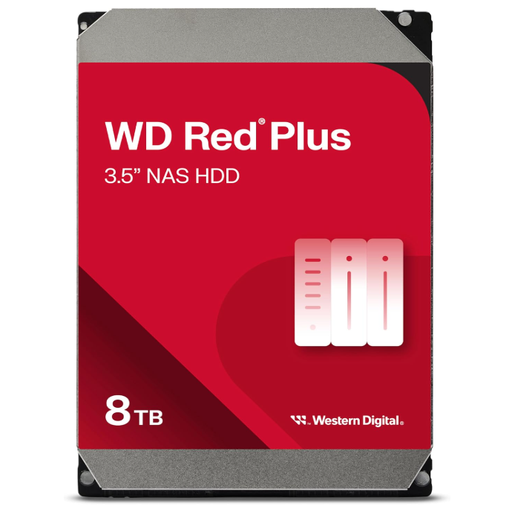 No image available
Western Digital 8TB WD Red Plus
An internal drive to consider if you have a compatible NAS enclosure that needs more storage.
The product description lists 8 TB, 3.5 inches, SATA 6 Gb/s, CMR, 5640 RPM and 256 MB cache. This is an internal hard drive, not a standalone network storage device; check its compatibility with your chosen NAS.
View at Joybuy
Frequently asked questions
Is a folder on the NAS or RAID 1 already a backup?
No. Central storage or RAID isn’t a separate backup in itself. The National Cyber Security Centre (NCSC) recommends keeping a separate backup of important data. As well as the copy on your NAS, keep an extra copy elsewhere and test that you can restore it.
How do you set up backups for a shared workstation?
Choose backup software that works with the workstation’s operating system and the NAS. Synology describes scheduled backups and recovery of earlier versions using Drive Client; QNAP describes NetBak Replicator for Windows files. Decide which folders you want to copy, then test that you can restore a file.
What regular tasks should you factor in alongside the NAS?
Set aside time to manage accounts and access, install updates and test restores. Also check whether the enclosure is supplied without drives and whether you need a separate backup location. Your setup will determine the storage and work required.
Can a Dutch school store pupil data on a NAS?
The rules cited don’t specify a particular NAS brand or storage medium. According to the Dutch Data Protection Authority, a school must be able to demonstrate that it has appropriate technical and organisational measures in place to protect personal data. If a processor handles personal data on the school’s behalf, the Dutch Data Protection Authority also requires a written data processing agreement. Assess the specific roles and setup.
Does the education standards framework prescribe a fixed backup frequency?
The cited standard OP.02 links the backup schedule and retention period to the risks the organisation has accepted. Kennisnet also highlights the importance of recovery procedures that are tested and documented regularly. Decide on a suitable schedule for your own school rather than assuming one frequency works for every situation.


