A NAS is useful if you want to keep your design files in one central location, access them from multiple devices or synchronise them. For a self-contained project that you’re storing on your own, an external drive may be simpler. Check that the drives and synchronisation software work with your workstation, and keep a separate backup as well: synchronisation or drive mirroring alone does not provide a complete backup.
Who is a NAS suitable for?
A student who wants to restore earlier versions
You keep source files and interim versions, and want to be able to recover them after a mistake or loss. Alongside storage, choose a recovery method and a separate backup. Synology warns that RAID and drive failures can still result in data loss.
A student who works in different places
You use a portable workstation and want to synchronise project folders between devices or share them with controlled access. Check that the software works with your workstation’s operating system, and keep synchronisation and backup separate. Synology and QNAP describe software for file management or synchronisation.
A student with large project files
You regularly transfer large files and want to know whether a faster network connection would be worthwhile. Check your workstation’s connection and the rest of your network equipment as well as the NAS.
What should you look for when choosing one?
NAS with an internal drive
Choose this if: you want to keep your files in one fixed network location and access or share them from other devices later.
Bear in mind: setup, network access, drive compatibility and a separate backup.
Internal drive for an existing NAS
Choose this if: you already have a NAS and mainly need more storage space for your project archive.
Bear in mind: the exact drive model code and capacity must match the compatibility information for your enclosure.
External drive or cloud copy
Choose this if: the project is self-contained and you don’t need central access or shared NAS folders.
Bear in mind: you’ll need to organise copying and checking files yourself; this option doesn’t automatically provide NAS synchronisation.
| What to consider |
What to check before buying |
Who this matters most to |
| Recovery and versions |
Check scheduled backups, available versions, a backup destination outside the NAS and whether you can carry out a test restore. |
If a source file is overwritten, I want to be able to restore an earlier version and have a copy outside the NAS. Around 36% of consumers prioritise recoverability. |
| Access across work locations |
Check the client and backup software for your operating system, the project folders you want and the access permissions you give others. |
If I work in different places with my portable workstation, I want to be able to synchronise or share project folders. Around 29% of consumers prioritise access from multiple work locations. |
| Transferring large files |
Compare the network ports on the NAS and workstation. Check your switch, router and cabling too before choosing a faster connection. |
If I regularly work with large design files, I want to know whether my entire network connection can handle the transfer. Around 21% of consumers prioritise transfer speed. |
| Choosing drives and setting up |
Decide how much data and how many versions you want to keep; check that the exact drive is compatible with the NAS and whether drives are included. |
If I don’t need a more advanced setup, I want to choose suitable components without unnecessary expansion. Around 14% of consumers focus mainly on the size and components of the setup. |
Common buying mistakes
-
Mistaking synchronisation or drive mirroring for a full backup
A copy or version on the same NAS won’t protect you against every fault or disaster.
Plan how you’ll make a separate copy, and try restoring a file before your final submission.
-
Comparing only the NAS enclosure and forgetting the drives
The enclosure and internal storage are separate components. A drive range isn’t automatically compatible with every NAS model.
Before buying, check the packaging and the compatibility of the exact combination.
-
Assuming a 2.5GbE port guarantees speed on your workstation
A port doesn’t tell you the speed of the whole connection. ASUSTOR says that its laboratory results for the AS1202T depend on an optimised environment.
Check your workstation’s connection, any adapter, switch, router and cabling before choosing a NAS with a faster port.
-
Applying an old drive restriction to all new Synology models
In its explanation, updated on 27 May 2026, the Synology Knowledge Centre describes greater flexibility under DSM 7.3 for certain 2025 Plus models. Compatibility and support still vary by model and drive.
Check the current policy and the exact drive model code; don’t assume that a WD Red Plus or IronWolf drive is either supported or excluded.
Brands to compare
Synology
The DS223j is a two-bay option for central storage and sharing; according to Synology, the DS225+ includes a 2.5GbE port, among other features.
- Synology describes file sharing, synchronisation and backup tools for its systems.
- Check compatibility for the exact model, drive and installed DSM version. The manufacturer’s DS225+ measurements don’t guarantee speed at your workstation.
QNAP
The TS-233 has two drive bays and one gigabit Ethernet port; QNAP also offers Qsync for file synchronisation.
- The official TS-233 specifications list two SATA drive bays and a USB copy button.
- Check that the synchronisation and backup options work with your operating system; QNAP describes a beta client for some newer Mac backup features.
ASUSTOR
The Drivestor 2 Gen2 AS1202T is a two-bay NAS worth comparing if you’re also considering a 2.5GbE network connection.
- ASUSTOR lists three 5Gbps USB ports and snapshot support for this model.
- The published transfer speeds come from the manufacturer’s own laboratory tests under optimised conditions; they aren’t independent real-world results for a student workstation.
Western Digital
WD Red Plus is a range of internal CMR NAS drives to compare if you’ve already chosen a NAS enclosure.
- Western Digital distinguishes WD Red variants with SMR from WD Red Plus drives with CMR.
- The brand name doesn’t confirm that a specific model code is on your NAS’s compatibility list.
Seagate
IronWolf is a range of internal NAS hard drives for NAS systems with multiple drive bays.
- Seagate describes the range as CMR and designed for NAS use.
- Check the exact model code and capacity with the manufacturer of your chosen enclosure; features of the range don’t prove that every combination will fit.
Toshiba
N300 is a range of internal 3.5-inch SATA NAS drives; EMEA product information includes a 4 TB model, among others.
- Toshiba positions the range for continuous NAS use.
- Check the model, capacity and compatibility separately; this drive isn’t portable USB storage.
Joybuy product picks
These product picks are for creating a central project archive using a NAS. They include both NAS enclosures and an internal drive for anyone who already has a suitable enclosure.
 Image unavailable
Synology DiskStation DS1825+
Suitable for a central archive where you want to share files over the network and use backup tools; the description lists DSM tools for files and backups.
Has eight bays and two 2.5GbE ports. Add compatible internal drives; actual transfer speeds also depend on the rest of your network.
Joybuy
 Image unavailable
Synology DiskStation DS1525+
Suitable for a central archive with room to expand and network access.
Has five bays and two 2.5GbE ports; the description mentions expandability with an expansion unit. HDDs aren’t included. The description lists HAT3300 and HAT5300 drives as compatible ranges; check the exact combination.
Joybuy
 Image unavailable
Synology DiskStation Intel Celeron J4125 Q
Suitable for a central archive where you want to store and share project files over the network; the description lists file sharing, backup and Cloud Sync.
Has two bays, one 2.5GbE port and one gigabit port. The description lists RAID 0, RAID 1 and JBOD; the device is supplied without drives.
Joybuy
 Image unavailable
Synology DiskStation DS925+, without hard drives
Suitable for a central project archive where you want to share files over your local network.
Has four bays and two 2.5GbE ports. Hard drives aren’t included; check that your chosen drives are compatible and check your workstation’s network connection.
Joybuy
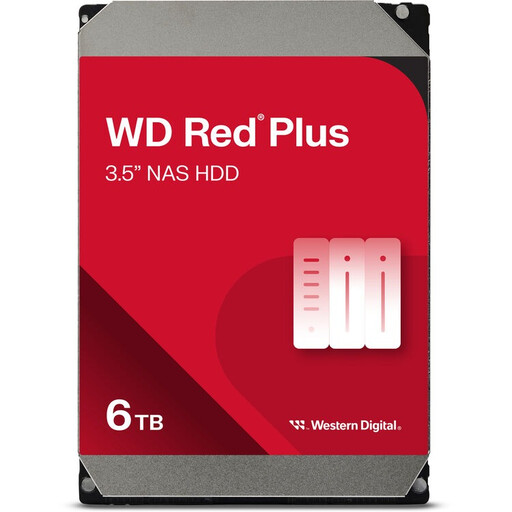 Image unavailable
WD Red Plus, 6TB (256MB cache)
Suitable if you already have a NAS with a compatible spare bay and are looking for internal storage for your archive.
The description lists a 3.5-inch SATA III drive for NAS use. Check the exact model code and compatibility with your enclosure’s manufacturer; on its own, the drive doesn’t provide network storage or a separate recovery copy.
Joybuy
Frequently asked questions
Is a second drive in your NAS enough to archive your project?
No. To recover from other types of data loss, keep a separate backup too. Synology warns that even local versions on the same NAS can be lost in the event of a fault. Decide where to keep a second copy and test that you can restore your files.
Can you put your existing project drive in a new NAS without any risk?
Don’t assume so: the Synology DS223j installation guide warns that the NAS may format a drive containing existing data during setup, erasing its contents. First make a verified copy, then follow the instructions for your exact model.
Will every NAS hard drive fit in every enclosure?
No. Check the form factor, connection and current compatibility information for the exact NAS and drive model. The Synology Knowledge Centre explains that untested or incompatible devices can cause detection, stability and support issues. For certain 2025 Plus models, the updated policy under DSM 7.3 allows third-party drives in some cases.
Do you still have rights in the Netherlands after the manufacturer’s warranty expires?
Yes, statutory guarantees are separate from a shorter seller’s or manufacturer’s warranty. According to ACM ConsuWijzer, if a product breaks sooner than you could reasonably expect under normal use, the seller must resolve the issue in line with the applicable conditions; there isn’t one fixed warranty period for every NAS.
Do you need to consider the GDPR when sharing design files?
It depends on the data and how you use it. The GDPR includes an exemption for processing by an individual solely for personal or household activities. If your project contains other people’s personal data and you share files outside that private sphere, or process them for an organisation, assess which privacy obligations apply. The Dutch Data Protection Authority stresses that organisations must determine appropriate security measures when processing personal data.


