
Photographer with an upcoming move
Wants to be able to recover RAW images if storage equipment is lost in transit or at a location.


If you already have a suitable NAS, first check whether a compatible internal drive will do the job. If you don’t have a suitable enclosure, you’ll need a NAS too. Also plan a separate, recoverable backup stored elsewhere: RAID or snapshots on the same NAS are no substitute. Choose a capacity that suits your archive and plans for future growth.
Wants to be able to recover RAW images if storage equipment is lost in transit or at a location.
Wants to match the number of drive bays and usable storage to existing projects and future growth.
Wants to keep files centrally accessible and choose a network connection that suits their photo-editing workflow.
| Consideration | What should you check? | Who is this important for? |
|---|---|---|
| Recoverability during the move | Check that a backup stored elsewhere has completed, and try recovering a few RAW files. | When I move equipment, I want to be able to recover my files if the NAS or location becomes unavailable. Around 36% of consumers put recoverability first. |
| Usable capacity and room to grow | Work out the size of your current archive and how much room for growth you want; check the usable capacity of your chosen storage configuration. | As my RAW archive grows, I want enough usable space for existing and new projects. Around 29% of consumers choose capacity and room to grow as their top consideration. |
| Access and photo-editing workflow | Check the network ports on the NAS, computer and any equipment in between; test how your software works with files stored on the NAS. | When I work from different locations, I want to access my files as part of my own workflow. Around 21% of consumers prioritise centralised file access. |
| Total cost and drive compatibility | Compare the exact model codes and check which drives and backup storage are included in the package. | When I choose storage components, I want to know in advance what else I need and whether the drive will work with my NAS. Around 14% of consumers make compatible components and the total purchase cost their top priority. |
If the NAS or storage location becomes unavailable, local recovery options could be lost too. QNAP explains that a snapshot alone doesn’t create a second physical copy.
Before moving, create a recoverable copy at another location and test that you can restore files from it.
The number of drive bays, the storage configuration and the drives actually included are separate things to consider when buying.
Check what’s included and calculate the usable capacity for the drives and storage configuration you choose.
A drive range can include different versions, and compatibility depends on the combination of drive and NAS model you choose.
Check the full drive model code against the compatibility information for your NAS.
The DS423+ is a four-bay NAS enclosure with DSM features for file management and backup.
According to QNAP, the TS-264 is a two-bay NAS with two 2.5GbE ports.
The Drivestor 2 Pro Gen2 is a two-bay NAS with 2.5GbE.
WD Red Plus is a range of internal NAS drives for a compatible existing or new enclosure.
N300 is a range of internal 3.5-inch SATA drives for NAS storage.
This selection includes Synology NAS enclosures with different numbers of drive bays, as well as internal NAS drives for expanding an existing enclosure. An internal drive is not a separate backup stored elsewhere.
 Image unavailable
A NAS enclosure for anyone looking for centralised storage with multiple drive bays.
Five drive bays and two 2.5GbE ports.
HDDs are not included; the product description lists Synology HAT3300 and HAT5300 drives as compatible.
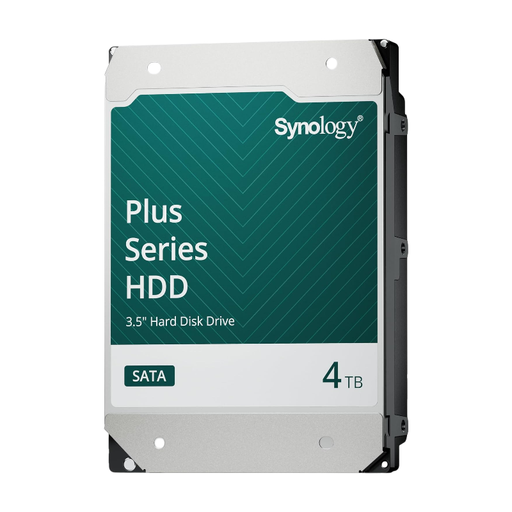 Image unavailable
An internal drive for expanding a compatible Synology NAS you already own.
3.5-inch SATA, 4TB, CMR and a stated workload rating of 180 TB/year.
This is an internal NAS drive, not a NAS enclosure or a separate external backup drive.
 Image unavailable
A four-bay NAS for centralised storage and file management.
The product description mentions DSM and snapshot technology for restoring earlier versions of files.
Check the listing to see which drives are actually included.
 Image unavailable
A NAS enclosure with eight drive bays for an archive that needs room to grow.
Two 2.5GbE ports; compatible drives must be installed for storage.
Before buying, check which drives are compatible with this version.
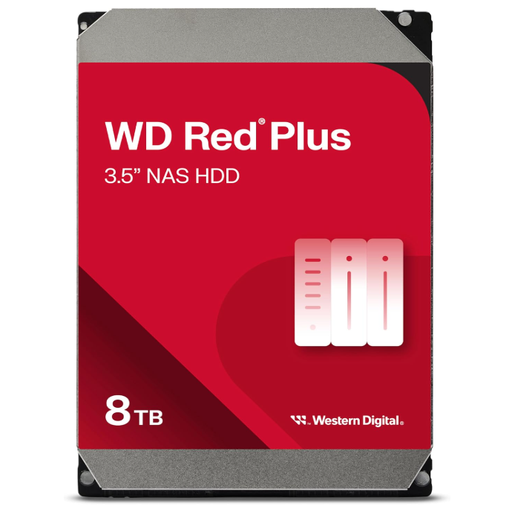 Image unavailable
An internal NAS drive for adding storage to a compatible enclosure you already own.
3.5-inch SATA, CMR and SATA 6 Gb/s; the product information lists support for NAS systems of up to eight bays.
This is not a NAS enclosure or a separate external backup drive; check compatibility with your NAS model.
No, not as a separate recovery copy. Synology also recommends backing up to another location, while QNAP explains that a snapshot alone doesn’t create a second physical copy.
Back up to a separate destination, check that the task has completed and try recovering files before relying on that copy. Synology lists USB storage and another NAS as backup destinations, among others. Follow your equipment’s manual for disconnecting and transporting it.
It depends on the offer. QNAP states that the TS-264 is supplied without an HDD. Check the exact model code, number of drives and included capacity for each package.
According to the Dutch Data Protection Authority, identifiable people in photos count as personal data. Organisations that process this kind of data must take appropriate security measures based on the risks. This doesn’t mean that one specific NAS model or a single fixed storage method is required.
Not without assessing the circumstances. According to the Dutch Data Protection Authority, the reporting obligation depends on the potential consequences for the people concerned. Assess the loss and the security measures in place for the specific situation.