
Creator making a one-off studio copy
Wants to check before the move that episodes, raw recordings and projects can also be restored from a separate copy. The NCSC stresses that central storage alone is not a backup.


Start with a recoverable copy alongside your NAS: a NAS or mirrored pair of drives is not automatically a separate backup. Then choose based on the measured size of your archive, how much room you want for expansion and the network connection you’ll use during the move. The National Cyber Security Centre (NCSC) recommends backing up important files and testing that you can restore them.
Wants to check before the move that episodes, raw recordings and projects can also be restored from a separate copy. The NCSC stresses that central storage alone is not a backup.
Needs central access for several team members and wants to match usable storage space and potential expansion to the archive’s growth.
Wants to decide who can access stored recordings. If they contain personal data, the studio must determine appropriate security for its own data processing; the Dutch Data Protection Authority explains this responsibility.
For a podcast archive during a studio move, the key considerations are recoverability, usable storage space, transfer and access management.
| Consideration | What should you check? | Who should give this more weight? |
|---|---|---|
| Recoverability | Plan a copy outside the NAS being moved and, before you leave, test that you can open important files from it. | I want to be able to retrieve episodes and project files if anything goes wrong during the move. Around 33% of consumers put recoverability first. |
| Storage space and expansion | Measure your existing folders and planned retention period; check the usable capacity and number of drive bays for your chosen configuration. | I want to keep my existing sessions and make room for new work, without relying solely on the total capacity printed on the drives. Around 27% of consumers prioritise capacity and growth. |
| Transfer | Check the ports on your NAS, computer and network equipment, and allow time for copying and a restore test. | I want to finish copying the archive before the move and take account of the equipment I already use. Around 20% of consumers put transfer and connectivity first. |
| Access management | Decide who needs access to the files and whether access outside the local network is genuinely necessary. | I don’t want to share guest recordings indiscriminately and need to set appropriate access for my studio. Around 20% of consumers start by restricting access. |
RAID does not turn a single NAS into a separate backup. If the NAS and original files are moved together, you still need a separate way to restore them.
Keep a copy in a different location and, before you leave, test that you can restore important files from it. The NCSC recommends carrying out a restore test.
A separate backup destination requires extra set-up, as well as time for copying and restore tests.
For several of the NAS models mentioned, drives are selected separately. An enclosure alone won’t provide storage space for your archive.
Check which drives are included with the exact version and whether your chosen drives are compatible with the NAS model.
Support can vary by NAS model, drive type and DSM version, so one general rule isn’t enough to assess whether a combination will work.
Before buying, check the latest compatibility information for the exact model, installed DSM version and drive type.
Worth comparing if built-in file and backup features, along with the expansion capacity you need, are high priorities.
The TS-264 is a two-bay model worth comparing if its connections suit your network and backup plan.
The Drivestor 2 Pro Gen2 AS3302T v2 is a two-bay model to consider if its features and connections suit your set-up.
The NASync DXP2800 is worth comparing if the exact version and its supported features suit your archive plan.
This Joybuy selection includes NAS enclosures for a growing archive and individual NAS drives. An individual drive isn’t a standalone NAS; check that it’s compatible with your chosen enclosure.
 No image available
For a central archive with room to expand, this NAS enclosure has eight drive bays.
The version described lists two 2.5GbE ports and support for expansion.
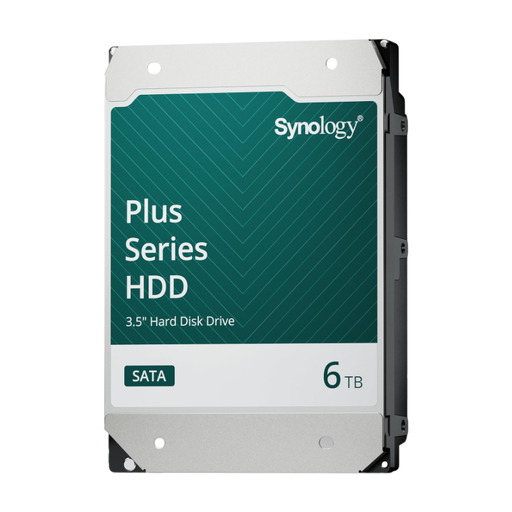 No image available
For expanding storage in a compatible Synology NAS; this drive isn’t a standalone NAS.
3.5-inch SATA, 6 TB, CMR and a stated workload of 180 TB per year. Check compatibility with your exact NAS.
 No image available
For a growing central archive, this NAS enclosure has five drive bays and, according to the description, can grow with an expansion unit.
The version listed has two 2.5GbE ports. Hard drives aren’t included and must be chosen separately.
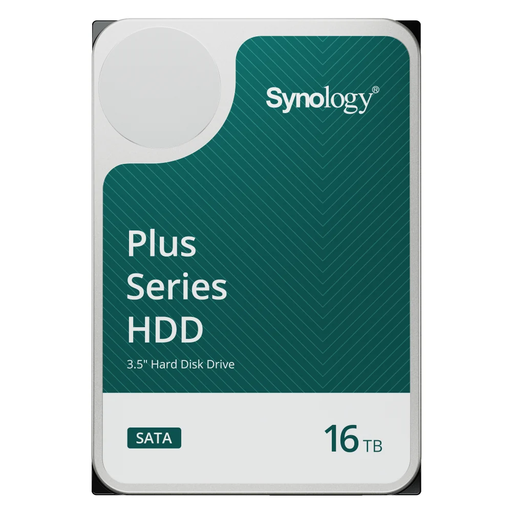 No image available
For extra storage in a compatible Synology NAS; this drive on its own doesn’t make up a complete NAS set-up.
3.5-inch SATA, 16 TB, 7,200 rpm and 512 MB cache. Check compatibility with your exact NAS.
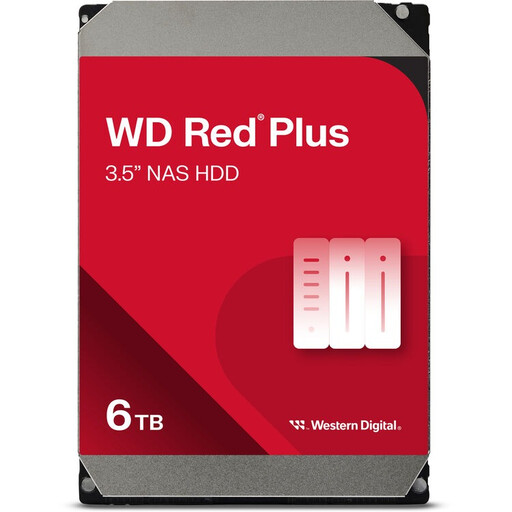 No image available
For storage in a compatible NAS enclosure; this individual drive isn’t a standalone NAS.
6 TB, SATA and 5,400 rpm. The description states that it’s suitable for NAS use with up to eight drive bays; check compatibility with your exact enclosure.
No. According to the NCSC, RAID doesn’t replace a separate backup. Keep a copy in a different location too, and test that you can restore important files from it.
Don’t assume you can. The Synology DS225+ manual warns that a drive containing data will be formatted during installation, which may result in existing data being lost. Make a separate copy beforehand and follow the manual for your exact model.
Carry out a restore test and open a few important episodes and project files from the restored copy. The NCSC recommends testing restores; a message saying a backup has completed successfully doesn’t, by itself, show that you can restore your files.
If the studio processes personal data, it must decide on appropriate security measures for the risks involved. The Dutch Data Protection Authority explains this responsibility; having a NAS doesn’t in itself require a particular brand, RAID level or fixed retention period.
Not automatically. The Netherlands Authority for Consumers and Markets’ ConsuWijzer service says that consumer protection doesn’t apply when a contract is used mainly or exclusively for business. The assessment may depend on the purchase and how it’s used, so check the capacity in which you’re buying and the terms that apply to your situation.