What should you look for when buying?
First work out how much usable space you need. Then choose the number of drive bays and connections to suit the way you work, and separately plan a copy that won’t move with the NAS.
NAS with two drive bays
Choose this if: your archive will fit within the usable capacity of your chosen configuration and you want a fixed local backup destination.
Bear in mind: redundancy can reduce the available space; you’ll need another storage destination for a separate copy.
NAS with four drive bays
Choose this if: you expect your archive to grow or want more room for drives and storage configurations.
Bear in mind: having more bays doesn’t automatically give you a separate backup; the required drives also need to fit your setup.
External drive alongside or instead of a NAS
Choose this if: you want to keep a copy outside the NAS during the move, or shared network access isn’t a key requirement.
Bear in mind: a standalone drive won’t provide NAS network features by itself, and it isn’t a substitute for a separate, tested copy.
| What to consider |
What should you check? |
Who should prioritise this? |
| Restorable copy |
Check that a backup task has completed, try restoring files and keep a copy separate from the NAS. |
If you want to be able to retrieve a file before packing and avoid moving all your copies together, recoverability comes first; around 33% of consumers prioritise this concern. |
| Usable space |
Measure your archive, estimate its growth and calculate the usable space for your chosen drives and configuration. |
If you want to avoid a growing photo collection quickly running out of room, focus on capacity; around 27% of consumers prioritise archive space. |
| Transferring large files |
Check the connections on your NAS, computer, switch and cabling; don’t treat manufacturer test results as a guaranteed speed for your own connection. |
If you want to copy large photo folders locally before the move, the whole network connection matters; around 20% of consumers prioritise transfer time. |
| Complete setup |
Check whether drives are included, and allow for a separate destination for your extra copy. |
If you want to choose a complete backup setup rather than just a NAS enclosure, consider all the components you’ll need; around 20% of consumers prioritise the complete setup. |
Products for your photo archive
This selection includes NAS systems for local storage and external desktop drives for a separate copy or simpler local storage. An external drive isn’t a NAS; if you use a NAS, also plan a copy to another destination.
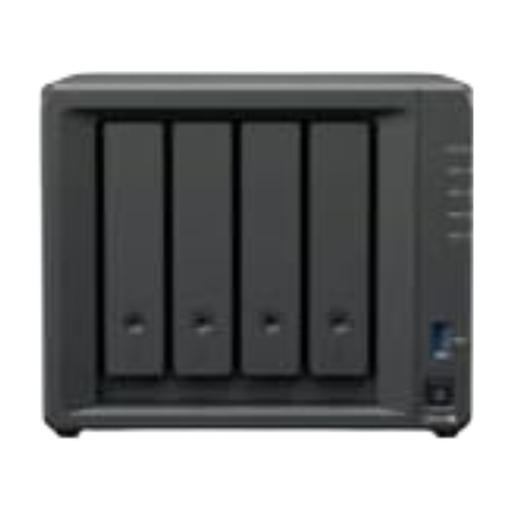 Image unavailable
Synology DiskStation Intel Celeron J4125 Q
Could suit a local photo archive if you’re looking for storage across four drives and recovery of earlier versions.
The product description lists four SATA drives, four included 12TB drives and the recovery of earlier file versions through snapshots.
View at Joybuy
 Image unavailable
Synology DiskStation DS1825+
Could suit a growing local archive if you want to consider multiple drive bays and expansion options.
The product description lists eight drive bays, expansion with an expansion unit and two 2.5GbE ports. Suitable hard drives need to be installed.
View at Joybuy
 Image unavailable
Synology DiskStation DS1525+
Could suit a local photo archive if you want to factor in more drive bays and expansion options.
The product description lists five drive bays, expansion to fifteen with an expansion unit and two 2.5GbE ports. Hard drives aren’t included and need to be chosen separately.
View at Joybuy
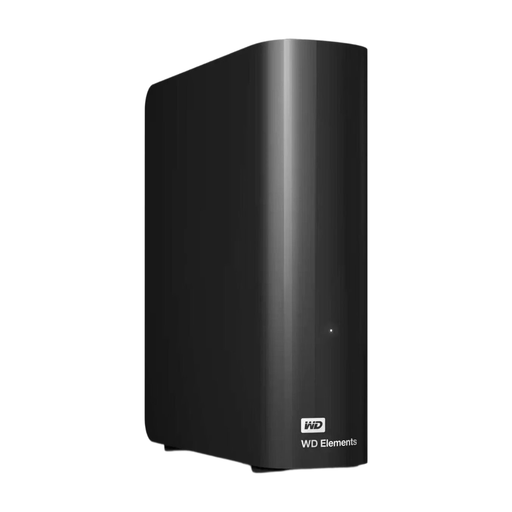 Image unavailable
WD Elements Desktop 16TB
Could suit you if you want to keep an external local copy alongside a NAS or need a simpler storage option; this isn’t a NAS.
The product description lists 16TB of storage, USB 3.0 and a supplied power adapter. You’ll need a mains socket to use it.
View at Joybuy
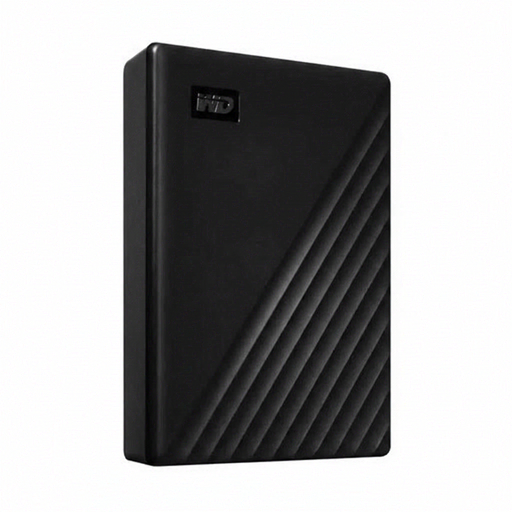 Image unavailable
Western Digital WD Elements Desktop 24TB
Could suit you if you’re considering an external drive for a large local photo copy; this isn’t a NAS and doesn’t replace a copy stored elsewhere.
The product description lists 24TB of storage, USB 3.2 Gen 1 and a supplied power adapter. It also states that the drive is compatible with USB 3.0 and USB 2.0.
View at Joybuy
Frequently asked questions
How do I check my photo backup before packing?
Wait for the backup task to finish, then try restoring a few original files. Synology documents backups to destinations including external storage; don’t keep all your copies together during the move.
Does RAID already give me a separate backup?
No. RAID on the NAS isn’t the same as a copy stored elsewhere. Synology also recommends a separate backup destination; test that you can restore your files from it.
Do I have to buy Synology drives for a Synology Plus model?
Not as a general rule: Synology states that the relevant Plus models offer more flexibility with third-party drives when running DSM 7.3. Check the policy for the exact NAS model, software version and drive you’ve chosen; Synology recommends compatible drives.
What should I check besides the NAS enclosure?
Check whether hard drives are included and what you’ll need for a separate copy; QNAP states that the TS-264 is supplied without hard drives. For consumer purchases in the Netherlands, statutory consumer rights apply alongside any manufacturer’s warranty: according to the Dutch government, there is no fixed statutory warranty period, and the retailer is your point of contact if a product is faulty.
Are recognisable customer photos personal data?
Yes. According to the Dutch Data Protection Authority, images in which people are recognisable count as personal data. The exception for exclusively personal or household use doesn’t apply to business use; an organisation must determine appropriate security measures. This doesn’t prescribe a specific NAS or fixed encryption setting.


