If you already have a suitable NAS, start by choosing a compatible internal drive. If not, compare NAS enclosures and factor in the drives you’ll need. Work out the usable capacity you need based on your archive and expected growth, arrange a separate backup, and only opt for extra bays or a faster network port if your storage and transfer requirements justify it. If people can be identified in your recordings, make sure access and retention periods comply with the policy that applies to them.
Who is this choice relevant to?
Looking after irreplaceable recordings
You want to be able to recover completed lectures after an error or hardware failure, so you’re looking for a separate backup as well as storage. Synology Knowledge Centre recommends keeping an additional backup in a separate location for recovery.
Building a growing video archive
You keep both finished files and source footage, and want to work out in advance how much usable space and scope for expansion you’ll need. The number of bays and the storage configuration are important factors when comparing NAS devices, as Kieskeurig.nl explains.
Managing educational recordings
You archive recordings in which people can be identified, and make sure access, retention periods and any publication comply with your institution’s policies. The Dutch Data Protection Authority highlights agreements on recording and retention as important considerations for online education.
What should you consider when choosing?
An internal NAS drive only
Choose this if: you already have a suitable NAS with a free drive bay and mainly need storage space for your archive.
Bear in mind: a standalone drive isn’t a network storage device; check the exact model is compatible with your NAS.
Two-bay NAS
Choose this if: you’re starting a manageable archive and expect two bays to be enough for now.
Bear in mind: a configuration that provides fault tolerance can leave you with less usable capacity than the combined drive space; you’ll still need a separate backup.
Four-bay NAS
Choose this if: you keep a lot of source footage alongside finished versions, or expect your archive to grow.
Bear in mind: having more bays doesn’t automatically mean you need a larger configuration; also check which drives and backup destination you’ll need.
| Consideration |
What to look for when buying |
Who should consider this? |
| Recoverability |
Decide which separate backup destination you can use and whether you can restore files from it. |
If I don’t want to lose completed recordings, I also want to be able to restore a copy from outside the NAS. Around 36% of consumers prioritise recoverability. |
| Usable capacity and growth |
Assess your archive, decide which versions to keep and compare the usable space offered by each configuration. |
If I want to keep finished versions alongside source footage, I need to know how much space will be left and whether I can expand later. Around 29% of consumers prioritise the storage space their archive needs. |
| Transfers after editing |
Compare the network ports on your NAS, computer and any intervening equipment; a port specification doesn’t guarantee a particular copy speed. |
If I transfer large files after a long editing session, I want to know whether my whole network can support the chosen port. Around 21% of consumers prioritise transfer speeds. |
| Access and retention period |
For recordings made under an institution’s responsibility, ask about its recording policy, access arrangements and applicable retention period. |
If recordings include people who can be seen or heard, I want to know who can access them and how long they can be kept. Around 14% of consumers prioritise the management of personal data. |
Common pitfalls
-
Mistaking drive fault tolerance for a full backup
A configuration that protects you if a drive fails won’t protect against every risk of data loss. A local copy on the NAS is therefore not the same as a backup to a separate destination.
Before deleting your editing files, try restoring one from your separate backup.
-
Looking only at the NAS enclosure
Some enclosures are sold without drives, and the usable capacity depends on the configuration you choose.
Check whether drives are included, and compare configurations based on the usable space you need.
-
Buying an internal NAS drive when you need a complete NAS
An internal drive isn’t a standalone network storage solution. Without a suitable enclosure with a free, compatible bay, you can’t use it as a complete NAS solution.
Before you start looking, check whether you already have a suitable NAS enclosure.
If you don’t already have a suitable enclosure, you’ll need to buy one too.
Brands to compare
Synology
DiskStation enclosures, including the DS225+, are worth comparing for a compact archive. Synology describes its built-in backup options, but choosing a separate backup destination is a decision in its own right.
- Synology says the DS225+ has a 2.5GbE port.
- Synology’s throughput figures are based on internal testing and don’t guarantee the speed you’ll get at home. Check drive compatibility before choosing your NAS model.
UGREEN
The NASync range includes the two-bay DH2300 and the diskless four-bay DXP4800 Plus. Check which drives you’ll need to buy separately for the model you’re considering.
- According to UGREEN, the DH2300 has 1GbE and this model doesn’t support Docker or virtual machines. The manufacturer says the DXP4800 Plus has 10GbE and 2.5GbE.
- These features apply to the models mentioned and aren’t necessarily available across the whole range.
QNAP
The TS-264 is a two-bay NAS enclosure to consider when comparing storage setups.
- QNAP lists two SATA drive bays for the TS-264-8G.
- QNAP says this model is supplied without an HDD. Check the compatibility list for the exact drive model.
Western Digital
WD Red Plus is a range of internal NAS drives for anyone who already has a suitable enclosure or is putting together their own configuration.
- Western Digital distinguishes between SMR versions of WD Red and CMR versions of WD Red Plus and Red Pro.
- Don’t buy based on the WD Red name alone: check the exact model and its compatibility with your NAS.
Toshiba
Toshiba describes the N300 as a range of internal 3.5-inch SATA drives for NAS storage, and lists archiving as one of their uses.
- The EMEA product page lists several capacities and a three-year warranty.
- Not every N300 variant will fit every NAS; check the capacity and exact model.
Joybuy products for this topic
This selection includes internal Synology drives and Synology NAS enclosures for storage and archiving. Check which drives each model needs and whether they’re compatible with your NAS setup.
 No image available
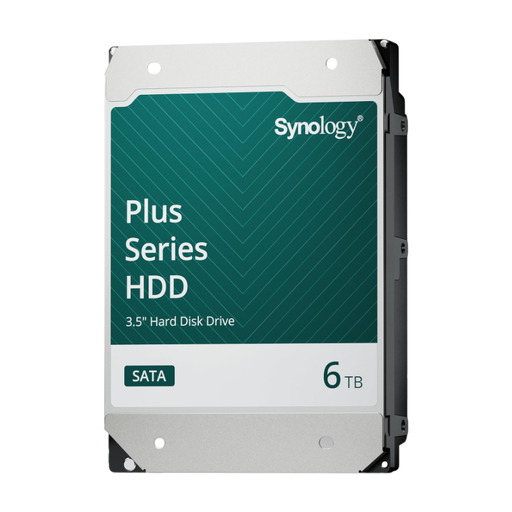
Synology SATA HDD 6TB
For a suitable NAS with a free, compatible drive bay; check compatibility with your exact NAS model.
Capacity: 6 TB.
View on Joybuy
 No image available
Synology DiskStation DS1525+ NAS enclosure
For an archive that may grow; check which drives and storage expansions are compatible with this model.
Compatible HDDs are sold separately.
View on Joybuy
 No image available
Synology DiskStation Intel Celeron J4125 Q NAS enclosure
A two-bay NAS enclosure for a manageable archive; check drive compatibility before you buy.
The enclosure is supplied without drives. A RAID configuration is no substitute for a separate backup.
View on Joybuy
 No image available
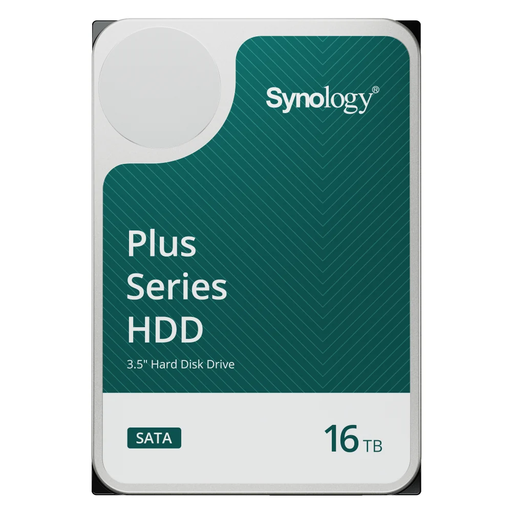
Synology SATA HDD 16TB, 7,200 rpm
For a suitable Synology NAS with a free, compatible bay; check compatibility with your exact NAS model.
Capacity: 16 TB. Rotational speed: 7,200 rpm.
View on Joybuy
 No image available
Synology DiskStation DS1825+ NAS enclosure
For an archive where room to grow is important; check which drives and expansion options are compatible with this model.
Compatible hard drives must be installed before use.
View on Joybuy
Frequently asked questions
Can I delete my working files once they’re on the NAS?
Don’t delete them until you’ve checked that the files transferred correctly and that you can restore them from a separate backup. Then decide which source files to keep based on your own retention needs.
Do I need to buy drives separately, and will they fit in every NAS?
Some enclosures are supplied without drives, so check this for the model you’ve chosen. Before choosing a drive, also check its size, exact model and the NAS compatibility information.
Is a faster network port worthwhile if I only archive after editing?
Not necessarily. Consider how often and how much you transfer, and check that your computer, switch and other connections can support the faster port. The port specification alone doesn’t guarantee a particular copy speed.
Can an educational institution keep or publish lecture recordings on its own NAS indefinitely?
No. Owning a NAS doesn’t automatically make indefinite retention appropriate. The Dutch Data Protection Authority highlights agreements on making and keeping recordings, their purpose and retention period, secure storage and timely deletion as important considerations for online education. For identifiable images of pupils, the Authority mentions consent; this doesn’t mean consent is the only possible legal basis for every lecture recording in every situation. Make sure the legal basis and retention period are appropriate for the specific recording and the institution’s applicable policy.


