Before choosing a NAS setup, check that your backup task includes all your project folders and that you can restore your files. Then calculate the usable storage space, including any previous versions, and make sure the network connection suits the equipment in your home. Disk mirroring can help if a drive fails, but it is no substitute for a separate copy stored elsewhere.
Who is a NAS backup suitable for?
Families who want to be able to restore files
If you want to back up important folders automatically and restore previous versions, it’s worth carrying out a recovery test too. Synology and Microsoft explain recovery options in their backup documentation.
Families with growing project folders
If you store lots of source files and previous versions, compare the usable capacity you need rather than simply adding up the drive space. Synology notes that available capacity depends in part on the drives and configuration.
Families who regularly transfer large files
If you often move large project files, check the network ports on both the NAS and your other home equipment. Synology and QNAP list the ports for each model, but the whole connection matters.
What should you look for?
Two-bay NAS
Suitable when: you want to back up automatically from multiple devices to a shared network location and manage file versions.
Keep in mind: check the usable storage space, support for your backup task and whether drives are included. Mirroring is not a separate backup.
External drive
Suitable when: mainly one computer needs a local backup and network access for other devices is not a priority.
Keep in mind: the drive needs to be available when the backup runs. Keeping a separate copy elsewhere remains a separate decision.
Cloud storage as an additional destination
Suitable when: you want to keep a copy outside your home and the upload connection and storage terms suit the way you use it.
Keep in mind: check how restoring large folders works. Syncing is not automatically the same as a restorable backup with version history.
| What to consider |
What should you check? |
Who does this matter most to? |
| Backup and recovery |
Check support for Windows or Mac, folder selection, version history and the ability to restore a test file. Microsoft explains how to add folders to File History; Apple recommends SMB if you can choose between SMB and AFP. |
I want to make sure my project folder is included and that I can restore an earlier version. Around 33% of consumers prioritise recovery options. |
| Usable storage space |
Measure your current folders and allow for growth and version history. Compare the usable capacity with the selected drives and configuration; Synology notes that capacity can vary between configurations. |
I store large source files and previous project versions, and want to know how much space will be left for them. Around 27% of consumers give usable capacity top priority. |
| Transferring large files |
Compare the network ports on the NAS, computer and other equipment. Synology and QNAP list ports for each model; a stated port speed does not guarantee the speed of your entire home network. |
If I often move large files, I want to know whether the equipment at both ends of the connection is compatible. Around 20% of consumers prioritise transfer times. |
| Components required |
Check whether drives are included in each offer and which drive models are compatible with the NAS. Also consider how you want to set up a separate backup destination. |
I want to know in advance which components I need for a complete backup setup. Around 20% of consumers focus on the components and destinations required. |
Common buying pitfalls
-
Confusing raw capacity with usable backup space
The space left for files depends in part on the drives and the configuration you choose. Previous versions also take up storage space.
First, measure your existing project folders, allow for growth and compare the total with the usable capacity of your planned configuration.
-
Confusing RAID or syncing with a complete backup
A copy on the same NAS is not the same as a copy stored elsewhere. Synology also describes the risk of data loss if the NAS has a problem.
Set up a separate destination where needed, and test whether you can restore a project file.
-
Assuming a NAS enclosure includes drives
QNAP states that the TS-264 is supplied without hard drives. The contents can vary by model and offer.
Check what is included in the offer and whether the exact drives are compatible with the NAS.
-
Assuming a network port guarantees backup speed
Your computer and other network equipment can limit the connection. Synology qualifies its own throughput figures as manufacturer test results; they are not a guarantee of the speed you’ll get at home.
Check the entire network route and don’t base your choice on a single port or manufacturer measurement.
Brands to compare
Synology
NAS enclosures such as the DS225+ are worth considering if central storage and backup software are important factors in your choice.
- Synology lists a 2.5GbE port for the DS225+; the stated throughput figures are based on manufacturer tests.
- According to Synology, Active Backup for Business requires a compatible x64 NAS with Btrfs. Check support for the exact model and task you want to run.
- Synology says DSM 7.3 offers more flexibility for third-party drives with certain 2025 models. Check the latest compatibility information for your model.
QNAP
NAS models such as the TS-264-8G can be compared by their drive bays, network ports and configurable backup tasks.
- QNAP lists two drive bays and two 2.5GbE ports for the TS-264-8G. According to QNAP, HBS 3 supports backing up and restoring NAS data to other destinations.
- The TS-264-8G is supplied without hard drives. Check separately whether the NAS supports the backup you want to run from your family computer.
ASUSTOR
The NIMBUSTOR 2 Gen2 (AS5402T) is an alternative to consider alongside other NAS enclosures.
- ASUSTOR lists separate models for home and more demanding use.
- Manufacturer measurements for a specific model or under optimised conditions do not necessarily reflect the speed you’ll get at home.
Western Digital
WD Red drives are one option to consider alongside a separately selected NAS enclosure.
- Western Digital identifies WD Red Plus and WD Red Pro as CMR drives, and explains considerations around DMSMR during demanding rebuild tasks.
- This does not confirm that every WD Red model is compatible with every NAS. Check compatibility for the exact drive model.
Seagate
IronWolf is a range of NAS drives to compare if you’re choosing the enclosure and drives separately.
- Seagate describes IronWolf as a range of NAS drives using CMR.
- Seagate recommends checking the NAS manufacturer’s compatibility list. Manufacturer information about features and performance is no substitute for checking the exact model.
Joybuy products
These Joybuy products include external drives for direct backup from one computer and NAS options for central storage of project folders. For each model, check that the backup task, configuration and components required suit the way you plan to use it.
 Image unavailable
WD My Passport 6TB Portable Hard Drive, White
An external option to compare for backing up from one computer; the product name mentions automatic backup software and password protection.
Capacity: 6 TB. Type: portable external hard drive.
View at Joybuy
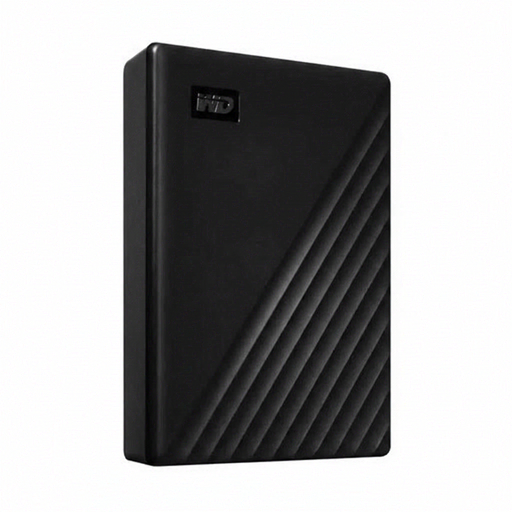 Image unavailable
Western Digital WD Elements Desktop 24TB
An external destination to compare if you want to store lots of project files directly from a computer.
Capacity: 24 TB. Connection: USB 3.2 Gen 1. Size: 3.5-inch. Reformatting may be required for some other operating systems.
View at Joybuy
 Image unavailable
Synology DiskStation DS423+
A NAS option to compare if you want to store your project folders centrally. Check that the specific backup task and drive configuration suit your computer.
The product name listed at Joybuy mentions an Intel Celeron J4125.
View at Joybuy
 Image unavailable
Synology DiskStation DS1825+
A NAS model to include in your comparison of storage for large project folders. Check the drive configuration, capacity you need and network connection for your setup.
View at Joybuy
 Image unavailable
Synology DiskStation DS1525+
A NAS option to compare if you want to store project folders centrally. Bear in mind that hard drives need to be chosen separately.
The product information states that hard drives are not included.
View at Joybuy
Frequently asked questions
How do I include a project folder outside the standard folders in a Windows backup?
In Windows, add the folder to an existing or new library in File History. Then carry out a recovery test to check that the files you need have been included.
Can a Mac back up to a NAS over the network?
Yes, if the NAS supports Time Machine as a network destination. Apple recommends SMB if you can choose between SMB and AFP; check the setup instructions for your specific NAS model.
Is disk mirroring enough as your only backup?
No. Mirroring is not a separate copy stored elsewhere. Synology recommends keeping a backup elsewhere as well as local protection; also test that you can restore a file.
How do I work out how much NAS storage my project folders need?
Measure your current folders and allow for growth and the versions you want to keep. Compare this with the usable capacity of the selected drives and configuration; Synology notes that available space depends on these factors.
What does the warranty on a NAS look like in the Netherlands?
For a purchase by a consumer, statutory warranty applies alongside any seller or manufacturer’s warranty. According to ACM ConsuWijzer, there is no fixed statutory period of exactly two years: the circumstances and what you can expect from the product matter, and the seller is your point of contact.


