A NAS is suitable for large design files if, after your chosen drive configuration, there’s enough usable space for previous versions too. Also plan a backup to a separate destination: drive redundancy alone won’t protect you against every kind of data loss. If you work directly from the NAS, assess the network connection across your entire workspace. If you already have an enclosure, compatibility with the exact drive model is especially important.
Who is a NAS suitable for?
Designer who can’t afford to lose their work
You want to be able to retrieve files and previous versions after a long session. Synology and the Digital Trust Center recommend paying attention to backups; plan these separately from your drive configuration.
Creator with a growing project archive
Your large design files and versions are taking up more and more space. ID.nl and Synology point out that the number of drive bays you need and the usable capacity depend on your storage requirements and configuration.
Designer who works directly from a NAS
You open and save files over the network. The NAS ports are only one part of the picture: your computer and the rest of your network connection must also suit the way you work.
What should you look for when buying?
First decide whether you want to expand an existing enclosure or need a complete NAS. Then work out the capacity and drive configuration you need; pay particular attention to network ports if you work directly from the NAS.
| What to consider |
What should you check? |
Who should pay particular attention? |
| Recovering your work |
Check version control, backups to a separate destination and file recovery. Synology warns that RAID or a failed drive can still result in data loss; the Digital Trust Center advises organisations to automate backups where appropriate. |
If you want to be able to recover earlier designs after a long session, recovery should be your priority. Around 33% of consumers prioritise being able to recover their work. |
| Usable storage capacity |
Take stock of your projects, expected growth and versions. Then compare the usable capacity with your chosen drives and configuration; raw capacity isn’t the same as free space for projects. |
If your archive is growing, you’ll want to leave room for both files and versions. Around 27% of consumers prioritise usable capacity. |
| Working over the network |
Decide whether you’ll work directly from the NAS. Check your computer, cabling, any switch, NAS ports and drives as one complete connection; a fast port alone doesn’t guarantee a particular file transfer speed. |
If you open and save files over the network while designing, you should assess the entire connection. Around 20% of consumers prioritise working speed. |
| Sharing and management |
Check that the account, access rights, update and backup features suit the way you’ll use the NAS. If your organisation’s projects involve personal data, you’ll need to assess appropriate security measures. |
If you work with others and want to manage access for each person, sharing and management matter. Around 20% of consumers prioritise collaboration and access management. |
Common buying mistakes
-
Confusing maximum capacity with available space for projects
Usable capacity depends in part on the drives and the RAID configuration you choose. So the capacity quoted on paper won’t necessarily all be available for projects and versions.
Compare systems with the same drives and configuration, and allow for the space you want to keep for previous versions.
A configuration and version history that need more space could mean you’ll need larger or additional drives.
-
Assuming mirroring replaces a backup
A copy or redundancy within the same NAS won’t protect against every risk of data loss.
Plan a backup to a separate destination and test that you can restore files from it.
A separate destination requires additional storage and management.
-
Choosing a NAS or drive by brand name alone
An enclosure may be supplied without drives, and compatibility varies by exact model and configuration.
Check what’s included and compare the drive’s model number with your enclosure’s compatibility information.
Relevant brands for NAS storage
Synology
Synology offers NAS enclosures with two or four drive bays. According to Synology, the DS925+ supports expansion with a separately available DX525.
- Synology lists 2.5GbE for the models mentioned. Its published throughput figures are based on the manufacturer’s own tests.
- Check compatibility for the exact model, drive type and software version. Synology recommends consulting its compatibility list.
UGREEN
According to UGREEN, the NASync DXP4800 Plus is a four-bay enclosure supplied without drives, designed for uses including large files.
- UGREEN lists 10GbE and 2.5GbE and says the device supports drives from other manufacturers.
- Check that your chosen drive is compatible. Manufacturer speed claims don’t necessarily reflect the performance of your entire workspace.
ASUSTOR
According to the product specifications, the AS5404T combines four drive bays, four M.2 slots and two 2.5GbE ports.
- The specifications give you a starting point for comparing HDD storage with SSD options.
- The practical benefits of M.2 storage or multiple ports depend on your configuration and workload. ASUSTOR’s performance figures are based on laboratory results.
Western Digital
WD Red Plus and Red Pro are separate NAS drive ranges for anyone who already has a suitable enclosure.
- Western Digital identifies Red Plus and Red Pro as CMR drives.
- The Red name alone doesn’t tell you the recording technology or compatibility of a specific model. Check the exact drive model for your enclosure and intended use.
Toshiba
The N300 is a separate 3.5-inch NAS drive range for uses including storage in a home office or small business.
- Toshiba lists CMR and use in NAS systems.
- Check the capacity and exact model against the compatibility information for your existing enclosure. Reliability and performance claims come from the manufacturer.
Joybuy products for NAS storage
This selection includes standalone NAS drives and Synology NAS enclosures for expanding storage or storing large design files.
 No image available
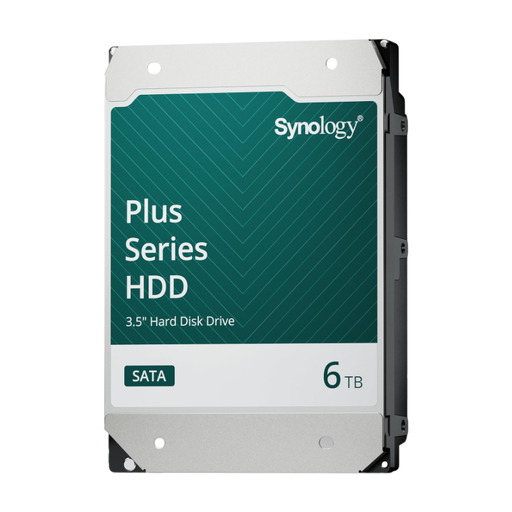
Synology SATA HDD 6 TB
A standalone drive to consider if you have a suitable NAS enclosure and want to expand your storage.
6 TB; 3.5-inch SATA; 5400 rpm; CMR. The description lists a workload rating of 180 TB per year and use in Synology NAS systems.
Check compatibility with your exact enclosure. A drive or RAID configuration doesn’t replace a backup to a separate destination.
Joybuy
 No image available
Synology DiskStation DS1525+
A NAS enclosure to consider if you want to install several internal drives for a growing archive.
Five drive bays; two 2.5GbE ports; 8 GB memory; AMD Ryzen quad-core processor. The description lists expansion to 15 drives with expansion units.
Hard drives aren’t included and must be chosen separately. Check that your chosen drives are compatible.
Joybuy
 No image available
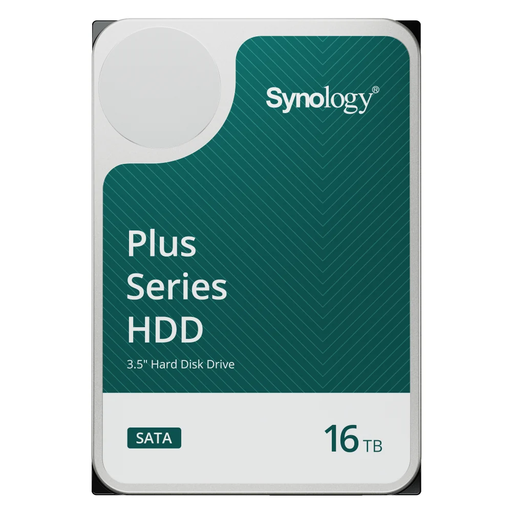
Synology SATA HDD 16 TB
A standalone drive to consider if you have a compatible Synology NAS and need more storage capacity.
16 TB; 3.5-inch SATA; 7200 rpm; 512 MB cache; CMR. The description lists use for 24/7 multi-user workloads.
Check that it’s suitable for your exact NAS model. A NAS drive or RAID configuration doesn’t replace a backup to a separate destination.
Joybuy
 No image available
Synology DiskStation DS1825+
A NAS enclosure to consider if your archive needs several internal drives and you want to assess your network access.
Eight drive bays; two integrated 2.5GbE ports; optional 10GbE according to the product description.
Compatible hard drives are required for installation. Check that your chosen drives are suitable and plan a separate backup.
Joybuy
 No image available
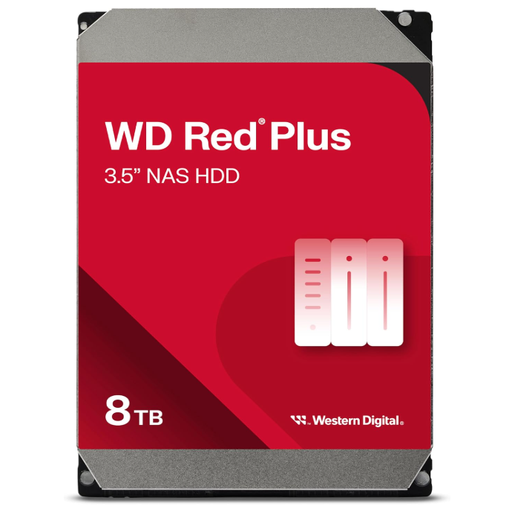
Western Digital WD Red Plus 8 TB
A standalone NAS drive to consider if you have a suitable enclosure and want to expand your storage.
8 TB; 3.5-inch SATA 6 Gb/s; CMR; 256 MB cache; 5640 rpm. The description lists NAS systems with up to eight bays and 24/7 use.
Check that this exact drive model is compatible with your NAS enclosure. A drive or RAID configuration doesn’t replace a backup to a separate destination.
Joybuy
Frequently asked questions
Is RAID enough to protect your design files?
No, RAID isn’t a replacement for a separate backup. Synology warns that a RAID issue or failed drive can still result in data loss. Choose a separate backup destination and check that you can restore your files from it.
Do you need to buy drives separately, and what should you check before installation?
It depends on whether your enclosure comes with drives; the NAS enclosures in this selection specify that drives are required separately. Before installation, check the exact model, number of bays, compatibility and how much space will remain usable after your chosen drive configuration.
What ongoing management does a NAS need?
Set aside time for backups, retention periods and recovery tests. The Digital Trust Center advises organisations to automate backups where appropriate; a longer retention period also requires more storage space.
Does the GDPR apply to design files on your NAS?
The storage location alone doesn’t determine this. According to the Dutch Data Protection Authority, information about an identifiable person is personal data; processing carried out solely for personal or household purposes isn’t covered by the GDPR. If an organisation processes personal data, for example in client projects, it must determine appropriate security measures based on the risks. This doesn’t prescribe a specific NAS model or RAID level.


