What should you look for when buying?
First decide whether you’re expanding an existing NAS or need a complete enclosure. Then choose the capacity and connections you need. Separately, plan to keep a copy on another storage device before moving.
| What to consider |
What to look for when buying |
Who is this important for? |
| Separate copy before transport |
Choose another storage device and restore a few files before packing. |
I don’t want damage to the NAS during the move to affect my only copy; around 33% of consumers prioritise keeping their data safe. |
| Usable archive space |
Measure your current files, estimate future growth and calculate the space available after choosing a storage configuration. |
I want enough room for my existing footage and new captures, without relying only on the capacity printed on the drive label; around 27% of consumers prioritise usable archive space. |
| Transferring large files |
Check the NAS connection as well as the computer, switch and cabling along the network path. |
I share large recordings between workstations and want to know whether my existing network can make use of the connection; around 20% of consumers prioritise shared transfers. |
| Compatible drives and a complete setup |
Check the full drive model against the compatibility information and see which components you need to buy separately. |
I want to avoid buying a drive that doesn’t fit my enclosure or overlooking a storage or backup device I need; around 20% of consumers prioritise a compatible complete setup. |
NAS products at Joybuy
This selection includes NAS enclosures for network storage and internal NAS drives for expanding an existing system. Check each product to see whether you also need drives, an enclosure or a separate backup device.
 No image available
Synology DiskStation DS1525+ NAS
Suitable for storing and sharing gaming footage on a NAS if you’re looking for an enclosure with multiple drive bays.
Five drive bays and two 2.5GbE ports. Hard drives aren’t included and must be chosen separately; a separate backup requires another storage device.
Joybuy
 No image available
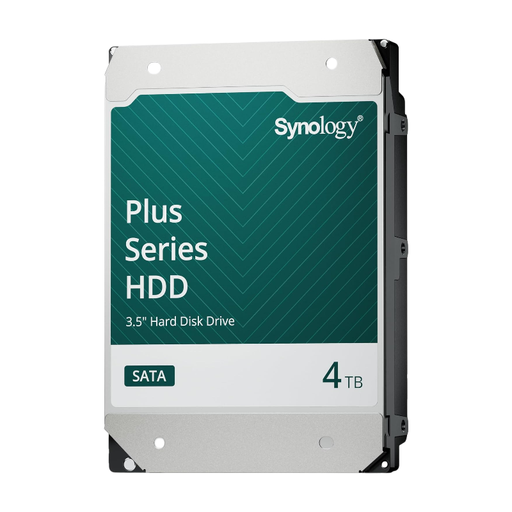
Synology SATA HDD 4 TB
Suitable as an expansion drive if you already have a compatible Synology NAS.
3.5-inch SATA, 4 TB and CMR. This is an internal drive, not standalone network storage; check that it’s compatible with your exact enclosure. A drive in the same NAS is not a separate backup for moving house.
Joybuy
 No image available
Synology DiskStation Intel Celeron J4125 Q
An option if you’re looking for a NAS with room for two drives for network storage and shared folders.
The product information lists two drive bays, 2.5GbE and USB-A 3.0 ports. An extra drive or mirrored configuration doesn’t replace a separate copy outside the NAS.
Joybuy
 No image available
Synology DiskStation DS1825+
Suitable if you’re looking for a NAS with plenty of drive bays for a large network archive.
Eight drive bays and two 2.5GbE ports. The product information lists expansion to 360 TB with an expansion unit; a separate backup still requires another storage device.
Joybuy
 No image available
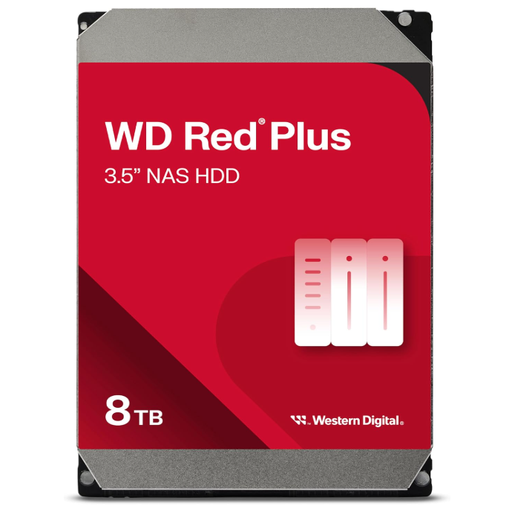
Western Digital WD Red Plus 8 TB
Suitable for expanding an existing NAS if the exact drive variant is compatible with your enclosure.
8 TB internal 3.5-inch SATA drive with CMR. The product information lists use in NAS systems with up to eight drive bays; check that your configuration is supported. A drive in the same NAS doesn’t replace a separate copy.
Joybuy
Frequently asked questions
Is RAID 1 enough if you’re taking the NAS with you when you move?
No. RAID 1 isn’t a separate copy outside the NAS. Back up your files to another storage device and check that you can restore them before transport.
How do you switch off a Synology DS225+ before moving it?
According to the product manual, press and hold the power button until you hear a beep and the power indicator starts flashing. Wait until the device has switched off before disconnecting the cables, and keep a separate copy of your footage too.
Do I need to buy drives separately for a QNAP TS-264?
Yes. QNAP says that hard drives and SSDs are available separately. Check what’s included in the package when you buy, and allow for a separate backup device if you don’t already have a copy on another storage device.
How does the statutory guarantee work in the Netherlands if a NAS or drive is faulty?
When you buy as a consumer, you’re entitled to a product that is in good working order. According to the Dutch government, the Netherlands has no fixed statutory guarantee period. If a product is faulty, the seller must provide a solution. A manufacturer’s guarantee is an additional benefit.
Can I share gaming footage widely if people or voices are recognisable?
Not necessarily. The Dutch Data Protection Authority distinguishes between private use within a very limited circle and wider publication or business use. If people are recognisable, personal data and obligations under the GDPR may apply; this is not a general ban on privately storing gaming footage.


