What should you look for when choosing?
First, choose the copying method you’ll actually use: a shared network folder, a configured USB task or a separate drive you can take with you.
NAS as a local network folder
Choose this if: you want to store and copy presentations in one local location from multiple computers or with colleagues.
Bear in mind: access depends on the local network, and you’ll need to set user permissions. A shared folder isn’t a backup.
NAS with a USB copy task
Choose this if: you regularly want to copy directly between a USB device and the NAS.
Bear in mind: support varies by model. Check the task settings, copy direction and whether the file system is recognised.
External drive
Choose this if: you work alone and mainly want to take a physical copy between locations.
Bear in mind: you won’t have a central network folder to share with colleagues. An external drive also needs a separate backup.
| What to consider |
What to check before buying |
Who is this important for? |
| Local sharing |
Check access from your computers, SMB support and permissions for each shared folder. |
If I work on presentations with colleagues from multiple computers, I want one local folder. Around 33% of consumers have local sharing as their main priority. |
| Direct copying via USB |
Check the copy function for the exact model, the direction you need and whether your USB device is compatible. |
If I want to transfer files directly between a USB device and the NAS, I look at the task and how it’s controlled. Around 25% of consumers have USB copying as their main priority. |
| Keeping files safe and controlling access |
Check whether you can keep a separate backup and restore files. Set folder permissions and consider whether internet access is necessary. |
If presentations mustn’t be lost or should only be accessible to certain colleagues, I want to arrange recovery and access permissions. Around 25% of consumers have keeping files safe and controlling access as their main priority. |
| A straightforward way to copy files |
Decide whether several devices need access at the same time and check what’s included in the exact offer. |
If I mainly want to take a physical copy with me and don’t need a shared network folder, an external drive may be enough. Around 17% of consumers are mainly looking for a straightforward way to copy files. |
NAS products on Joybuy
These products are designed for a shared local network folder or for copying directly between a NAS and a USB device.
 No image available
Synology DiskStation DS1525+ NAS
Suitable for a shared local folder of presentations that need to be accessible from multiple devices. Set user permissions and plan a separate backup.
Joybuy
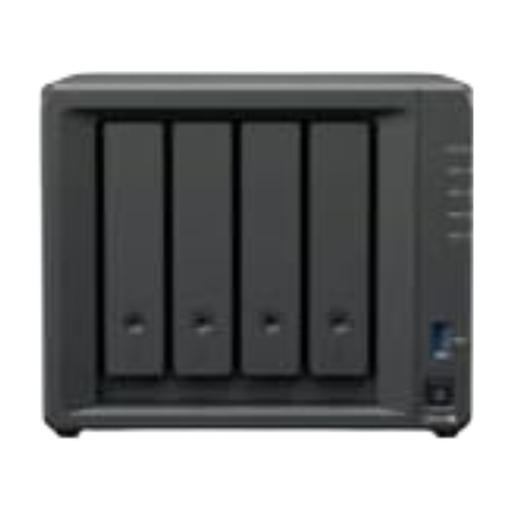 No image available
Synology DiskStation DS423+ NAS
Suitable for a workflow with a shared folder and a USB copy task. Synology lists USB Copy for the DS423+. Set the copy direction you need and check that your USB device’s file system is recognised.
Joybuy
Frequently asked questions
Does a NAS need to store files in a public cloud to work locally?
No. Files on a NAS can be accessed via the local network. ASUSTOR describes local use without an internet connection. For your chosen setup, check separately which features you enable, such as remote access or cloud connections.
Can I copy presentations directly from a USB drive to a NAS?
Yes, if the exact model has a suitable copy function and recognises the USB device. Synology describes USB Copy tasks for importing and exporting, and lists the DS223j and DS223 among the supported models. Before you start, check the copy direction, mode and file system.
Is a NAS with two drives in RAID the same as a backup?
No. The National Cyber Security Centre stresses that RAID doesn’t replace a backup. Keep important presentations on a separate destination too, and check that you can restore your files from it.
Which Dutch privacy rules apply if presentations are stored on a NAS?
If an organisation processes personal data, it must protect it appropriately, according to the Dutch Data Protection Authority. The measures required depend on the circumstances. The GDPR doesn’t apply to processing carried out solely for personal or household purposes. Local storage doesn’t automatically exempt business data processing.
In the Netherlands, am I only entitled to the manufacturer’s guarantee?
No. According to the Government of the Netherlands, the manufacturer’s guarantee is in addition to your statutory rights if a product is faulty. There is no fixed statutory guarantee period in the Netherlands; contact the seller if you have a problem.


