Start by working out how much usable capacity you need for your portfolio and previous versions, then check that the exact drive model is compatible with your NAS. A NAS drive on its own is not a complete backup: set up the backup task, keep a separate copy and test that you can restore your files. If several people use the system at once, the NAS and network also affect the performance of the overall setup.
Who is this guide for?
Creative professional with an irreplaceable portfolio
You want to be able to restore design, photo or project files from your shared workstation after an error or incident. So, look beyond the drive itself and consider automatic backups, version history and a separate copy. The Digital Trust Center recommends periodically restoring a backup and checking that it works.
Creative professional with a growing file archive
Your collection is growing, and you want to leave room for new projects as well as older versions. The Digital Trust Center points out that keeping files for longer requires more storage, so factor this into your capacity planning.
Team members accessing files at the same time
Several users may be reading or copying files while a backup is running. So, consider the full drive model and the NAS handling shared access and the backup task.
What should you look for when choosing?
First, work out how much space you need for your files and saved versions. Then check that the drive fits your NAS, and consider how you’ll keep a separate copy and test that you can restore it.
| What to consider |
What should you check? |
Who is this important for? |
| Restorable backup |
Can the NAS schedule backups and keep previous versions? Where will you store a separate copy, and how will you test that you can restore it? |
I want to be able to restore not just the current files, but an earlier version too, if something goes wrong. Around 36% of consumers prioritise restoring files and versions. |
| Capacity and growth |
How large are your current files, and how much space will new projects need? How much room will be left for saved versions in your chosen NAS configuration? |
If my portfolio keeps growing, I want to plan for new projects and saved versions. Around 29% of consumers prioritise space for archive growth. |
| Access while backups are running |
Is the exact drive model suitable for your NAS setup? Also consider the NAS, network and timing of backups. |
If other people are opening files while backups are running, I want to know whether the whole setup can handle shared access. Around 21% of consumers prioritise simultaneous access. |
| Compatibility and complete setup |
Compare the full drive model with the NAS manufacturer’s compatibility information. Also check whether you need a NAS enclosure or a second backup destination. |
I want to avoid buying a drive that doesn’t fit my NAS or overlooking components needed for a complete backup. Around 14% of consumers prioritise compatibility and the components they need. |
Common buying mistakes
-
Assuming RAID or a NAS drive is a complete backup
A copy on the same NAS could still be lost if something happens to that setup. And without testing a restore, you can’t be sure you’ll be able to recover the files you need.
Plan a separate backup destination and test restoring your files before relying on the setup.
-
Assuming the capacity on the label is the same as usable archive space
Available space depends partly on your NAS configuration and how many versions you keep. As a result, the space left for files and backups may differ from what the stated capacity suggests.
First, calculate the size of your current files, expected growth and desired retention period within your planned NAS configuration.
-
Assuming a similar model name means it’s the same drive
A product range can include several variants. The range name alone doesn’t confirm that a specific model is compatible with your NAS.
Check the full model number and specifications, then compare them with the compatibility information from your NAS manufacturer.
Relevant brands to consider
Western Digital
WD Red Plus is a range of internal NAS drives. Western Digital lists the WD40EFPX as a 4 TB CMR model.
- Western Digital describes WD Red Plus as a range for NAS use and says it has been tested with NAS suppliers.
- Check that the full model number is on your NAS’s compatibility list; the range name alone doesn’t confirm compatibility.
Seagate
The IronWolf range includes NAS drives, such as the 4 TB ST4000VN006 model.
- Seagate specifies CMR, 4 TB capacity and NAS use for the ST4000VN006.
- Claims about workload or features for the range don’t measure the speed or lifespan you’ll get in your NAS.
Toshiba
Toshiba’s N300 range includes internal NAS drives, such as the 22 TB MN11ACA22TS model.
- Toshiba specifies 3.5-inch SATA, CMR and 22 TB capacity for the MN11ACA22TS.
- A 22 TB capacity is only relevant if your archive and NAS setup need that much space; check support for the full model.
NAS drives at Joybuy
These Joybuy products are internal drives for NAS storage. Before buying, check that the full model is compatible with your NAS and whether you also need a NAS enclosure and a separate backup destination.
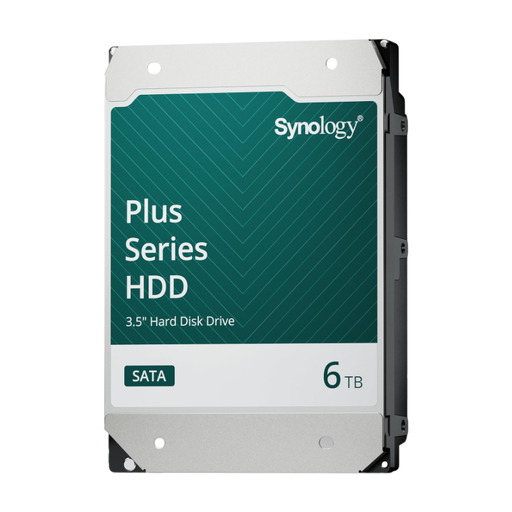 Image unavailable
Synology SATA HDD 6TB
For storage in a Synology NAS; check that your NAS supports this exact model.
6 TB, 3.5-inch SATA and CMR. The description mentions NAS use with multiple users and 24/7 operation.
View at Joybuy
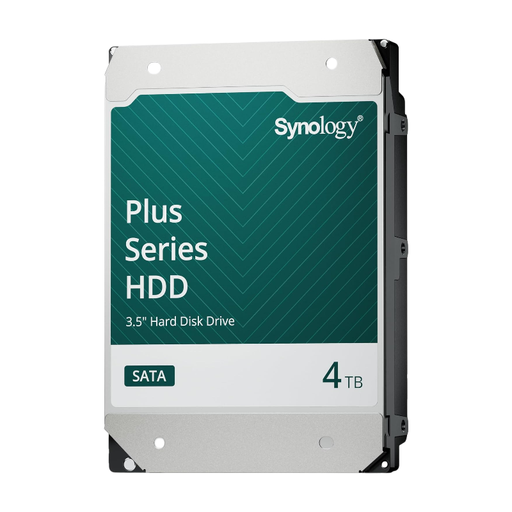 Image unavailable
Synology SATA HDD 4TB
A 4 TB model for storage in a Synology NAS; check compatibility for the exact model.
4 TB, 3.5-inch SATA, CMR and 5400 rpm. The stated workload rating is 180 TB per year.
View at Joybuy
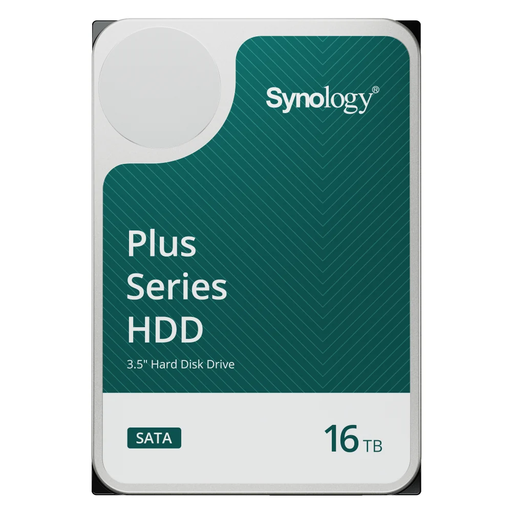 Image unavailable
Synology SATA HDD 16TB
For a larger archive in a Synology NAS; check that the model and installation are compatible with your system.
16 TB, 3.5-inch SATA, CMR and 7200 rpm. The description mentions installation and initialisation via DSM.
View at Joybuy
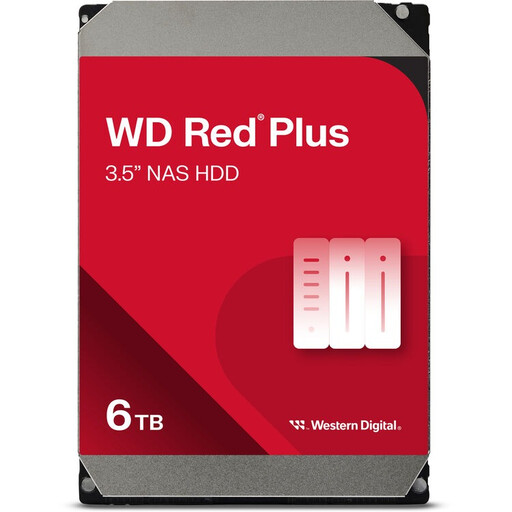 Image unavailable
WD Red Plus 6TB (256MB cache)
A 6 TB WD Red Plus for a NAS setup; check that your NAS supports this model.
3.5-inch SATA III, 5400 rpm and 256MB cache. The stated maximum transfer speed is 180 MB/s.
View at Joybuy
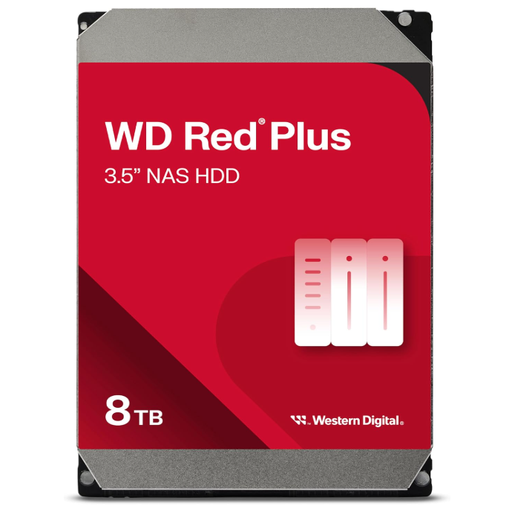 Image unavailable
Western Digital WD Red Plus 8TB
For storage in a NAS; check that this full model is compatible with your system.
8 TB, 3.5-inch SATA 6 Gb/s, CMR, 5640 rpm and 256 MB cache. The description mentions NAS use with up to 8 bays and 24/7 operation.
View at Joybuy
Frequently asked questions
Is one NAS drive enough to back up my portfolio?
No, not on its own. You need a suitable NAS setup and a backup task configured. Also keep a separate copy and test that you can restore your files.
How can I check that a drive is compatible before installing it?
Compare the full drive model, form factor and connection with the compatibility information from your NAS manufacturer. A range name such as WD Red, IronWolf or N300 alone doesn’t confirm that every variant is compatible.
How do I maintain my backup after installation?
Set a suitable automatic schedule and retention period, and periodically restore a file as a test. The Digital Trust Center recommends restoring a backup you’ve made and checking that it works as expected.
What else should I consider besides the drive?
Check whether you already have a suitable NAS enclosure and a separate backup destination. Also compare the warranty terms for your chosen model with the retailer.


