First, decide where your backup will be stored and how much usable space your current video library needs, including room for expected growth. Then check that the exact drive model is compatible with your NAS or workstation. An extra drive or RAID setup is not, by itself, a separate, recoverable backup stored elsewhere.
Who is this guide for?
Anyone who wants to keep videos safe
You want a separate copy that you can restore. So, consider not only how many drives are in your NAS, but also where an extra copy will be stored. Synology Knowledge Center recommends keeping a backup in a separate location as well as a local copy.
Anyone with a growing video library
You regularly add large files and need to balance your storage requirements against the space available in your NAS. Take both your current files and your own expected growth into account.
Anyone who already owns a NAS
You’re looking for an extra or replacement drive and need to match the exact model number to your NAS and software version. Synology publishes compatibility information for specific models.
What should you consider when choosing?
Internal drive in an existing NAS
Suitable if: you want to back up files from your workstation to a NAS and the exact drive model is compatible with it.
Bear in mind: usable capacity also depends on your storage configuration; support can vary by NAS series and software version.
Internal drive in a workstation
Suitable if: you want to store files locally and your computer has a compatible 3.5-inch drive bay, SATA connection and power supply.
Bear in mind: a second drive in the same computer is not a copy stored elsewhere, and it shares the risks associated with that computer.
Separate backup destination
Suitable if: you want to keep a copy separate from your NAS or workstation.
Bear in mind: you’ll need to update the copy and check that you can restore your files.
| Consideration |
What to look for |
Which consumers it matters to |
| Separate backup |
Decide where the original files and extra copy will be kept, how you’ll update the copy and how you’ll test recovery. |
I want a copy to remain available if my NAS or workstation develops a problem. Around 36% of consumers prioritise a separate, recoverable backup. |
| Usable capacity |
Measure your current library, estimate your own growth and check how much space will be usable in your planned NAS configuration. |
If I add video regularly, I want to avoid running out of storage too soon. Around 29% of consumers prioritise space for their library and future growth. |
| Compatibility |
Check the full drive model and, for a NAS, the combination of NAS model and software version. For direct installation, also check the drive bay, SATA connection and power supply. |
I want a drive that works with the equipment I already use, rather than relying on the brand name alone. Around 21% of consumers make compatibility their top priority. |
| Noise and continuous operation |
Consider where your NAS will be located and compare any noise figures only for the exact variants and under the same test conditions. Also check the stated usage context. |
If my NAS is near my workspace, I want to know what usage and noise information applies to that exact model. Around 14% of consumers prioritise the location and use of a spinning drive. |
Common pitfalls
-
Thinking RAID or extra NAS capacity counts as a separate backup
If your videos are stored only on the NAS, problems with that storage could affect your files too.
Decide which copy will be kept outside your primary storage and test that you can restore your files from it. Synology Knowledge Center recommends keeping a backup in a separate location as well as a local copy.
-
Choosing based on the WD Red name alone
Western Digital uses different recording technologies across the Red family. So, the family name alone doesn’t tell you which technology a specific drive uses.
Check the full model number and recording technology to make sure they suit your file system and workload. Western Digital identifies Red Plus and Red Pro as CMR drives and says they should be used for ZFS.
-
Assuming the stated TB capacity is all immediately available
Usable space also depends on your chosen storage configuration. Seagate explains that TB capacity figures are calculated using the decimal system.
Compare your current files and expected growth with the usable capacity of the complete setup you’re planning.
-
Assuming compatibility across an entire NAS family
Drive support may depend on the exact NAS model and software version. Synology notes that support for certain unlisted drives may be limited.
Before buying, check the combination of drive model, NAS model and software version.
NAS brands to consider
Western Digital
The WD Red Plus range is designed for NAS storage. Western Digital lists systems with up to eight drive bays as a suitable use case.
- Western Digital lists the WD80EFPX as an 8 TB WD Red Plus model with CMR.
- The WD Red family also includes other recording technologies. Check the full model number; the product specifications alone don’t prove that it will perform better in your NAS.
Seagate
Seagate recommends IronWolf for NAS systems, as well as desktops and workstations. The range may therefore be worth considering once you’ve decided where to install the drive.
- Seagate documents the ST8000VN004 as an 8 TB IronWolf model and describes the range as suitable for continuous operation.
- Check the details of the variant on offer and your system’s connections before making a choice.
Toshiba
Toshiba positions the N300 range for NAS, multimedia storage and backups, with a choice of capacities.
- Toshiba specifies CMR and 24/7 operation in the N300 specifications reviewed.
- Specifications and figures apply to individual variants; don’t assume details for one model apply to every N300 capacity.
Synology
Synology says its Plus Series drives are designed for Synology systems and receive firmware updates through DSM.
- Synology’s specifications list the HAT3320-8T as an 8 TB model with CMR.
- Check your specific NAS model and software version: the rules for third-party drives vary by product series and don’t amount to a universal compatibility guarantee.
NAS drives on Joybuy
This selection includes internal NAS drives for use in an existing NAS. Compare each model’s capacity and compatibility with your own storage configuration.
 No image available
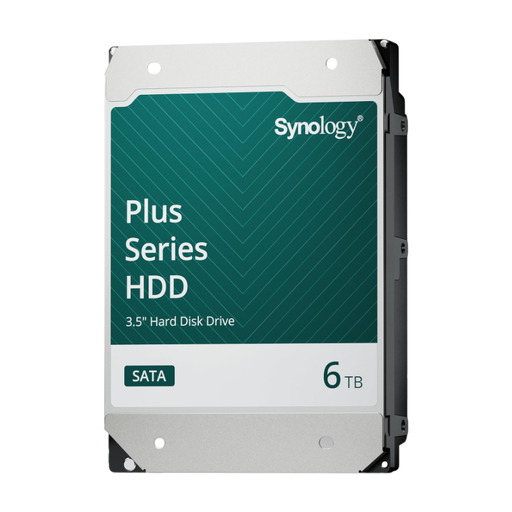
Synology SATA HDD 6TB
An option for expanding NAS storage, provided the model is compatible with your Synology system.
6 TB; 3.5-inch SATA; CMR; described as suitable for NAS and 24/7 use.
View on Joybuy
 No image available
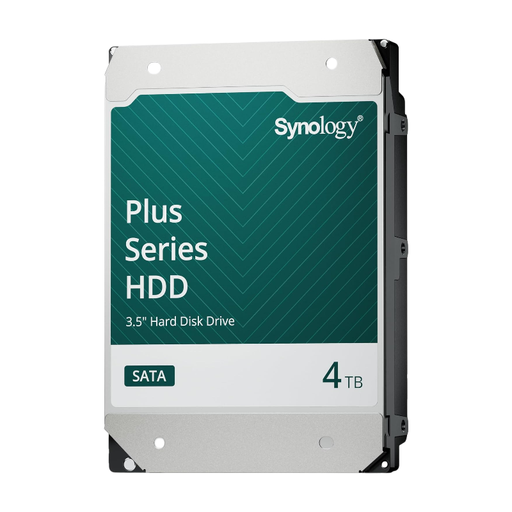
Synology SATA HDD 4TB
An option for NAS storage, provided the capacity and exact model suit your system.
4 TB; 3.5-inch SATA; CMR; described as suitable for use in Synology systems and 24/7 operation.
View on Joybuy
 No image available
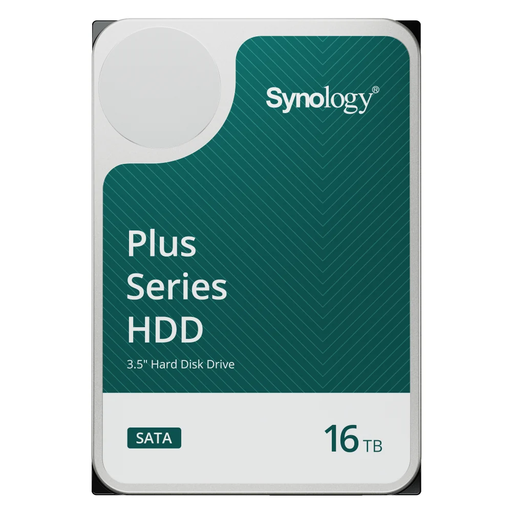
Synology SATA HDD 16TB
An option for a larger video library in a Synology NAS, provided this variant is compatible with your system.
16 TB; 7,200 rpm; 3.5-inch SATA; CMR; described as suitable for NAS use.
View on Joybuy
 No image available
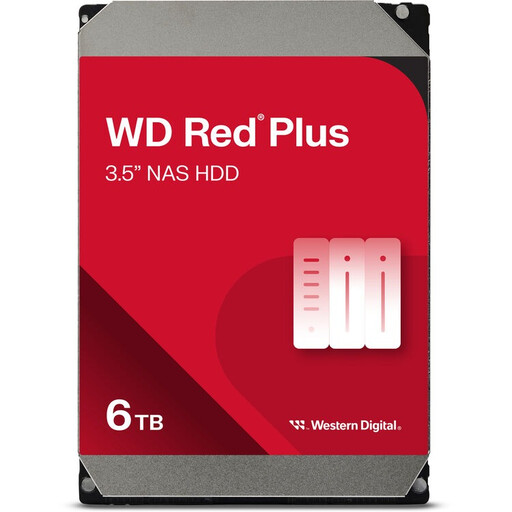
WD Red Plus 6TB (256MB cache)
A NAS drive to consider if 6 TB meets your storage needs and suits your NAS setup.
6 TB; 256 MB cache; 3.5-inch SATA; described as suitable for NAS systems with up to eight drive bays and 24/7 use.
View on Joybuy
 No image available
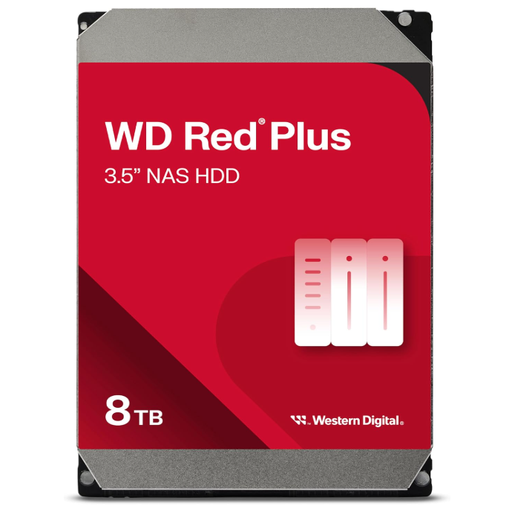
Western Digital WD Red Plus 8TB
An option for a NAS if 8 TB fits your capacity plan and the model variant is compatible with your system.
8 TB; CMR; 3.5-inch SATA; described as suitable for NAS systems with up to eight drive bays and 24/7 use.
View on Joybuy
Frequently asked questions
Does a second drive in my NAS count as a complete backup?
No. A second drive or RAID setup isn’t automatically a separate backup. Synology Knowledge Center also recommends keeping a copy in a separate location; check that you can restore your files from it too.
Can I install a NAS drive directly in my workstation?
Only if the drive is compatible with your computer’s drive bay, SATA connection and power supply. Seagate lists desktops and workstations as suitable for IronWolf, but that doesn’t automatically confirm that it will physically fit your system.
Do I always need to buy a Synology drive for a Synology NAS?
Not as a general rule; support depends on the NAS series, model and software version. Synology says certain 2025 DiskStation Plus models offer more flexibility for third-party drives when creating storage pools. Check the rules for your specific configuration.
What can I do if my drive fails too soon during normal use?
In the Netherlands, ACM ConsuWijzer says the seller is responsible for providing a solution if a product doesn’t meet what you could reasonably expect during normal use. The outcome depends on the circumstances; a manufacturer’s warranty is separate from your statutory rights.


