Who is this guide for?

Photographers with a growing RAW archive

If you want to keep your originals for years, plan usable capacity, expansion options and a backup destination together. With two drives in a mirrored volume, their combined capacity is not available for storage, according to the Synology Knowledge Centre.

Photographers looking to minimise the risk of data loss

For images that would be difficult to recreate, having a separate, recoverable copy is important, alongside any fault tolerance in your NAS. The Synology Knowledge Centre recommends a backup strategy with copies on different storage media and a copy kept in another location.

Lightroom Classic users on a home workstation

You can store photos on a network drive, but Adobe says the Lightroom Classic catalogue cannot be stored there. So make sure you also have a local storage location for the catalogue.

What should you look for when buying?

For a Synology setup with two drives in RAID 1 or SHR, one drive’s capacity is usable, according to the Synology Knowledge Centre. So calculate capacity based on the volume configuration you choose, rather than simply adding up the capacities printed on the drive boxes.

What to consider What should you check? Who is this important for?
Usable capacity Compare the size of your current archive and its expected growth with the volume configuration and number of drive bays. I want enough space for my existing RAW files and future growth, without counting mirroring as extra capacity. An estimated 33% of consumers put usable capacity first.
Backup and recovery Plan a separate backup destination and check that you can restore your files from it. I want to be able to recover images that would be difficult to recreate, even after another type of data loss. Around 27% of consumers put recoverability first.
Editing workflow For Lightroom Classic, keep the catalogue on a local or directly connected drive; photos can be stored on the NAS. I want to keep my archive in one central location without putting the catalogue on an unsupported network location. An estimated 20% of consumers put their editing workflow first.
NAS compatibility Check the full drive model and your NAS model against the relevant compatibility information. I want to know whether the drive I’ve chosen will work with my existing NAS and its support arrangements. Around 20% of consumers put compatibility first.

These percentages indicate the main purchasing priority in this use case; they are not market shares. For Synology systems, the Synology Knowledge Centre notes that support for drives not on its list may be limited.

Common buying mistakes

  • Adding together the capacity of two drives in a mirrored volume

    In the two-drive RAID 1 or SHR setup described by the Synology Knowledge Centre, one drive’s capacity is usable for data.

    Calculate the available space for your NAS’s volume configuration, and plan a separate backup destination as well.

  • Thinking RAID is a complete backup

    Volume fault tolerance and a separate backup protect against different situations. A RAID setup does not prevent every type of data loss, according to the Synology Knowledge Centre.

    Set up a separate copy and check that you can retrieve your files.

    A separate copy, preferably kept in another location too, requires its own storage and management.

  • Assuming you can store the Lightroom Classic catalogue on your NAS

    Adobe says Lightroom Classic photos can be stored on a network drive, but the catalogue cannot.

    Plan a separate storage location for your catalogue and RAW archive.

  • Choosing a drive based only on its series name

    Features such as the recording technology can vary between drive series. Support also depends on the exact model and NAS.

    Before ordering, check the full drive model, its recording technology and compatibility with your NAS. Western Digital distinguishes WD Red models with DMSMR from Red Plus and Red Pro models with CMR.

Brands worth comparing

Western Digital

WD Red Plus is a CMR series for home and smaller NAS setups, among other uses, according to Western Digital.

  • Western Digital’s specification sheet lists RAID-optimised NAS systems with up to eight drive bays and a rated workload of 180 TB per year.
  • Check the full model number: features of Red Plus do not automatically apply to every WD Red drive. These are manufacturer specifications, not an independent performance test.

Seagate

IronWolf is a series of internal NAS drives; the Seagate manual includes model ST4000VN006, among others.

  • Seagate describes CMR as the recording technology used in the IronWolf series.
  • Check the specifications for the exact model and its compatibility with your NAS. The series description is not an independent measure of performance in your home workflow.

Synology

The Plus Series HDD, including the HAT3300-4T, is designed for home and small-office storage, according to Synology.

  • Synology lists CMR and firmware updates through DSM for this series.
  • Check compatibility with your exact NAS model. A compatibility list or manufacturer test does not guarantee every combination or real-world speed.

Toshiba

Toshiba N300 is a 3.5-inch SATA series for NAS and other storage systems.

  • Toshiba lists support for 24/7 use and NAS-focused firmware.
  • Check the features and suitability of the exact N300 variant and your NAS. Series information is not an independent comparison with other brands.

NAS drives at Joybuy

These internal hard drives are designed for NAS storage and a central RAW archive. Check that the exact drive is compatible with your NAS model.
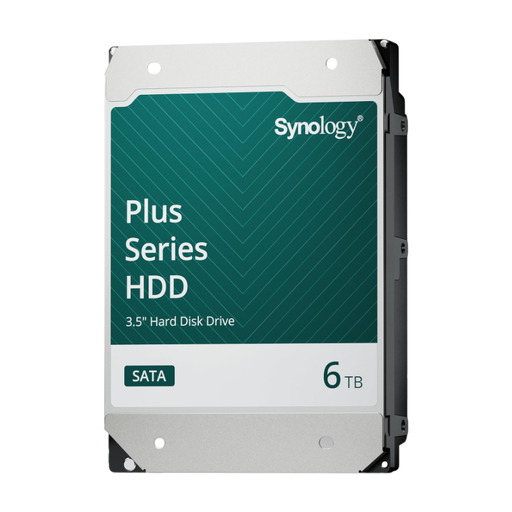
Synology SATA HDD 6TB

Synology SATA HDD 6TB

For a central RAW archive on a Synology NAS; check compatibility with your exact NAS model.

View at Joybuy
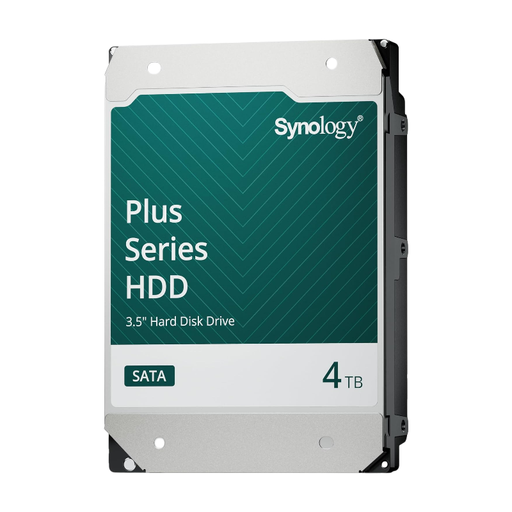
Synology SATA HDD 4TB

Synology SATA HDD 4TB

For a central RAW archive on a Synology NAS; check compatibility with your exact NAS model.

View at Joybuy
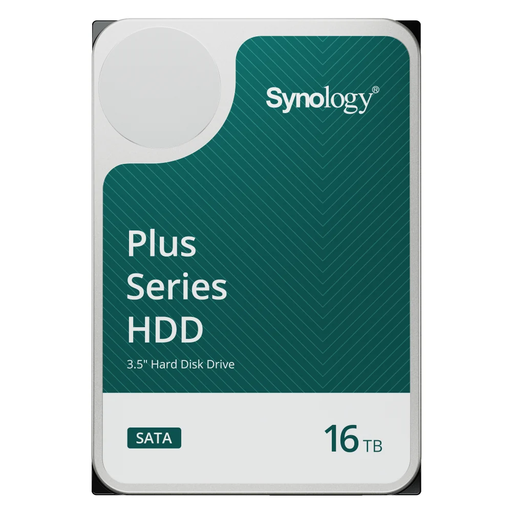
Synology SATA HDD 16TB, 7,200 rpm

Synology SATA HDD 16TB

For a central RAW archive on a Synology NAS; check compatibility with your exact NAS model.

The product name lists 16TB and 7,200 rpm.

View at Joybuy
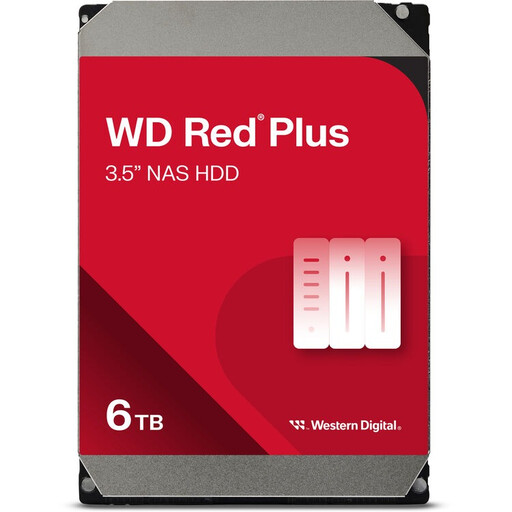
WD Red Plus 6TB with 256MB cache

WD Red Plus 6TB

For internal NAS storage for a growing RAW archive; check compatibility with your exact NAS model.

The product name lists 256MB cache.

View at Joybuy
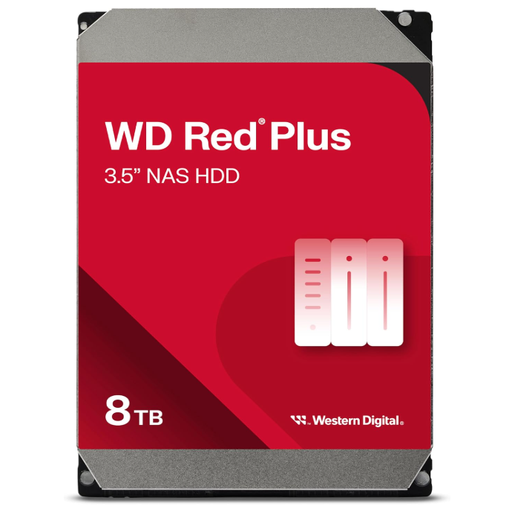
Western Digital WD Red Plus 8TB, 5.640 RPM, SATA 6 Gb/s, CMR, 256 MB cache

WD Red Plus 8TB

For internal NAS storage for a RAW archive; check compatibility with your exact NAS model.

The product name lists 5.640 RPM, SATA 6 Gb/s, CMR and 256 MB cache.

View at Joybuy

Frequently asked questions

Can I store my Lightroom Classic catalogue on my NAS?

No. Adobe says the Lightroom Classic catalogue cannot be stored on a network drive. Keep the catalogue on your computer or a directly connected drive; the photos themselves can be stored on the NAS.

How much storage will I have with two drives in RAID 1?

In the two-drive RAID 1 or SHR setup described by the Synology Knowledge Centre, one drive’s capacity is usable. Check the capacity calculation for other configurations and NAS models.

Do I need a backup as well as my NAS?

Yes, if you want to be able to recover your photos after other types of data loss too. The Synology Knowledge Centre recommends a backup strategy with multiple copies, including one kept in another location, even when you use RAID.

What should I check when installing or replacing a drive?

Check the exact NAS and drive models against the relevant compatibility information, and follow the NAS manufacturer’s installation instructions. Then check that your storage and separate backup are working. Synology may offer limited support for drives not on its list.

Can I keep RAW photos of identifiable people on my NAS for private use?

For strictly personal or household use that remains private or is shared only with a very limited circle, the Dutch Data Protection Authority describes an exemption from the GDPR. This exemption does not apply to wider sharing or business use, so check which GDPR obligations apply. Buying a NAS does not in itself determine whether a photo or publication is permitted.
