
Photographers with irreplaceable shots
Want to be able to find and restore RAW files after an editing session if a drive, folder or NAS develops a problem. Synology Knowledge Centre warns that a NAS or drive problem can also lead to data loss.


Start by working out how much archive space you need, then check that the exact drive model is compatible with your NAS. A multi-drive NAS or RAID setup is not a substitute for a separate backup: keep a copy on another destination too, and check that you can restore it. If you use Lightroom Classic, your photos can be stored on the network, but your catalogue cannot.
Want to be able to find and restore RAW files after an editing session if a drive, folder or NAS develops a problem. Synology Knowledge Centre warns that a NAS or drive problem can also lead to data loss.
Need space to store files and want to check that a drive is compatible with their existing NAS before buying. Synology and Western Digital emphasise that compatibility depends on the devices and models involved.
Want to store originals on the network without putting the Lightroom Classic catalogue there. Adobe distinguishes between where photos are stored and where the catalogue is stored.
Decide where your RAW files will be stored during and after editing. Then check the drive’s capacity and compatibility, and plan how to restore files from somewhere other than the NAS.
| What to consider | What to look for when buying | Who should pay particular attention? |
|---|---|---|
| Recoverable storage | Check that you have a separate copy in addition to the NAS, and that you can restore your files. | I don’t want to rely on a single copy after editing. Around 36% of consumers would make recoverability their top priority. |
| Archive space | Compare the capacity of each drive with your current archive, how quickly it is growing and the usable space in your NAS configuration. | As my RAW archive grows, I want space for both existing and future sessions. Around 29% of consumers would see capacity as their main buying concern. |
| Post-editing workflow | Decide where you edit, how files are transferred to the NAS and where your software stores the catalogue. | I want to archive my originals after a session without confusing the working drive, NAS and catalogue. Around 21% of consumers would make their archiving workflow their top priority. |
| Compatibility and recording technology | Check the full model number, form factor, connection and recording technology against the compatibility information for your NAS model. | When choosing a drive for my existing NAS, I want to know in advance whether the exact model and configuration are compatible. Around 14% of consumers would see compatibility as their main buying concern. |
A drive failure, a deleted folder or a problem with the NAS can still cause data loss. A copy on the same device is not a copy on a separate destination.
Plan a separate backup and check that you can actually restore a file.
A separate backup destination means extra storage and management.
Recording technology and support can vary between exact drive and NAS models. Models with the same product family name are not necessarily identical.
Compare the full model code with the specifications and compatibility information for your NAS.
Adobe distinguishes between network storage for photos and the storage location of the Lightroom Classic catalogue.
Before moving anything, note where your originals, catalogue and backups are stored.
WD Red Plus is a range of NAS drives; the WD60EFPX is a 6 TB model. Always check the full model code and that it is suitable for your NAS.
IronWolf includes NAS HDDs in a range of capacities. The ST8000VN004 is an 8 TB model.
N300 is Toshiba’s range of NAS HDDs. The MN11ACA22TS is a 22 TB model worth considering if you need plenty of archive space on a single drive.
The HAT3300-6T is a 6 TB NAS HDD. Model-specific compatibility information may be useful if you use a Synology NAS.
These drives are intended for storage in a compatible NAS. Check the exact model and keep a separate backup.
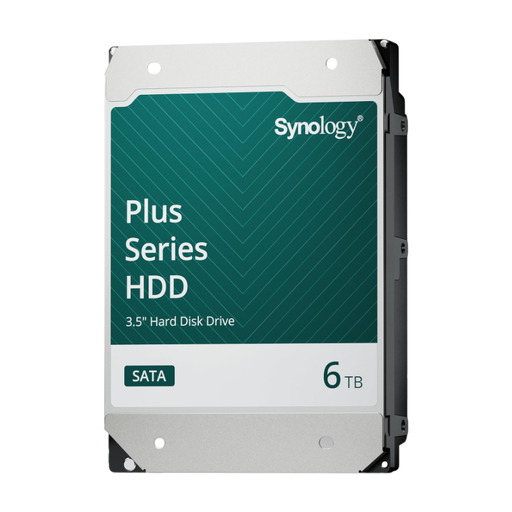 Image unavailable
An option to compare if you’re looking for an internal HDD for a compatible NAS.
Capacity: 6 TB. Connection: SATA.
Requires a compatible NAS enclosure; the drive is no substitute for a backup on a separate destination.
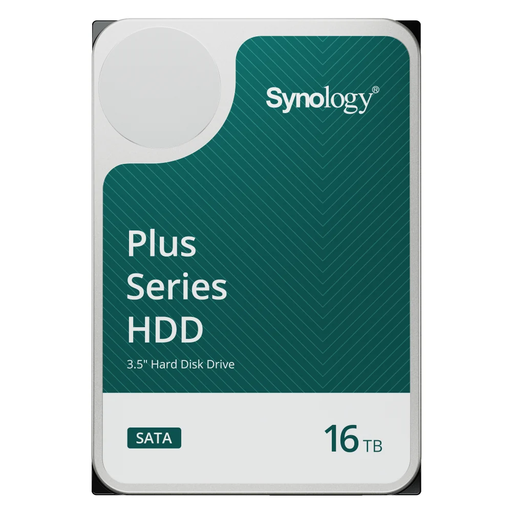 Image unavailable
This capacity could be useful if you want to store a larger archive on a compatible NAS.
Capacity: 16 TB. Connection: SATA. Rotational speed: 7,200 rpm.
Check that the drive is compatible with your NAS; a NAS drive is no substitute for a separate backup.
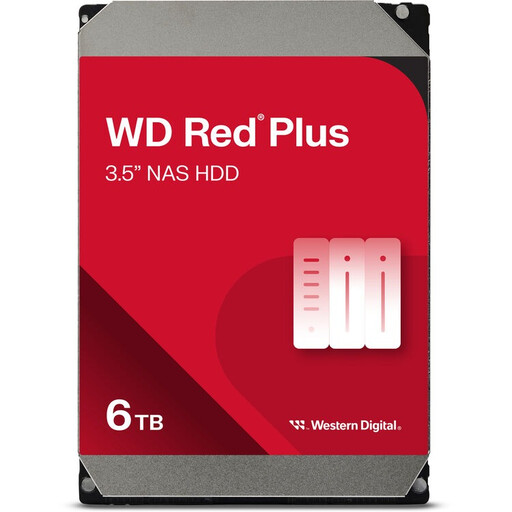 Image unavailable
An option to compare if you’re looking for an internal WD Red Plus drive for a compatible NAS.
Capacity: 6 TB. Cache: 256 MB.
Check the full model details and NAS compatibility. A drive in your NAS is no substitute for a backup on another destination.
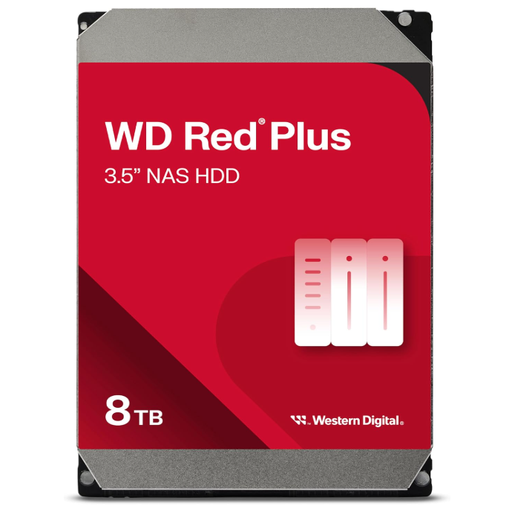 Image unavailable
This capacity could suit a larger RAW archive, provided your NAS supports the drive.
Capacity: 8 TB. Rotational speed: 5,640 rpm. Connection: SATA 6 Gb/s. Recording technology: CMR. Cache: 256 MB.
Check that the exact model is compatible with your NAS. You’ll still need a separate backup, even with a drive in your NAS.
No, not as your only backup. Synology Knowledge Centre points out that data loss is still possible with RAID or a local copy. Keep a copy on a separate destination and check that you can restore your files.
No. According to Adobe, you can store or share photos on a network, but you can’t store a Lightroom Classic catalogue on a network drive. Keep the storage locations separate.
Check the manufacturer’s warranty and any additional terms for the exact model. ACM ConsuWijzer explains that the legal guarantee you’re entitled to from the seller is separate from the manufacturer’s warranty; what you could reasonably expect in terms of the product’s lifespan depends on the circumstances. For a complete setup, also factor in the NAS enclosure and a separate backup destination.
Recognisable people in photos are personal data, according to the Dutch Data Protection Authority. Which rules apply depends, among other things, on what you do with the images and who you share them with. Organisations that process personal data must protect it appropriately and not keep it for longer than necessary.