Who is this guide for?

Photographers who want to be able to restore files

You want to be able to restore both earlier catalogue data and the associated photos if files are deleted, damaged or lost when your computer fails. The Digital Trust Center recommends testing your backup by carrying out a restore.

Owners of growing photo archives

You’re storing more and more images and want to plan for new photos and the versions you want to keep.

NAS owners replacing a drive

You’re looking for an internal drive for a specific NAS and want to check the full model number and compatibility before choosing one.

What should you look for?

A drive for an existing NAS

Right for you if: you already have a NAS with a compatible drive bay and want to add or replace an internal drive.

Consider: the drive adds storage, but won’t set up a backup task or create a separate backup copy.

Putting together a complete NAS setup

Right for you if: you don’t yet have a NAS enclosure and want to work out which storage and backup features you need.

Consider: as well as the enclosure, you’ll need suitable drives and a separate backup destination.

What to consider What should you check? Who is this important for?
Restoring your catalogue and photos Check which folders and application files the backup task includes, how long versions are kept and whether a test restore works. If I want to restore both my catalogue and original photos after a problem, I look for version history and a test restore. Around 33% of consumers prioritise the ability to restore their files.
Space for a growing archive Allow for your current files, expected growth, the versions you want to keep and the usable space in your NAS configuration. I want to leave room for new photos and the versions I want to keep. Around 25% of consumers prioritise room to grow.
Compatibility with your NAS Check the full drive model, form factor and connection, as well as the compatibility information for your NAS model and software version. If I’m choosing a drive for my current NAS, I want to know in advance whether that exact model will fit. Around 25% of consumers prioritise NAS compatibility.
Components and ease of use Check whether you already have a suitable enclosure, how to set up the backup task and where the separate copy will be stored. If I don’t yet have a NAS, I want to know which components I’ll need and what setting it up involves. Around 17% of consumers prioritise having a clear overview of the setup and ease of use.

Common pitfalls

  • Thinking an internal NAS drive is a complete backup solution

    A drive alone won’t create a backup task or a separate copy. Without a task in place and a restore test, you won’t know whether you can restore your photo library.

    Before buying, work out which components you need and how you’ll restore your files. Once everything is set up, create a backup task and try restoring a file.

  • Backing up only the Lightroom catalogue or only the photos

    Adobe says the built-in backup in Lightroom Classic only includes the catalogue file, so the associated photos aren’t automatically backed up.

    If you use Lightroom Classic, include both the catalogue file and the photo files in your backup plan.

  • Assuming RAID is a separate backup copy

    Synology says that RAID and SHR aren’t backup solutions. Mirroring drives and keeping a separate, restorable copy therefore serve different purposes.

    Consider your storage setup and separate backup destination as two distinct parts of your plan.

  • Judging compatibility by brand or capacity alone

    A product family or matching capacity doesn’t confirm that a particular drive model will work with your NAS. With Synology, compatibility rules can vary by model series and DSM version.

    Compare the full drive model with the latest compatibility information for your NAS.

NAS drive brands to consider

Western Digital

WD Red Plus is a range of internal NAS drives. Western Digital lists the WD40EFPX, for example, as a 4 TB model with CMR recording and a SATA connection.

  • The full model number and specifications are useful when comparing a potential drive with your NAS.
  • Check that your NAS supports the exact model; the product family alone doesn’t confirm compatibility.

Seagate

The IronWolf range includes internal NAS drives. Seagate identifies ST4000VN006 as a specific model.

  • Seagate describes IronWolf Health Management for supported drives in compatible NAS systems.
  • Check whether your NAS model supports this feature; on its own, it doesn’t indicate how long the drive will last in your setup.

Synology

The Plus Series includes NAS drives for Synology systems. Synology lists the HAT3300-4T as a 4 TB drive with a 3.5-inch form factor and a SATA connection.

  • Synology describes firmware updates for the Plus Series through DSM, which may be relevant if you have a compatible Synology system.
  • Check the drive model, NAS model series and DSM version; support can vary between setups.

Toshiba

Toshiba describes the N300 as a range of internal NAS drives for home and home office use, among other applications, and lists a 4 TB model.

  • The N300 range offers a NAS-focused option to include in your comparison.
  • Before choosing a model, check the full model number for the capacity you want and confirm compatibility with your NAS.

Products on Joybuy

Here you’ll find internal NAS drives for an existing setup, as well as a Synology NAS enclosure without drives for anyone starting from scratch.
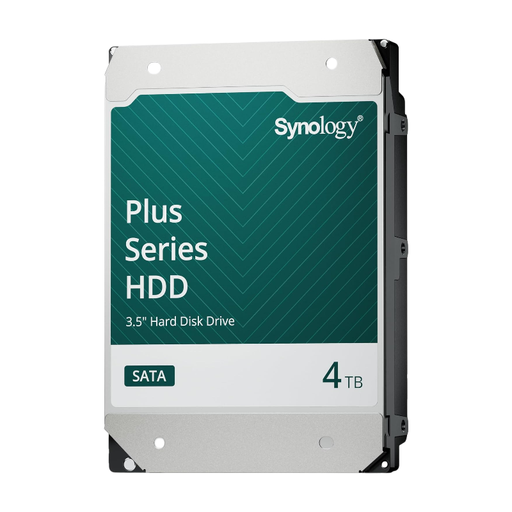
Synology HAT3300-4T NAS drive, 4 TB

Synology HAT3300-4T, 4 TB

An option for an existing Synology NAS with a compatible drive bay.

The product description lists 3.5-inch SATA, CMR, 5400 rpm and a stated transfer rate of up to 202 MB/s. Check compatibility with your NAS model.

View on Joybuy
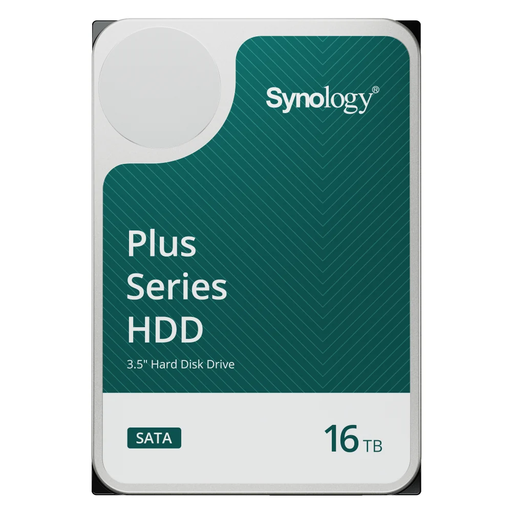
Synology HAT3310-16T NAS drive, 16 TB

Synology HAT3310-16T, 16 TB

An option for adding storage to a compatible Synology NAS as your photo archive grows.

The product description lists 3.5-inch SATA, CMR, 7200 rpm and 512 MB cache. Check compatibility with your NAS model.

View on Joybuy
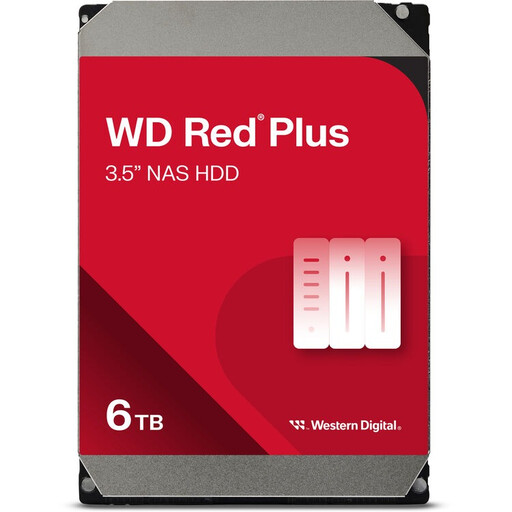
WD Red Plus NAS drive, 6 TB, 256 MB cache

WD Red Plus, 6 TB, 256 MB cache

An option for expanding a NAS with a compatible drive bay.

The product description lists 3.5-inch SATA III, 5400 rpm and a stated transfer rate of up to 180 MB/s. The drive is described as suitable for NAS systems with up to 8 bays.

View on Joybuy
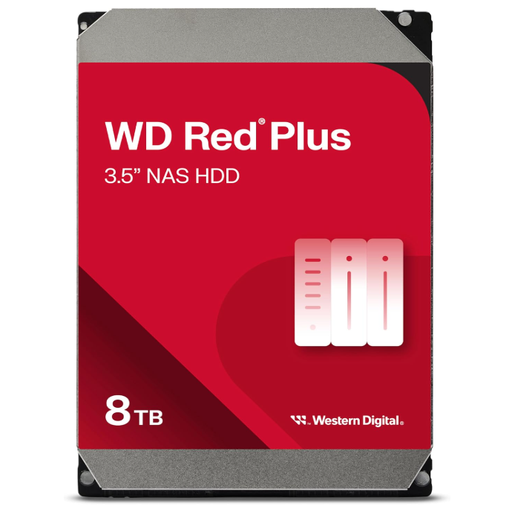
Western Digital WD Red Plus NAS drive, 8 TB, 256 MB cache

Western Digital WD Red Plus, 8 TB, 256 MB cache

An option for NAS storage if the capacity and full model are right for your setup.

The product description lists 3.5-inch SATA, CMR and a workload rating of up to 180 TB per year. Check the stated capacity and model number for your NAS.

View on Joybuy

Synology DiskStation DS925+ NAS enclosure without hard drives

Synology DiskStation DS925+, without hard drives

An option if you don’t yet have a NAS and want to build a setup for managing photos and backups; hard drives are not included.

The product description lists four bays, expansion to nine bays with an expansion unit and two 2.5GbE ports. You’ll need compatible drives to add storage.

View on Joybuy

Frequently asked questions

Is a second drive with RAID the same as a backup?

No. Synology doesn’t describe RAID and SHR as backup solutions. Set up a separate backup for your photos and catalogue files too, and test that you can restore them.

Can I put a NAS drive directly into my home workstation for a NAS backup?

An internal NAS drive is a SATA drive, not a complete network storage solution. If you don’t yet have a NAS, first decide which enclosure and backup method you want to use. When installing the drive, also check that any existing data on it will be preserved.

Should I also back up the original photos when using Lightroom Classic?

Yes, if you use Lightroom Classic. Adobe says the backup made from the application only includes the catalogue file. So include the photo files separately in your backup plan too. Adobe says the working catalogue can’t be stored on a network drive, although photos can be stored on a network.

How do I check whether a NAS drive is compatible with my NAS?

Check the full model number, form factor and connection, then compare these details with the compatibility information for your NAS model. With Synology, the rules can vary by model series and DSM version.
