
Managing a growing recording archive
You add lectures over several terms and want to know in advance how much usable storage your NAS configuration will leave you with. Synology Knowledge Center explains how RAID choices affect usable capacity.


Start by estimating how quickly your recording archive will grow, then work out how much usable space your NAS configuration will actually provide: according to Synology, with RAID 1 and two drives, this is the capacity of the smaller drive. For regular or extended write workloads, a NAS drive with confirmed CMR technology across the full model range is a sound choice, but transfer speeds also depend on your NAS and network. For recordings you can’t recreate, make sure you also keep a separate backup.
You add lectures over several terms and want to know in advance how much usable storage your NAS configuration will leave you with. Synology Knowledge Center explains how RAID choices affect usable capacity.
You regularly transfer large files or let several people access the archive at once. You want to weigh up the drive technology and workload alongside the rest of the transfer path, including your NAS and network. Seagate and Western Digital explain the differences between their NAS drive ranges and technologies.
You want to account for drive failure without mistaking mirroring for a separate backup. Synology Knowledge Center distinguishes RAID redundancy from a separate archive copy.
First, work out how much usable space your archive needs with your chosen NAS configuration. Then check the exact drive variant, and consider your NAS, network connection and backup plan too.
| What to consider | What to look for when buying | Who is this important for? |
|---|---|---|
| Usable capacity and growth | Estimate how much your archive will grow each year and how long you want to keep it, then calculate the usable space for your RAID type. | If I’m expanding my recording archive over several terms, I want to know how much space will remain after choosing a configuration. Around 36% of consumers prioritise capacity and growth. |
| Regular transfers | Check whether the drive uses CMR or SMR and verify the full model number. Compare the estimated read and write workload with the model specifications. | If I often transfer large recordings, I want to know whether the drive technology and the entire network path are suitable for that activity. Around 29% of consumers put transfer workload first. |
| Keeping recordings safe | Check which drive failures your NAS configuration can tolerate, and plan a separate backup that you can restore from. | If recordings are difficult to recreate, I want to consider both fault tolerance and a separate copy. Around 21% of consumers prioritise keeping recordings safe. |
| Suitable model and overall configuration | Check with the NAS manufacturer that the full drive model is supported, and work out how many drives your configuration requires. | Before choosing a drive, I want to make sure that the variant is suitable for my enclosure and storage configuration. Around 14% of consumers put compatibility and the overall configuration first. |
Synology describes RAID 1 as providing redundancy in the event of drive failure. Mirroring is not a separate copy that protects against other types of data loss.
Choose RAID for the level of fault tolerance you need, and plan a separate backup that you can restore from.
A separate backup requires extra storage and management.
Western Digital offers different Red variants using either CMR or SMR. The brand name alone doesn’t tell you which write technology a specific model uses.
Check the full model number and whether it uses CMR or SMR, especially for extended write workloads or a ZFS setup.
A drive specification alone doesn’t predict transfer speeds between your computer and NAS; the NAS and network connection matter too.
Check the entire path from your computer, through the network, to the NAS before choosing a drive based on its specifications alone.
According to Synology, RAID 1 uses two drives and the volume capacity is equal to that of the smaller drive. Adding together the capacities shown on the labels therefore won’t tell you the usable volume capacity.
Calculate the capacity of the complete configuration in advance and include a separate backup in your plan.
The IronWolf range includes CMR NAS drives. Seagate positions IronWolf Pro for heavier commercial and business NAS workloads.
WD Red includes several drive ranges. According to Western Digital, Red Plus and Red Pro are CMR variants suited to more intensive NAS use.
Toshiba positions the N300 range for continuous NAS use, backup and archiving.
This selection includes internal NAS HDDs for archiving and regular file transfers. Check whether your NAS supports each model.
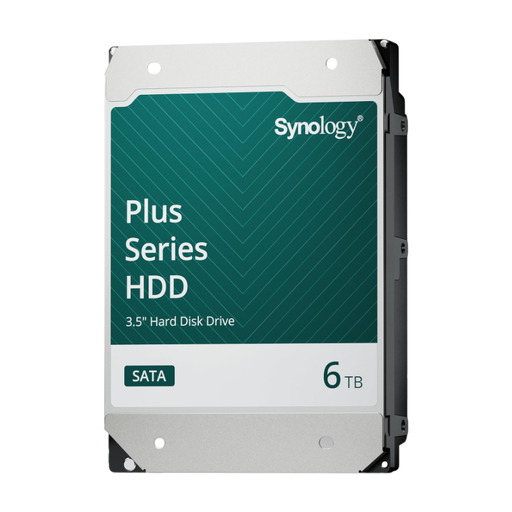 No image available
An option to consider for a growing archive in a compatible Synology NAS system.
6 TB; CMR; 3.5-inch SATA 6 Gb/s; 5400 rpm; workload 180 TB/year; specified for 24/7 and multi-user use.
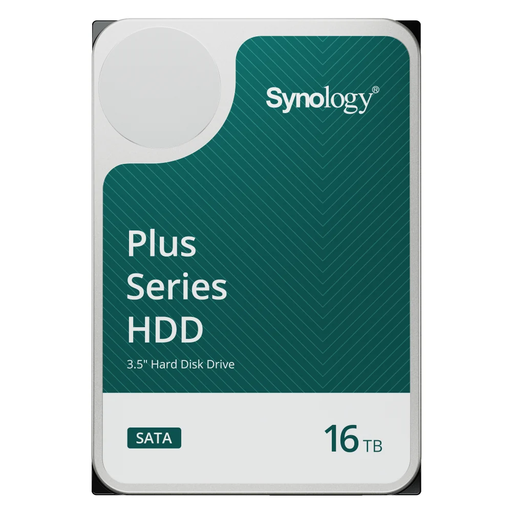 No image available
The specified capacity could suit an archive for which you want to set aside plenty of space, provided your Synology system supports the model.
16 TB; 3.5-inch SATA; 7200 rpm; 512 MB cache; CMR; specified for 24/7 and multi-user use.
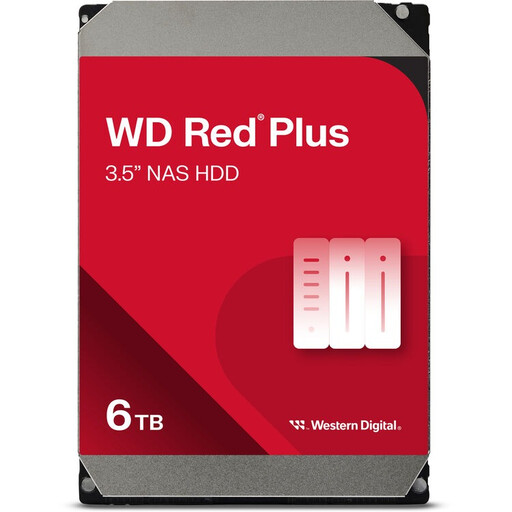 No image available
A CMR NAS drive to consider for regular write workloads, once you’ve checked that it’s compatible with your NAS.
6 TB; 256 MB cache; SATA III; 5400 rpm; CMR; specified for 24/7 use and NAS configurations of up to 8 bays.
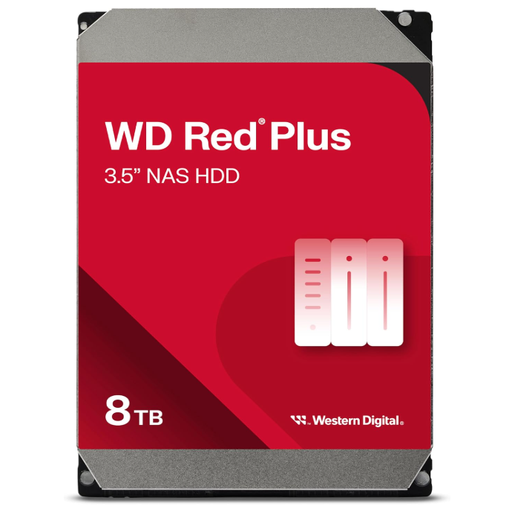 No image available
The higher specified capacity could suit an archive that continues to grow. Check that the full drive variant is compatible with your NAS.
8 TB; 3.5-inch SATA 6 Gb/s; CMR; 5640 rpm; workload up to 180 TB/year; specified for 24/7 use and NAS configurations of up to 8 bays.
No. For RAID 1 with two drives, Synology specifies a volume capacity equal to that of the smaller drive; the other drive holds an identical copy for redundancy.
Include both the data read and the data written, then compare your estimate with the specifications for the exact model. Seagate defines annualised workload using total data read and written, converted to a yearly figure based on the number of hours the drive is powered on.
Check with the NAS manufacturer that the full drive model is supported, and follow the installation instructions for your enclosure. Back up any data already on the drive elsewhere before initialising or formatting it.
No. According to ACM ConsuWijzer, your statutory guarantee exists alongside any retailer or manufacturer’s warranty. How long a product should work properly depends on what you could reasonably expect from it; don’t assume there is one fixed Dutch time limit for every drive.
Not without considering the purpose and the applicable rules. According to the Dutch Data Protection Authority, an audio recording in which someone is identifiable may be personal data. Personal data must not be kept for longer than necessary, and the GDPR does not set a general fixed time limit for this. The person responsible for managing the archive must assess which legal basis, access controls and retention period apply in the specific circumstances.