Choose a NAS drive based on its usable capacity and check that the full model is compatible with your NAS. RAID redundancy can help if a drive fails, but it doesn’t replace a separate backup. If you edit large files directly over the network, your connection and design software also play a part.
Who is this storage for?
A designer with a growing archive
You want to keep completed projects in one central place and allow for the extra space you’ll need in future. Capacities and models vary from drive to drive, so check what your NAS supports. Western Digital and Toshiba publish capacity information for their NAS drives.
A designer who wants to recover their work
You want to be able to retrieve valuable files and understand what RAID can and can’t protect against. The Synology Knowledge Centre distinguishes between drive redundancy and a separate backup.
A designer working with large active files
You open or edit large files from a home workstation and want to know whether you can work directly from the NAS. Adobe discusses the limitations of working over a network and recommends working locally in Illustrator where possible.
What should you look for in a NAS drive?
Start with usable capacity and NAS compatibility. Then decide how you’ll handle drive failure and where you’ll edit active files.
| What to consider |
What should you check? |
Who is it for? |
| Usable capacity |
Assess your archive and expected growth. Calculate usable space based on the number of drives and RAID type you choose; the Synology Knowledge Centre explains that RAID 1 writes identical data to two drives. |
I want to keep large completed projects in one central place and have enough room for new files. Around 36% of consumers prioritise capacity for a growing archive. |
| Recovery and redundancy |
Decide whether you need protection against a drive failure, and plan a backup to a separate destination as well. Synology recommends keeping recoverable copies, including a backup stored in another location. |
If a project would be difficult to recreate, I want to know how to retrieve an earlier or separate copy. Around 29% of consumers put recoverability first. |
| NAS compatibility |
Check the full drive model code, form factor, interface and compatibility information for your NAS and software version. For Synology, consult the information for the relevant series and DSM version. |
I want to expand my existing NAS without choosing the wrong model. Around 21% of consumers mainly look for a drive that’s compatible with their NAS. |
| Working over the network |
Check the network connection between your computer and NAS, and test whether your design software works well with files stored on the network. Adobe recommends working locally in Illustrator where possible. |
When I regularly open and save large active files, I don’t want my workflow to be held back by the network connection. Around 14% of consumers put a smooth workflow first. |
Common buying mistakes
-
Adding up drive capacities as if all the space will be available
With a redundant configuration, usable space may be less than the combined capacity of the drives.
Calculate the usable capacity in advance for the RAID type your NAS supports.
You may need a configuration with extra drive capacity to leave enough usable space.
-
Treating mirroring or a snapshot as a complete backup
Redundancy and a separate copy protect against different causes of data loss.
Plan a backup to a separate destination and check that you can restore your files.
A separate backup requires extra storage and maintenance of recoverable copies.
-
Choosing a faster drive to fix a network problem
The drive, network connection and the way your design software handles files are separate parts of your workflow.
Check the entire connection and compare working from the NAS with editing locally in your own application.
-
Assuming every NAS drive will fit every NAS
Form factor, interface and compatibility requirements can depend on the NAS series and software version.
Compare the full model codes with the manufacturer’s compatibility information before you order.
If the model isn’t compatible, you may need to replace your purchase and plan the installation again.
Brands to consider
Western Digital
WD Red Plus is a range of 3.5-inch NAS HDDs designed for uses including home offices and RAID-optimised NAS systems with up to eight bays.
- For the range described, Western Digital specifies CMR, a workload rating of 180 TB per year and a three-year limited warranty.
- These range specifications alone don’t prove a particular lifespan or compatibility with every NAS. Check the exact model and warranty terms.
Seagate
According to Seagate, IronWolf is designed for smaller NAS systems, while IronWolf Pro is a separate range for more demanding, multi-user environments.
- Seagate gives IronWolf a workload rating of up to 180 TB per year and IronWolf Pro a rating of up to 550 TB per year.
- Ratings vary by range and model, and don’t demonstrate a speed or reliability advantage for your home workstation.
Toshiba
Toshiba’s N300 range for EMEA includes 3.5-inch NAS HDDs for home and small office storage, among other uses.
- Toshiba lists 24/7 operation and models with capacities of up to 22 TB for this range.
- Specifications and the supported number of bays vary by model; claims about NASLink performance come from the manufacturer.
NAS drives at Joybuy
This selection features internal NAS HDDs for storing large project archives. The stated drive capacity isn’t the same as the usable space in your NAS configuration.
 No image available
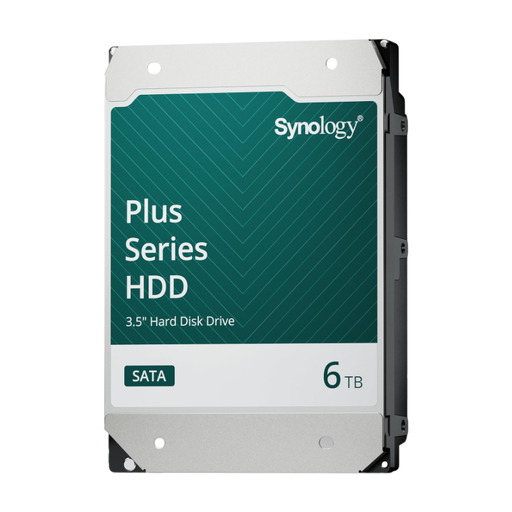
Synology SATA HDD, 6 TB
The stated capacity gives you a starting point for planning a NAS archive as your projects grow.
The product description lists 3.5-inch SATA, CMR, 24/7 operation and a workload rating of 180 TB per year.
View at Joybuy
 No image available
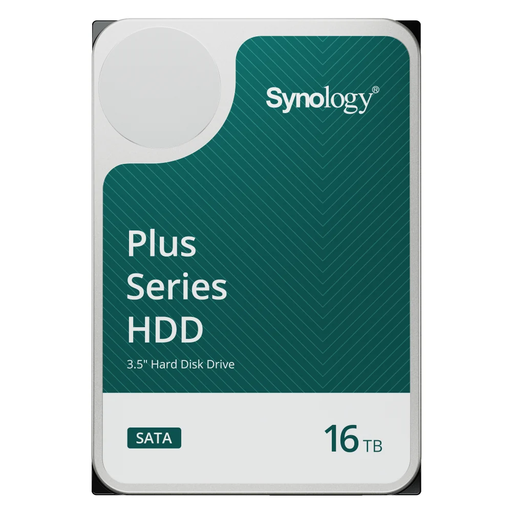
Synology SATA HDD, 16 TB
The stated capacity can be a useful starting point when planning space for a large project archive.
The product description lists 3.5-inch SATA, CMR, 7,200 rpm and a 512 MB cache. It also mentions 24/7 operation and multi-user NAS workloads.
View at Joybuy
 No image available
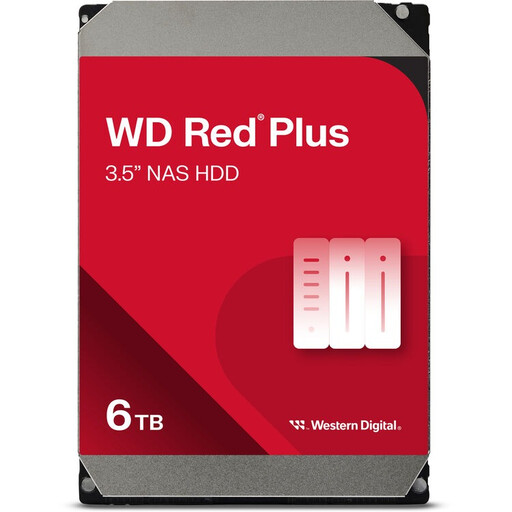
WD Red Plus, 6 TB, 256 MB cache
The stated capacity gives you a practical starting point for planning storage; usable space also depends on the number of drives and RAID type.
The product description lists an internal 3.5-inch SATA NAS HDD, 5,400 rpm, CMR, NASware and a workload rating of 180 TB per year. It also mentions 24/7 operation and NAS systems with up to eight bays.
View at Joybuy
 No image available
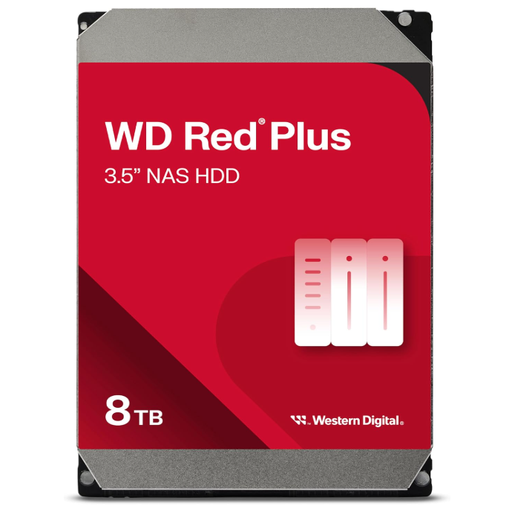
Western Digital WD Red Plus, 8 TB
The capacity gives you a starting point for planning a larger NAS archive, but it doesn’t guarantee the same amount of usable space.
The product description lists 3.5-inch SATA, CMR, RAID optimisation and a workload rating of up to 180 TB per year. It also mentions 24/7 operation and NAS systems with up to eight bays.
View at Joybuy
Frequently asked questions
Is RAID 1 enough to protect my design files?
No, RAID 1 isn’t a separate backup. According to the Synology Knowledge Centre, RAID 1 writes the same data to two drives and can protect against a single drive failure. You should also keep recoverable copies, ideally with version history and in a separate location.
Can I edit large Photoshop or Illustrator files directly on the NAS?
That depends on your application and connection. Adobe describes issues that may occur more often when working over a network in Photoshop, and recommends working locally in Illustrator where possible. So assess your own workflow before choosing a different NAS drive as the solution.
What should I check before installing a new drive?
Check the full drive model code, form factor, interface and compatibility information for your NAS and software version. Synology says certain Plus models from 2025 onwards offer greater flexibility with third-party drives under DSM 7.3; this doesn’t automatically apply to every series.


