
Editing on location
You take a portable workstation with you and want access to usable editing material even when you can't connect to the NAS. Adobe describes proxies as a way to edit with lighter media copies.


Use a NAS as central storage for your source footage and project files, but keep a separate backup too: Synology warns that RAID does not rule out data loss. If you regularly work away from the NAS network, local working copies or proxies are more practical. Adobe describes proxies as lighter editing copies of the originals. Editing directly from shared storage is worth considering mainly when your editing software and the entire network path are suited to this way of working.
You take a portable workstation with you and want access to usable editing material even when you can't connect to the NAS. Adobe describes proxies as a way to edit with lighter media copies.
You want to keep your original recordings in one central place and be able to recover them after a problem with a drive or the NAS. Synology emphasises that data loss remains possible even with RAID.
You usually work from a fixed network location, possibly alongside other editors, and want to know whether you can edit directly from shared storage. Adobe provides software-specific guidance, but the network path also affects which workflow is suitable.
First decide where you want to edit: locally if you're often on the move, or directly from shared storage if your software and network are suitable. Then choose a NAS, drives and separate backup that suit your source footage.
| Consideration | What should you check? | Who should prioritise this? |
|---|---|---|
| Recoverability | As well as the NAS, plan a separate storage destination and test that you can restore your source files and project. Synology warns that RAID alone does not rule out data loss. | I want to be able to recover my source footage and project after a drive problem or mistake. Around 33% of consumers put recoverability first. |
| Editing directly from storage | Check the network connections on the NAS and workstation, the equipment in between, and your editing software's guidance. Adobe outlines requirements for shared storage in Premiere Productions. | I want to edit files directly from shared storage and can adapt my network path to suit that workflow. Around 27% of consumers prioritise editing speed from shared storage. |
| Working offline | Decide which originals, proxies and project files need to be available locally, and how you will relink the media when you return. Adobe explains proxies and how to relink offline media in Premiere. | I want to carry on working while I'm away from the NAS, using the files my project needs. Around 20% of consumers put offline access first. |
| A suitable overall setup | Match the number of drive bays and the capacity to your footage. Check the full drive model and its support for your chosen NAS; a drive family's name alone doesn't prove compatibility. | I want to choose an enclosure and drives that suit my storage needs and planned workflow. Around 20% of consumers prioritise a suitable overall setup. |
A problem with your primary NAS can affect more than one drive. A RAID configuration is no substitute for a separate recovery copy.
Plan a backup to another destination and test that you can restore your files and project from it.
A separate destination requires extra storage space and management of recovery copies.
Some enclosures are sold without hard drives. For example, the Joybuy listing for the Synology DS925+ describes this version as coming without hard drives.
Check what is included with each listing, then choose compatible drives for the configuration you want.
Depending on your setup, you may also need separate network equipment and an additional backup destination.
What multiple ports can do depends on the supported configuration and the entire network path. Manufacturer figures and port speeds alone don't tell you what performance your workstation will achieve.
Check the connections on the NAS and workstation, the network equipment in between, and your software's requirements. Consider local proxies if you work on the move.
Higher network speeds may require additional network hardware, without necessarily benefiting your workflow.
Western Digital says that the wider WD Red family includes both SMR and CMR versions. Synology also provides drive compatibility and support information for specific models.
Check the full drive model and, where applicable, its firmware against the information for your NAS model.
An unsuitable choice could mean replacing a drive or having more limited manufacturer support.
Synology offers NAS enclosures with different network options and drive requirements that vary by model.
The TS-464 is a four-bay NAS enclosure with built-in 2.5GbE connections.
According to ASUSTOR, the AS5404T combines four drive bays, two 2.5GbE ports and four M.2 slots.
WD Red Plus is a drive range to compare when choosing NAS drives yourself.
IronWolf is a NAS drive range to consider alongside other HDDs suited to your chosen enclosure.
This product selection includes NAS enclosures and individual HDDs for central storage of documentary footage, so you can assess the enclosure and drives separately.
 Image unavailable
A NAS enclosure for storing source footage centrally and accessing it over a network.
The product description lists five drive bays, expansion to fifteen bays and two 2.5GbE ports. Hard drives are not included; check which drives are compatible with this model.
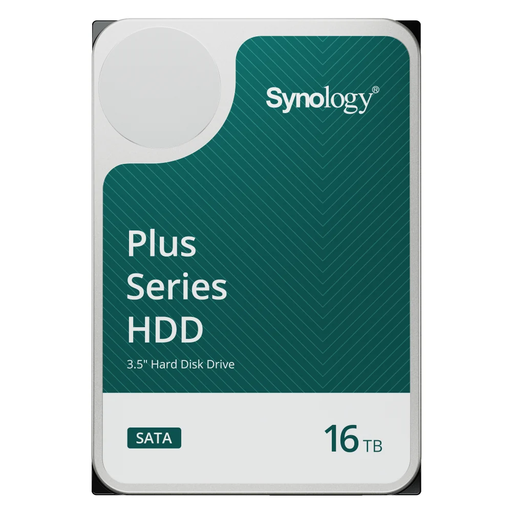 Image unavailable
An individual HDD to consider when choosing drives separately for a Synology NAS.
The product information lists 16 TB, 3.5 inches, SATA 6 Gb/s and CMR. The stated rotational speed is 7,200 rpm; check support for your exact NAS model.
 Image unavailable
A NAS enclosure with multiple drive bays for central storage and network access to your footage.
The product description lists eight drive bays and two built-in 2.5GbE ports. An optional 10GbE upgrade is mentioned; the rest of your network will need to support it too.
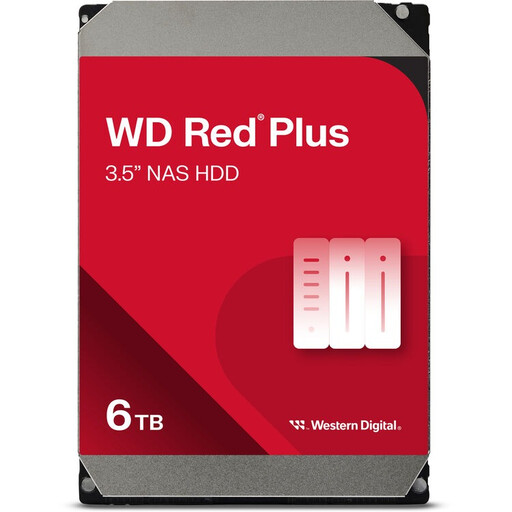 Image unavailable
An individual NAS HDD to compare when choosing the drives for your enclosure.
The product name lists 6 TB and 256 MB cache. Western Digital describes WD Red Plus as CMR; also check whether this exact model is supported by your NAS.
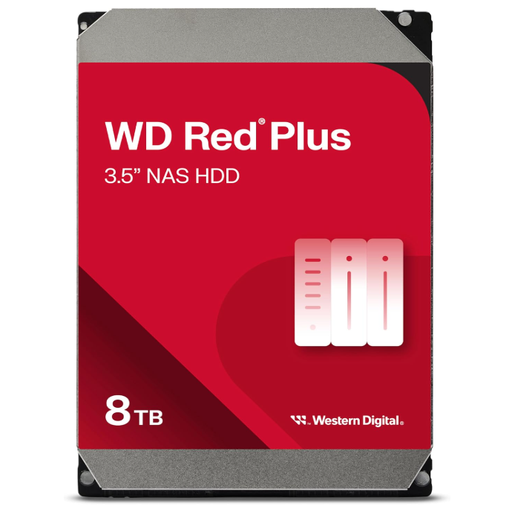 Image unavailable
An individual HDD to consider as part of a NAS setup for source footage.
The product information lists 8 TB, 3.5 inches, SATA 6 Gb/s, CMR and 256 MB cache. Check that this exact model variant is suitable for your chosen NAS.
No. RAID is no substitute for a separate backup. Synology warns that data loss can still happen when drives have problems, so make a copy to another destination and test that you can restore it.
Take local working copies or proxies and the necessary project files with you in advance. Adobe describes proxies as lighter copies of the originals; when you return, check that the media is correctly linked to the project again.
No. For Premiere Productions on shared storage, Adobe recommends keeping the media cache and its database on the system drive or a fast, directly connected SSD for each workstation. This is software guidance, not a legal requirement.
Consumers generally have a statutory 14-day cooling-off period when buying online from a business, with some exceptions. Ondernemersplein states that this statutory consumer cooling-off period doesn't apply when you buy as a business for your company; in that case, check the agreed terms and conditions.
The Dutch government states that electronic devices in the EU must carry a CE mark. Check the marking and safety information for the NAS on offer; you can't tell whether a specific unit complies from the model name alone.