A two-bay NAS may be suitable if your current archive and expected growth fit within the calculated usable capacity; four bays give you more room to add drives. Calculate the usable storage for your drives and configuration, check the entire network path, and set up a separate, tested backup.
Who is this buying guide for?
Designer with a growing archive
You’re storing more and more large project files and want to avoid running out of space in your enclosure too soon. Synology’s capacity information explains that the space available for files may be lower than an estimate based on drive capacity suggests.
Designer who works over a network
You regularly move large files between your workstation and NAS. That makes the network connection an important consideration alongside storage capacity: the port on the NAS alone doesn’t determine the speed of your entire network path.
Creator who wants to be able to restore projects
You want to know how to restore older versions or lost files, including if something happens at the location where the NAS is kept. The Digital Trust Center advises against relying on a single storage location.
What should you consider when choosing?
Start with the usable storage you need, then look at your network and consider how you’ll restore files from somewhere other than the NAS.
| Factor to consider |
What should you check? |
Who is this most relevant to? |
| Usable capacity and growth |
Assess your current archive and expected growth; calculate the usable space for your chosen drives and storage configuration. |
If your archive keeps growing, you’ll want to avoid your NAS filling up quickly. Around 31% of consumers put expanding storage capacity first. |
| Working speed with large files |
Check the connections on your NAS and computer, as well as your switch and cabling; the entire connection must suit your intended network. |
If you often work with large files over a network, you’ll want the connection to suit your workstation. Around 25% of consumers give file transfers their highest priority. |
| Backup and restoration |
Set up a separate backup destination, choose a suitable versioning policy and test that you can restore files. |
If you want to restore projects and earlier versions, even after an incident at the NAS location, recoverability matters most. Around 25% of consumers put this first. |
| Complete setup |
Check whether drives are included, and allow for compatible drives, backup storage and any network hardware you may need. |
If you want to understand the full setup in advance, look beyond the enclosure itself. Around 19% of consumers consider the total purchase and running costs the most important factor. |
Common buying mistakes
-
Assuming raw drive capacity is the same as available project space
Your storage configuration and the space needed for system data may leave you with less room for files than a capacity estimate suggests.
Calculate usable space based on your planned drives and storage configuration, rather than relying only on the maximum capacity shown on a product page.
A growing archive may mean you need additional or larger drives sooner than expected.
-
Confusing drive protection with a full backup
Protection against drive failure isn’t the same as being able to restore files or earlier versions after deletion or an incident.
Choose a separate backup destination and test that you can restore files from it.
A separate backup destination requires additional storage and setup.
-
Assuming a network specification guarantees working speed
The connection between your computer and NAS also depends on the rest of your network equipment; manufacturer performance figures don’t automatically predict the speed at your workstation.
Check the entire network path before opting for faster ports or a network upgrade.
You may need additional equipment to create a suitable network path.
-
Budgeting for a NAS enclosure as if it were a complete storage solution
Some enclosures are sold without hard drives. The stated expansion unit for the Synology DS925+ is sold separately.
Check what’s included with the exact model and which drives and any expansion units you’ll need.
Compatible drives and any expansion units are additional to the enclosure.
Brands to consider
Synology
The DS225+ is a two-bay NAS model, while the DS925+ has four bays. Synology describes backup software for this product range.
- According to Synology, both models mentioned have 2.5 GbE; the DS925+ has two such ports.
- Check that your chosen drives are compatible before buying. Manufacturer performance figures don’t guarantee the speed of your network.
QNAP
The TS-264 is a two-bay enclosure, while the TS-464 has four bays.
- QNAP lists two 2.5 GbE ports and M.2 slots for the TS-264.
- The TS-264 is supplied without hard drives. Check the additional features and connections for the exact model.
ASUSTOR
The Lockerstor 4 Gen2 AS6704T combines four drive bays with M.2 slots and network expansion options.
- ASUSTOR lists two 2.5 GbE ports for this model.
- 10 GbE requires an optional expansion card. Check the full model number, including the suffix.
Seagate
IronWolf is a range of internal NAS drives for an enclosure that you populate yourself.
- Seagate describes IronWolf drives as CMR-based NAS storage.
- Check the capacity and compatibility of the exact drive and NAS; an internal drive isn’t a NAS on its own.
Joybuy products
This selection includes NAS enclosures for a growing archive and individual internal drives for a compatible NAS.
 No image available
Synology DiskStation DS1525+ NAS
A NAS option for a growing archive; check which drives and expansion options are suitable for this model.
Hard drives are not included and must be chosen separately.
Joybuy
 No image available
Synology DiskStation DS1825+
A NAS option for an archive that’s set to grow further; check which drives and expansion options you’ll need for this model.
Joybuy
 No image available
Synology DiskStation DS925+, without hard drives
This NAS has four drive bays and can support up to nine drives with an expansion unit, available separately.
Hard drives are not included and must be chosen separately.
Joybuy
 No image available
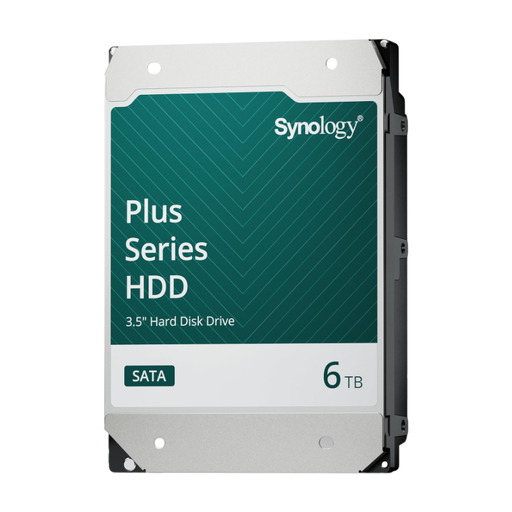
Synology SATA HDD 6TB
An individual internal drive to add storage to a compatible NAS.
This is not a NAS enclosure; check that the drive is compatible with your NAS.
Joybuy
 No image available
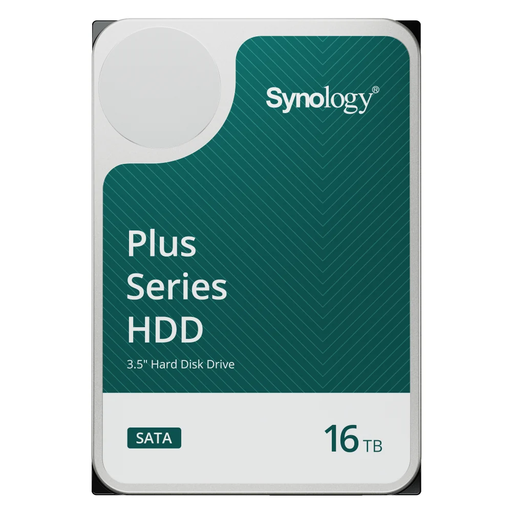
Synology SATA HDD 16TB, 7,200 rpm
An individual internal drive to add storage to a compatible NAS.
This is not a NAS enclosure; check that the drive is compatible with your NAS.
Joybuy
Frequently asked questions
How can you tell how much storage space will actually be available?
First, calculate the usable space with the drives and storage configuration you plan to use. Synology warns that system space and metadata, among other things, can reduce the space available for files.
What should you do after installation to make sure you can restore projects?
Set up a separate backup with suitable versioning and test regularly that you can restore files. The Digital Trust Center advises against relying on a single storage location; Synology Hyper Backup can use multiple versions and external backup destinations.
What should you check besides the NAS enclosure?
Check whether drives are included, which drives are compatible and whether you need separate backup storage or network hardware. For example, QNAP says that the TS-264 is supplied without hard drives; the expansion unit for the Synology DS925+ is sold separately.
Which Dutch privacy rules apply to design files stored on a NAS?
If your organisation processes personal data, the Dutch Data Protection Authority says you must protect it appropriately; the measures that are suitable depend on the circumstances. Not every design file contains personal data. If a personal data breach occurs, the organisation must assess whether it needs to notify the Dutch Data Protection Authority and the people affected.


