
Creators who mainly want to protect their files
You want to make regular local copies of your portfolio photos, designs and project files, and be able to restore them later.


Start with a NAS that supports scheduled local backups and has enough usable capacity for your current portfolio and expected growth. A NAS at the same location is not a complete backup strategy: the National Cyber Security Centre advises keeping multiple versions of important data. So plan a separate copy at another location too, and test that you can restore your files.
You want to make regular local copies of your portfolio photos, designs and project files, and be able to restore them later.
You store large projects and want to work out in advance how many drive bays and how much usable capacity you’ll need.
You pay attention to network and USB connections because you regularly move large files between your computer, NAS and external storage.
A good fit when: your capacity plan shows that two bays will provide enough space for your local portfolio and backups.
Bear in mind: usable capacity depends on the drives and storage configuration you choose. Plan a separate copy as well.
A good fit when: you expect your photo, video or project archive to keep growing.
Bear in mind: having more bays doesn’t automatically make a NAS a complete solution. Check which drives are included and keep a separate backup.
A good fit when: as well as local backups, you want to compare specific network or USB connections.
Bear in mind: a faster NAS port doesn’t prove that your computer and entire network will also run faster.
| What to consider | What to look for when buying | Who this matters to |
|---|---|---|
| Restorable local backups | Check for scheduled backups, a destination for a separate copy and the option to carry out a restore test. | If your main concern is preventing the loss of portfolio photos and project files, make restore capability your priority; around 42% of consumers rank this as their top consideration. |
| Usable capacity and expansion | Work out how much space your current files take up and how much they’re likely to grow; then compare the usable capacity of your chosen drives and configuration. | If your media archive keeps growing, you’ll want enough space for projects and backups; around 25% of consumers put room to grow first. |
| Transferring large files | Check the ports on the exact NAS model, as well as the capabilities of your computer and other network equipment. | If you often move large projects between your computer, NAS and external storage, look for connections that are compatible with your equipment; around 17% of consumers make transfer speeds their top priority. |
| Drives and total cost | Check what’s included in the offer, which drives are compatible and how you’ll store a separate second copy. | If you want to plan the NAS, internal drives and second copy together, you’ll want to know in advance what else you need; around 16% of consumers start with the total cost and choice of drives. |
An incident at the NAS location could affect both the NAS and its drives. A copy on the same device therefore won’t protect you against every risk at that location.
Keep a separate physical copy in another location as well as the NAS, and test that you can restore your files.
A second storage device and, potentially, another place to keep it require extra resources and management.
According to Synology, usable capacity can vary depending on the drives and storage configuration.
Once you’ve chosen your drives and configuration, work out how much space will be left for your files and backups.
QNAP states that the TS-264 is supplied without HDDs; UGREEN states that storage drives for the NASync DXP2800 are sold separately.
Check the exact bundle and compatibility list before deciding which drives you need.
If the NAS doesn’t include drives, you’ll need to arrange internal storage separately; a separate backup also requires a storage device.
The DS225+ has two drive bays and the DS423+ has four, offering different configurations for local portfolio storage.
The TS-264 is a two-bay model worth comparing if network and USB connections are important to you.
According to its specifications, the AS5402T is a two-bay model with extra connections and M.2 slots.
The F2-424 is a two-bay option with local backup and snapshot features listed by TerraMaster.
The NASync DXP2800 is a two-bay model for comparing local storage options and drive choices.
This Joybuy selection focuses on Synology NAS models for a local portfolio that can grow over time.
 No image available
Compare this model if you expect your local portfolio to keep growing. Work out how much usable capacity you need in advance, and check drive compatibility.
 No image available
An option to compare if you want to plan for extra space as your portfolio grows. Check which drives are included in the exact offer and which storage configuration suits your files.
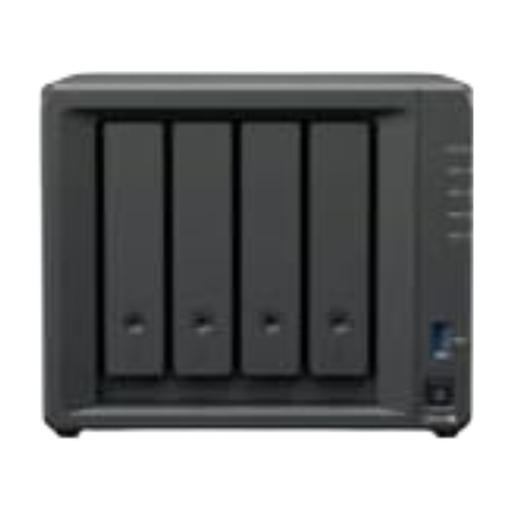 No image available
Compare this listing if you want to manage a local portfolio and be able to restore files. Before buying, check the exact version and which drives are actually included.
No. A storage configuration within one NAS doesn’t replace a separate copy at another location. The National Cyber Security Centre advises keeping multiple versions of important data; without cloud storage, you can use physical storage for this. Also test that you can actually restore your files.
Carry out a restore and check a few of the restored files. The National Cyber Security Centre advises testing a restore in your backup software rather than relying solely on a notification that a backup task has completed successfully.
It depends on the specific offer. QNAP states that HDDs aren’t included with the TS-264, while UGREEN says storage drives for the NASync DXP2800 are sold separately. Check the bundle and drive compatibility for each model.
According to the Government of the Netherlands, there’s no fixed statutory warranty period in the Netherlands. Check what any manufacturer’s warranty covers and how it relates to your statutory rights.
Not necessarily. The Dutch Data Protection Authority distinguishes between strictly personal or household use and business use. Organisations processing personal data must take appropriate security measures; storing data on a local NAS doesn’t in itself provide an exemption.