What should you look for when choosing?
Make sure you can demonstrate that your files are recoverable before handing them over, then work out the storage capacity, transfer speeds and access permissions you need. A NAS can organise local storage and scheduled copies, but you’ll also need a separate backup destination.
| What to consider |
What should you look for? |
Who is this important for? |
| Recoverable backup |
Check for scheduled backups and a separate destination, and make sure you can restore and open a representative project folder. |
I want to be able to restore and open a test file before handing work over to the client, so I know the right project version is usable. Around 36% of consumers put recoverability first. |
| Usable capacity |
Calculate how many files you have now and how much they’re likely to grow. Check the usable space offered by your chosen drive configuration and whether the drives are compatible with your exact NAS model. |
I want room for my current source files and future project growth, not just a capacity that looks sufficient on paper. Around 29% of consumers give capacity top priority. |
| Transferring large files |
Compare the network ports on your NAS, computer and any switches. Don’t treat a port speed or manufacturer test as a guaranteed transfer speed. |
I want to have large design, photo or video files ready locally in time, so I check that my network supports the connection I’ve chosen. Around 21% of consumers put transfer speed first. |
| Access to client folders |
Decide who needs access and to which folders. If you handle personal data, consider the relevant security measures, retention period and any agreements with data processors. |
I want to make sure confidential client files or files containing personal data are only accessible to the right people. Around 14% of consumers prioritise access control. |
Joybuy storage and backup products
This selection includes Synology NAS enclosures for a growing archive and two internal SATA HDDs for storage in a compatible Synology NAS. The HDDs aren’t standalone NAS devices or separate backup destinations.
 No image available
Synology DiskStation DS1525+
Suitable for storing a growing project archive in one central location. You’ll also need a separate backup destination and should test recovery before handover.
The product description lists five drive bays, expansion options, two 2.5GbE ports and backup features through DSM. HDDs aren’t included.
View at Joybuy
 No image available
Synology DiskStation DS1825+
An option for managing a large or growing project archive in one central location. You’ll still need a separate backup destination and a recovery test.
The product description lists eight drive bays, expansion options, two 2.5GbE ports and DSM tools for files and backups.
View at Joybuy
 No image available
Synology DiskStation DS925+, without hard drives
Suitable for a growing archive if you’re considering an expandable four-bay setup. You’ll also need a separate backup destination and should test recovery.
The product description lists four drive bays, expansion options, two 2.5GbE ports and backup features through DSM. Hard drives aren’t included; check that your chosen drives are compatible.
View at Joybuy
 No image available
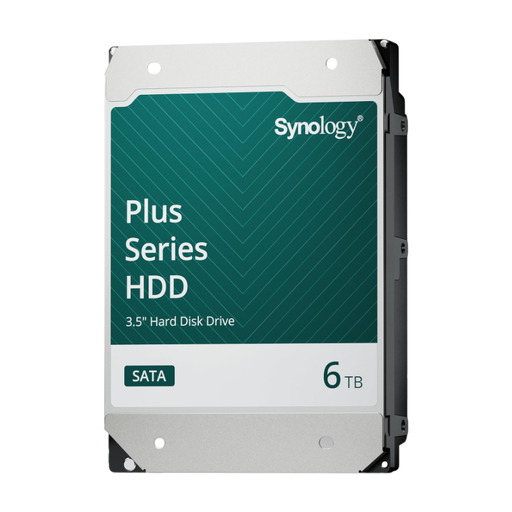
Synology SATA HDD 6 TB
An internal drive for storage in a compatible Synology NAS, not a standalone NAS or backup destination.
The product description lists 6 TB, 3.5-inch SATA and CMR. Check that the drive is compatible with your exact NAS model.
View at Joybuy
 No image available
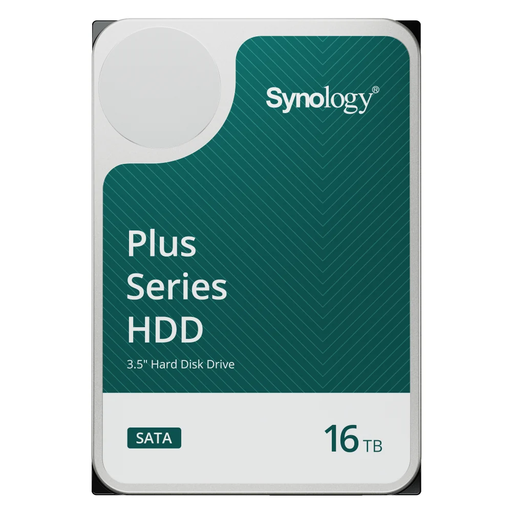
Synology SATA HDD 16 TB, 7,200 rpm
For extra internal storage in a compatible Synology NAS; this drive isn’t a NAS or separate backup destination on its own.
The product description lists 16 TB, 3.5-inch SATA, CMR and a rotational speed of 7,200 rpm. Check that the drive is compatible with your exact NAS model.
View at Joybuy
Frequently asked questions
Is RAID 1 enough as a backup before delivery?
No. Mirrored drives alone aren’t a separate backup. Make a copy to another destination too, and test that you can restore the project files you need.
What should you check straight after installation?
Check that the scheduled backup has run and restore a few representative files. Open them to make sure their contents are usable, and include the recovery test in your backup plan.
Do you need to order HDDs separately?
It depends on the exact offer. QNAP says the TS-264-8G is supplied without drives; the Joybuy listing for the DS925+ also describes an enclosure without hard drives. Check what’s included in the box and whether your chosen HDDs are compatible.
Which privacy rules apply if your portfolio includes identifiable people?
For business use, identifiable people in photos or videos may be considered personal data covered by the GDPR. The Dutch Data Protection Authority says organisations must protect personal data properly and must not keep it for longer than necessary. If one party processes personal data on behalf of another, a written data processing agreement may also be required. The measures and agreements that are appropriate depend on the specific processing and the roles involved.
Which warranty terms should you check before buying?
Check the seller’s terms for the exact offer, including any drives bought separately. The Joybuy product page for the DS925+ lists both a two-year and a three-year manufacturer’s warranty, so don’t assume one term applies without confirming the relevant conditions.


