What should you consider when choosing?
Matching colours to physical materials
Choose this option: if you want to assess the design against an agreed physical colour or material sample.
Bear in mind: a wide colour gamut or calibration alone won’t predict how paint will look on the wall; profile settings and the viewing environment also matter.
Digital detail work
Choose this option: if you mainly want to inspect shapes, edges and small annotations in your digital design.
Bear in mind: sRGB, Adobe RGB and DCI-P3 coverage refer to different colour spaces and aren’t directly comparable.
Presenting from a laptop
Choose this option: if you want to connect your presentation laptop to the monitor and potentially charge it through the same cable.
Bear in mind: check your laptop’s video output, the cable and the power required. A USB-C port alone doesn’t guarantee compatibility.
First, decide whether your client needs to assess a digital impression or compare it with a physical sample. Then choose the relevant screen features and check separately that the monitor suits your workspace and laptop.
| What to consider |
What should you look for? |
Who is this important for? |
| Colour and physical materials |
Check the colour space of your files, the options for profiling or calibration, and the conditions in which you assess a physical sample. |
If I want to compare screen colours with paint or materials, I want to assess my colour workflow and physical sample together. Around 33% of consumers prioritise matching colours to physical materials. |
| Detail and workspace |
Compare screen size and resolution, and check that text and details remain easy to read at your chosen scaling setting. |
If I’m working on lines, patterns and small annotations, I want to inspect the details without losing sight of my tools. Around 27% of consumers prioritise design detail. |
| Laptop connection |
Check video output through your laptop’s port and the cable, and make sure the power output suits your laptop. |
If I’m connecting my presentation laptop to the screen, I want to know whether the chosen connection supports both display and power. Around 20% of consumers prioritise an easy laptop connection. |
| Workspace and viewing comfort |
Check whether the stand is adjustable and consider the effect of windows, lamps and reflections on your workspace. |
If I’m working on a design for a long time, I want to position the screen comfortably and assess colour in stable lighting conditions. Around 20% of consumers prioritise comfort at work. |
Joybuy monitors for design work
These Joybuy products are geared towards digital detail work. Compare their stated resolution and colour space with your files, and also consider the connections and workspace you need.
 No image available
MSI Pro MAX 271UPX12G 27-inch 4K UHD 120Hz QD-OLED monitor
A 27-inch 4K monitor to consider if you want to work on design details at a desktop.
The product information lists a QD-OLED screen, 3840 × 2160 pixels, 120 Hz and USB-C.
Joybuy
 No image available
CRUA CR320QB 32-inch curved 4K monitor
A larger desktop screen to consider if you want to inspect design details.
The product title lists a 32-inch curved VA screen, 3000R, 3840 × 2160 pixels and 100% sRGB.
Joybuy
 No image available
Philips 27E1N1800AE/00 27-inch 4K UHD IPS monitor
A 27-inch screen to consider if you want to work on small annotations and design details.
The product information lists 3840 × 2160 pixels, an IPS screen, an anti-glare surface and support for up to 1.07 billion colours. It also mentions a height-adjustable stand.
Joybuy
 No image available
LG 34WR50QK-B 34-inch ultrawide monitor
An ultrawide screen to consider if you want to use several windows side by side while you work on designs.
The product information lists a 21:9 aspect ratio, 3440 × 1440 pixels and 99% sRGB. Its stated resolution is not 3840 × 2160.
Joybuy
 No image available
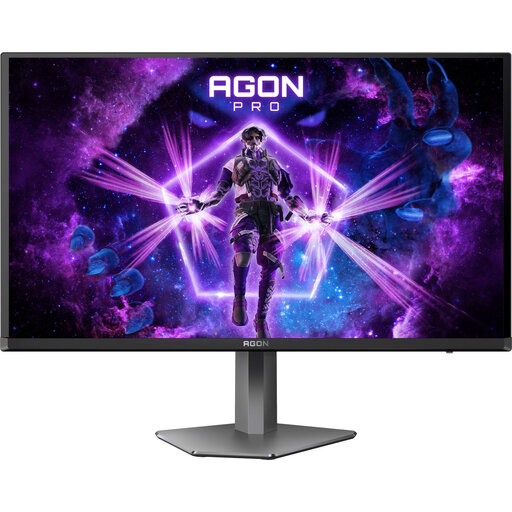
AOC AGON PRO AG276QZD2 27-inch QHD monitor
A 27-inch model to consider if you want to work on designs at a desktop and its stated colour space suits your workflow.
The product information lists a QD-OLED screen, 99% DCI-P3, 2560 × 1440 pixels and an adjustable stand. The resolution is lower than 3840 × 2160.
Joybuy
Frequently asked questions
Can a monitor predict how paint will look on a wall?
No. A colour gamut alone can’t predict how paint will look on a wall. Use suitable colour profiles and assess a physical sample under appropriate lighting. Adobe explains that the monitor profile and ambient lighting both play a part.
What should I set up before discussing the design with my client?
Check which colour space the file uses and which monitor profile is set. If colour-critical assessment is important, calibrate and profile the screen, and keep the ambient lighting as consistent as possible. This is Adobe’s workflow advice, not a guarantee that the screen image will exactly match the paint.
Where can I compare monitors’ energy consumption and energy ratings?
Compare the energy label for the exact model. The European Commission says that electronic displays, including computer monitors, are labelled on a scale from A to G. The QR code may link to further information in EPREL.
What rights do I have when buying a monitor online as a consumer?
According to the Dutch government, when you buy from a business at a distance, you generally have a 14-day cooling-off period. In the Netherlands, you’re also covered by a legal guarantee with no fixed statutory guarantee period: if a product is faulty, the seller must offer a solution. Don’t assume these consumer rights apply to a business purchase.
Is calibration software always included with a monitor?
No. Check what’s included with the exact model and what your workflow requires. For example, LG says that LG Calibration Studio isn’t included with the 27UP850K-W.


