Who is this choice for?

Multi-screen cockpit builders

If you want to show the outside view and instruments on separate screens, check whether the simulator supports separate windows or camera views, and whether your PC has enough suitable video outputs. FlightGear describes displaying separate windows; NVIDIA explains how to set up Surround, while AMD does the same for Eyefinity.

Simulator gamers who want clear, readable instruments

If you want cockpit information to be easy to read during landing, consider screen size, resolution, viewing distance and positioning together. AOC and LG’s specifications, for example, show that QHD is available on screens in different physical sizes.

Simulator gamers who want a wide exterior view

If you mainly want a wide main view, consider an ultrawide and check that the game supports your preferred aspect ratio. An ultrawide won’t automatically give you separate instrument windows or camera views.

What should you look for when buying?

What to consider What to look for Who is this important for?
Screen layout Check whether the game supports separate windows or one wide game view, and count the usable outputs on your PC. If I want to spread the outside view and instruments across multiple screens, I first need to know whether the game and PC can handle that layout. Around 36% of consumers say screen layout is their main buying concern.
Readability Consider screen size and native resolution together, and take viewing distance and positioning into account. If I want to read cockpit information clearly during landing, I weigh up screen size and resolution based on my viewing distance. Around 29% of consumers say instrument readability is their top priority.
Wide exterior view Check whether the game supports the aspect ratio, and measure the available desk width. If I mainly want one wide exterior view without a monitor bezel in the middle, I check whether my game supports ultrawide. Around 21% of consumers say the width and continuity of the exterior view is their main concern.
Long-term use If you’re considering OLED, read the care and warranty terms, and compare the energy information for your chosen screens. If instruments remain in fixed positions on screen for long periods, I want to take the model-specific care instructions and energy information into account. Around 14% of consumers say long-term use and running costs are their main priority.

Common buying mistakes

  • Buying multiple screens before checking your game and PC

    Adding monitors doesn’t guarantee that a simulator can show separate views. A combined desktop also has a higher total resolution.

    First check your game’s documentation, the window layout you want and the number of usable video outputs.

  • Assuming the highest refresh rate guarantees in-game performance

    The frame rate your game achieves also depends on your PC and the total resolution. The modes supported may also vary by connection. Dell lists QHD at up to 180 Hz via DisplayPort and up to 144 Hz via HDMI for the G2725D.

    Check the port mode for the exact monitor model, as well as your PC’s performance with your intended setup.

  • Confusing an ultrawide with multiple independent views

    A wide main screen won’t automatically give you separate camera views or instrument windows. The simulator needs to support the layout you want.

    Before buying, decide whether you need one continuous exterior view or several adjustable windows, and check which aspect ratios the game supports.

  • Overlooking care and energy information for a fixed cockpit display

    Gigabyte describes OLED screen care features for the MO27Q2A. For monitors within the scope of EU rules, the European Commission describes an energy label ranging from A to G.

    Read the manual and warranty terms for the exact panel, and compare the energy information for the screens you’re planning to buy.

Relevant monitor brands to consider

AOC

The Q27G4ZR is a flat 27-inch QHD Fast IPS monitor to consider if you want to set up matching screens.

  • AOC specifies 240 Hz as standard and 260 Hz with overclocking. These are quoted specifications, not measured performance in your simulator.
  • Check whether your connections and PC can handle the resolution and refresh rate you want with your planned setup.

Philips Evnia

The 34M2C3500L/00 is a 34-inch ultrawide Fast VA monitor for a wide main view.

  • Philips lists 3440 × 1440 pixels and a refresh rate of up to 180 Hz.
  • A wide screen won’t automatically let you use separate game windows. Also check your desk width and whether the game supports your chosen aspect ratio.

LG UltraGear

The 32GR75Q-B is a 31.5-inch QHD IPS monitor for anyone who wants a larger main screen.

  • LG specifies 2560 × 1440 pixels and a refresh rate of up to 165 Hz.
  • It takes up more space than a 27-inch model, while both QHD models mentioned here have the same number of pixels.

Gigabyte

The MO27Q2A is a 27-inch QHD QD-OLED monitor for anyone who wants to take this panel’s characteristics into account when choosing a screen.

  • Gigabyte specifies up to 280 Hz and describes features such as Pixel Shift and Pixel Clean for the OLED screen.
  • Tweakers notes issues with this model including colour fringing around text and less convincing colour reproduction. These findings apply to this model, not all monitors from the brand. If you display a fixed cockpit view, follow the instructions and check the warranty terms.

Dell

The G2725D shows why it’s useful to check the supported mode for each connection.

  • Dell lists QHD at up to 180 Hz via DisplayPort and up to 144 Hz via HDMI for this model.
  • These port limits apply to the G2725D; check the specifications for the exact model you’re considering.

Joybuy monitors for this setup

This selection includes 27-inch QHD monitors to consider as a main screen or as a potential set of matching screens, plus a 34-inch ultrawide for a wide main view. Before buying, check that your game and PC support your preferred layout and display mode.

MSI MAG 272QPF E20 27-inch QHD Rapid IPS gaming monitor

MSI MAG 272QPF E20 27-inch QHD gaming monitor

A 27-inch QHD option to consider as a main screen or when planning a multi-screen setup.

2560 × 1440 pixels, Rapid IPS and 200 Hz according to the product description.

View at Joybuy

AOC Gaming Q27G42XNE 27-inch QHD gaming monitor

AOC Gaming Q27G42XNE 27-inch QHD gaming monitor

A 27-inch QHD option to compare if you want to display cockpit information on a separate screen.

2560 × 1440 pixels and 180 Hz according to the product title; the product description lists a VA panel.

The title lists 2× HDMI 2.0 and 1× DisplayPort 1.4. Check that these connections suit your PC.

View at Joybuy

Philips Evnia 27M2N3500NF 27-inch QHD gaming monitor

Philips Evnia 27M2N3500NF 27-inch QHD gaming monitor

A 27-inch QHD option to consider as a main screen if its size and resolution suit your cockpit layout.

IPS, 2560 × 1440 pixels and 144 Hz according to the product description.

The description lists DisplayPort 1.4 and HDMI 2.0.

View at Joybuy

Philips Evnia 3000 34M2C3500L 34-inch ultrawide gaming monitor

Philips Evnia 3000 34M2C3500L 34-inch ultrawide

An option to consider if you mainly want one wide main view; separate simulator windows depend on the game.

Fast VA, 3440 × 1440 pixels and 180 Hz via DisplayPort according to the product title; 100 Hz is listed via HDMI.

Check which connection you’re using, as the quoted refresh rate varies by connection.

View at Joybuy
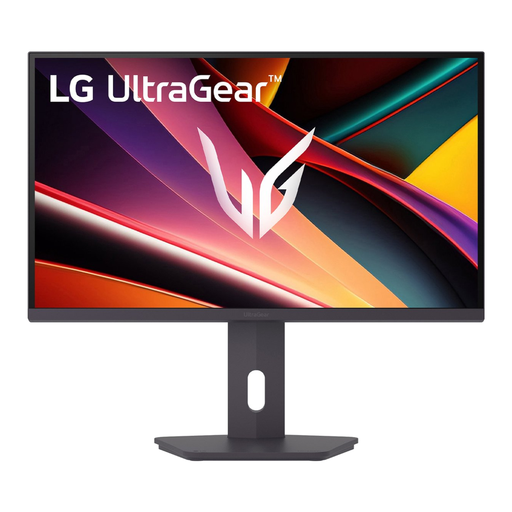
LG UltraGear 27G610A-B 27-inch QHD IPS gaming monitor

LG UltraGear 27G610A-B 27-inch QHD IPS gaming monitor

A 27-inch QHD option to consider if you’re looking for a main screen or planning to use matching screens.

2560 × 1440 pixels, IPS and 200 Hz according to the product description and title.

The product description mentions slim bezels for a multi-monitor setup; also check that the game and PC support the layout.

View at Joybuy

Frequently asked questions

Can I split the exterior view and instruments across multiple monitors in any lunar landing game?

No, a monitor alone won’t make that possible. FlightGear documents several ways to display multiple camera views, but check what your specific game supports before buying screens.

How do I align multiple screens?

Position the screens where you intend to use them, then set up the layout in the game or graphics software. NVIDIA describes settings for screen layout, resolution, refresh rate and bezel correction in Surround; the options available depend on your hardware and software.

Does 180 Hz mean I’ll get QHD at 180 Hz through every connection?

No. Dell lists QHD at up to 180 Hz via DisplayPort and up to 144 Hz via HDMI for the G2725D. Check the port specifications for the exact model and the connection you plan to use.

What should I look for in an OLED screen with instruments that stay visible all the time?

Follow the instructions for the exact model and check the warranty terms for your intended use. Gigabyte’s manual describes features including Pixel Shift for the MO27Q2A and recommends using Pixel Clean after more than four hours of use.

What are my rights as a Dutch consumer when buying a monitor online?

When you buy remotely from a business, you’re generally entitled to a 14-day cooling-off period; check the terms and exceptions that apply to your purchase. A seller must also offer a solution if a product is faulty. The Dutch government states that there is no fixed statutory warranty period in the Netherlands.

What energy information can I compare for multiple monitors?

For monitors within the scope of EU rules, the European Commission describes an energy label ranging from A to G. Compare the information for the exact models you’re considering; a label rating alone doesn’t tell you how much energy a monitor uses.
