
Building a wide sim view
You want to use side screens for a wider field of view. First, check which multi-display modes your simulator and graphics card support.


Start by checking whether your simulator and graphics card support the screen layout you want. A wide Windows desktop doesn’t guarantee that your simulator will show multiple perspectives. QHD IPS is one way to balance sharpness against graphics load, while 4K requires more pixels to be rendered and OLED calls for extra care when displaying static images for long periods.
You want to use side screens for a wider field of view. First, check which multi-display modes your simulator and graphics card support.
You prioritise readable indicators and weigh up having more pixels per screen against the overall graphics load.
You may have the same instruments or interface elements on screen for long periods, so you’ll need to weigh up panel type, picture quality and any OLED care requirements.
A good fit if: you want 2560 × 1440 pixels per screen and first want to check whether your PC can handle the overall load.
Consider: check the connections, the refresh rate supported by your chosen connection and how each model can be mounted.
A good fit if: small instrument details matter more to you and your PC can handle the higher resolution across all screens.
Consider: 4K requires more pixels to be rendered than QHD. Also, a quoted refresh rate may only apply at a particular resolution.
A good fit if: contrast and a high quoted refresh rate are important to you.
Consider: if static instrument images remain on screen for long periods, factor in OLED care and the risks that remain.
| What to consider | What should you check? | Who is this important for? |
|---|---|---|
| Field of view and PC capability | Check the display mode in your simulator, along with the number of supported GPU outputs, the cables and the resolution you plan to use. | If I want side screens for a wider view, I first want to know whether my simulator will provide the views I need. Around 36% of consumers prioritise field of view and PC compatibility. |
| Instrument readability | Compare how easy text and instruments are to read in your simulator, and check whether your PC can display your chosen resolution well. | When small indicators need to stay clear, I weigh up the extra pixels against what my PC can display. Around 29% of consumers put instrument readability first. |
| Panel for static images | Check how long fixed interface elements remain on screen and read the care instructions for the exact OLED model. | If the same instruments stay visible for a long time, I want to know what panel care is required. Around 21% of consumers prioritise static images that remain on screen for long periods. |
| Positioning and overall setup | Measure the space available and check each screen’s dimensions, VESA size, stand adjustment and included cables. | I want to know whether multiple screens will fit on my desk or arms, and what I’ll need for the setup. Around 14% of consumers prioritise positioning and overall cost. |
The maximum refresh rate can vary depending on the resolution or connection. Gigabyte lists 320 Hz in FHD and 160 Hz in UHD for the G27U; Dell lists a maximum of QHD 180 Hz via DisplayPort and 144 Hz via HDMI for the G2725D.
Check the resolution, refresh rate and connection together for the exact model.
Windows can arrange screens and GPU software can configure a group of displays, but this doesn’t confirm which camera views your simulator will show.
Check the multi-display feature in your own simulator before buying multiple monitors.
Setting up the screens may take extra time and won’t automatically give you the perspective you want.
Gigabyte describes OLED Care as a way to reduce the risk of burn-in, not as proof that the risk is eliminated.
Read the care and warranty terms for the exact model, and consider how long static images will remain visible.
The G27U is a 27-inch 4K IPS model, while the MO27Q2A is a separate 27-inch QHD QD-OLED model.
The G274QPF E2 is a 27-inch QHD IPS model with an adjustable stand.
The UltraGear 27GS75Q-B is a 27-inch QHD IPS model with height adjustment.
The G2725D is a 27-inch QHD IPS model whose maximum refresh rate varies by connection.
This selection includes QHD and 4K screens, plus an ultrawide OLED option. Before setting up your screens, check the connections and dimensions for each model, as well as the display options available in your simulator.
 No image available
A QHD IPS option to compare with other screens in a multi-display setup.
2560 × 1440 pixels, 180 Hz and 1 ms; HDMI 2.0 and DisplayPort 1.2.
The specifications list height, swivel and tilt adjustment, as well as VESA 100 × 100 mm.
 No image available
A 27-inch QHD IPS model to compare if you’re looking for 2560 × 1440 pixels per screen.
The title and description list 200 Hz; the description mentions HDMI 2.0 and DisplayPort 1.4.
 No image available
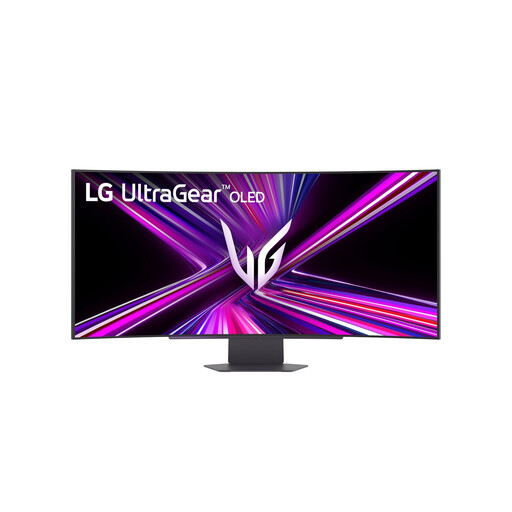
An ultrawide option to consider if you want to compare a wide view on one screen with using multiple monitors.
3440 × 1440 pixels, 21:9 and 240 Hz; HDMI 2.1 and DisplayPort 1.4.
The description lists an adjustable stand and VESA mounting at 100 × 100 mm.
 No image available
A 27-inch QHD screen to compare with other models for a multi-screen setup.
2560 × 1440 pixels and 144 Hz; the title lists 0.5 ms Smart MBR. The description mentions DisplayPort 1.4 and HDMI 2.0.
The description lists VESA 100 × 100 mm and tilt adjustment.
 No image available
A 4K model to compare if you want more pixels per screen for small details.
3840 × 2160 pixels, 3000R curvature, HDR10 and Adaptive Sync; the title lists 100% sRGB.
First, check the connections, then arrange the detected screens in display settings. Microsoft recommends checking that the pointer moves correctly between screens. Then set up your preferred display separately in the simulator.
No. Support for a group of displays doesn’t confirm that the simulator will show three separate perspectives. NVIDIA describes Surround as a way to configure a group of displays, while AMD says the maximum number of Eyefinity displays depends on the graphics card. Also check which display modes your simulator supports.
Follow the instructions for the exact model and check which OLED care features are available. For OLED Care, Gigabyte describes measures including Pixel Clean and dimming fixed image elements to reduce the risk of burn-in, not to eliminate it.
For online purchases, ACM ConsuWijzer says you generally have a statutory 14-day cooling-off period after delivery, with some exceptions. This is separate from your statutory protection if a product doesn’t meet the terms of the agreement. According to the Dutch government, there is no fixed statutory warranty period in the Netherlands, and the seller is your point of contact.
Yes. The European Commission lists computer monitors among electronic displays with an energy label scale from A to G. Check the label for the exact model; it won’t tell you whether the monitor is suitable for your simulator.