
Multilingual route writer
You write place descriptions and directions in several languages, and want the keys and selected input layout to work together predictably.


Start by choosing a physical keyboard layout you recognise, then check that your computer’s input settings let you type the accents and symbols you need. Microsoft Support explains how to manage layouts in Windows, while Apple Support covers typing accents on a Mac. Next, choose a keyboard that suits your work: a numeric keypad or customisable keys may be useful for entering numbers and repeating actions, while a compact or split model is worth considering if desk space or hand position matters more. Whichever model you choose, check its layout, connection and any software requirements.
You write place descriptions and directions in several languages, and want the keys and selected input layout to work together predictably.
You switch between text and route data while putting a guide together, and want to navigate smoothly or set up editing keys.
You spend long periods writing at a screen and compare keyboards based on hand position, mouse space and your desk set-up.
First, choose a physical layout and input settings for the languages you use. Then compare the keys and keyboard size with your route-related work and the space available on your desk.
| What to consider | What should you check? | Who is this important for? |
|---|---|---|
| Multilingual typing | Check the physical country layout and test the characters you need using your computer’s input settings. | If I write place names and directions in several languages, I want to type accents and symbols without surprises. Around 36% of consumers put predictable multilingual typing first. |
| Editing and numbers | Check the position of the arrow and function keys, whether you use a numeric keypad, and whether any software works with your programmes. | When editing route data, I want to move through text easily and sometimes enter sequences of numbers. Around 29% of consumers prioritise editing and repeated actions. |
| Hand position | Decide whether you want keyboard halves that can be positioned separately, and consider your mouse position and desk set-up too. | If I write for long periods, I want to be able to adjust my hand position to suit my desk. Around 21% of consumers put hand position first. |
| Space and devices | Check the size and connection, and whether you want to switch between computers. Also decide whether you need a numeric keypad. | With a small desk or several computers, I want a set-up that suits the way I work. Around 14% of consumers put space or switching between devices first. |
A product range may include different country-specific versions, and your computer also uses its own input layout. So the key labels and the characters that appear may not automatically match.
Check the full product version and test the characters you need with the Windows or Mac settings you plan to use.
Customisable actions and typing accents solve different problems. Macro functions may also depend on software or a particular version of the keyboard.
Check the input layout first, then see whether customisable keys can handle the actions you perform in your programme.
Keyboard halves that can be positioned separately offer more set-up options, but they don’t remove the need to consider the rest of your workstation or vary your screen-based work.
Consider your preferred hand position alongside your desk and mouse placement. Arboportaal advises alternating screen-based work with tasks that don’t involve a screen.
The MX Keys S may be worth considering if you’re looking for customisable actions or the ability to switch between paired devices.
The KC 6000 SLIM is a wired, full-size option if you’re looking for a separate numeric keypad.
The Split Break is an option if you want to position the two keyboard halves separately.
The K8 Pro may appeal if you’re looking for a compact mechanical layout with key customisation or macros.
These keyboards suit entering numbers and route data, with options ranging from full-size to more compact layouts.
 No image available
A full-size layout with a numeric keypad is useful if you regularly enter sequences of numbers.
The product name lists QWERTY, black and plug-and-play.
The description specifies a wired connection. Check that the physical layout matches your computer’s input settings.
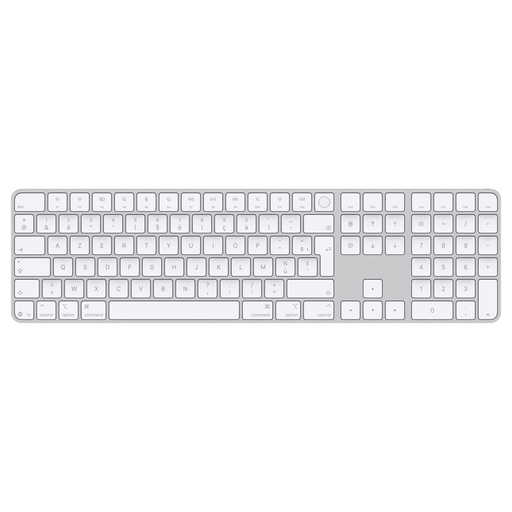 No image available
The numeric keypad may suit you if you enter numbers and want a keyboard with document navigation keys.
The product name lists Touch ID and a numeric keypad; the description also mentions full-size arrow keys.
Before buying, check that the layout and connection are compatible with your computer.
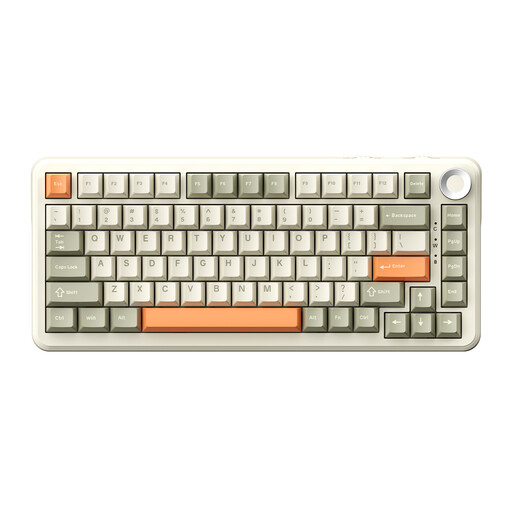 No image available
A compact layout may suit you if you want to free up desk space and use customisable macros.
The product name lists a 75% layout, wireless connection and US QWERTY. The description mentions switching between Bluetooth, 2.4G and USB-C, as well as macros and onboard memory.
Check that the physical US layout and the macro settings you want suit the way you work.
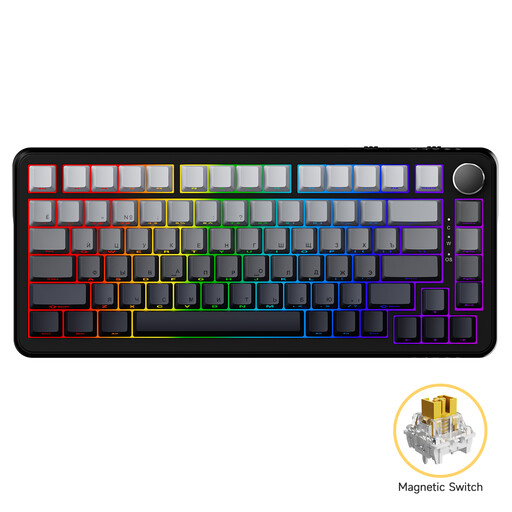 No image available
This compact version may suit you if you want to save desk space and customise key settings.
The product name lists a wired mechanical version with 82 keys. The description mentions adjustable actuation and Rapid Trigger.
Check that the QWERTY layout and the key settings listed suit the way you use your keyboard.
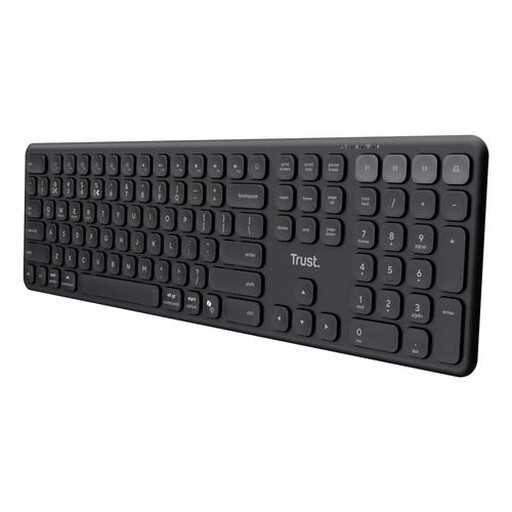 No image available
A full-size keyboard with a numeric keypad may suit you if you enter numbers and want to switch between devices.
The product name lists US QWERTY. The description mentions scissor-switch keys, a numeric keypad and connections to up to four devices.
Check that the US layout and connection suit your computer and everyday use.
Not necessarily. Windows lets you add and change keyboard and input layouts, while Apple Support explains how to type accents on a Mac. Compare the physical layout with your selected input layout, and test the characters you need for your languages.
First, select the input layout in your operating system, then test accents, punctuation and the editing keys you use most often. Logitech says you can set up Smart Actions on the MX Keys S through Logi Options+; check that you can use this software on your computer.
Arboportaal advises alternating screen-based work and setting up your workstation appropriately. For employees who work at a screen for more than two hours a day, Arboportaal describes regulations requiring the screen and keyboard not to be attached to each other, and a separate screen or keyboard to be usable with a laptop. This is not a general purchase requirement for every reader.
For a typical online consumer purchase, ACM ConsuWijzer says you have a statutory cooling-off period of up to 14 days after delivery, subject to exceptions that you should check before buying. Statutory warranty also applies: if a product breaks sooner than you could reasonably expect under normal use, the seller is responsible for providing an appropriate solution.