
Cataloguer comparing sources
If you want to view game rules, information on the box or a source page alongside your data-entry fields, consider how you’ll arrange your windows and how easy the text is to read at your preferred size.


If you regularly view catalogue fields and source material side by side, an adjustable 27-inch QHD monitor is a sensible starting point, provided your desk has enough space and the text remains a comfortable size. If you mainly work with lists or have less space, a 24-inch 16:10 monitor is worth considering. Test the text size, software and connections in your own setup: extra pixels won’t fix missing characters in programmes or fonts.
If you want to view game rules, information on the box or a source page alongside your data-entry fields, consider how you’ll arrange your windows and how easy the text is to read at your preferred size.
If you regularly check accents or characters from other scripts, test sample titles in your own catalogue software. Character display also depends on software and fonts, as Microsoft Learn explains.
For repetitive data entry, adjustability and a suitable workstation setup can make a difference. If you use a laptop, also check that the monitor has the connections and features you need.
| What to consider | What should you check? | Who is this important for? |
|---|---|---|
| Source and catalogue side by side | Try arranging your windows at the text size you use. For example, compare 27 inches at 2560 × 1440 pixels with 24 inches at 1920 × 1200 pixels. | When I compare titles and editions with source material, I want to be able to see both windows at once. Around 36% of consumers would make this their top purchasing priority. |
| Multilingual text | Test sample titles in your programme and check the available fonts and display scaling. | When I check accents and characters from different scripts, I want to be able to read them comfortably and make sure the software displays them correctly. Around 29% of consumers would prioritise legible multilingual text. |
| Workspace comfort | Check whether the stand is height-adjustable and whether the monitor will fit comfortably in your workspace. | For repetitive data entry, I want to be able to adjust the screen to suit me and vary my screen-based work. Around 21% of consumers would make workspace comfort their top priority. |
| Connecting a laptop | Check the full USB-C capabilities of both the monitor and laptop, including video support and the required charging power. | When I connect the same laptop and peripherals at my cataloguing station, I want to know whether one connection provides the features I need. Around 14% of consumers would put this connection at the top of their priorities. |
With larger text or display scaling settings, you may be able to fit fewer windows on screen at once. Microsoft Support explains how scaling and layout affect what you see.
View your catalogue and source windows at the text size you actually want to use; don’t judge the monitor by its pixel count alone.
If the software or a font doesn’t support a character, a different screen won’t add it. Microsoft Learn explains how a programme can use another font when a glyph is missing.
Test sample records in your catalogue software and check which fonts it uses before choosing a monitor to solve this problem.
USB-C ports can have different capabilities. Dell lists the port on the P2425 as a data-only downstream port, while the P2725DE is described as a USB-C hub monitor with laptop power delivery.
Check the full model specifications to see whether the port supports video, data and power, and whether they meet your laptop’s requirements and charging needs.
If the connection you choose doesn’t provide a feature you need, your setup may require a separate connection or charger.
The models reviewed range from the 24.07-inch P2425 with 1920 × 1200 pixels to 27-inch QHD models.
The 27E1N1600AE/00 reviewed is a 27-inch QHD monitor with USB-C.
According to LG, the 27BA65QB-B reviewed combines a 27-inch QHD screen with USB-C.
The Q27E4CV reviewed is a 27-inch QHD monitor with USB-C docking.
This selection includes monitors for comparing catalogue fields and source material, from 27-inch QHD and 4K models to a 34-inch UWQHD model. Some descriptions mention adjustable stands or USB-C features; check which ones suit your computer and workspace.
 No image available
The description mentions PIP and PBP features for displaying multiple sources.
27 inches, 3840 × 2160 pixels and IPS. The description also mentions USB-C with 90 W Power Delivery and a height-adjustable stand.
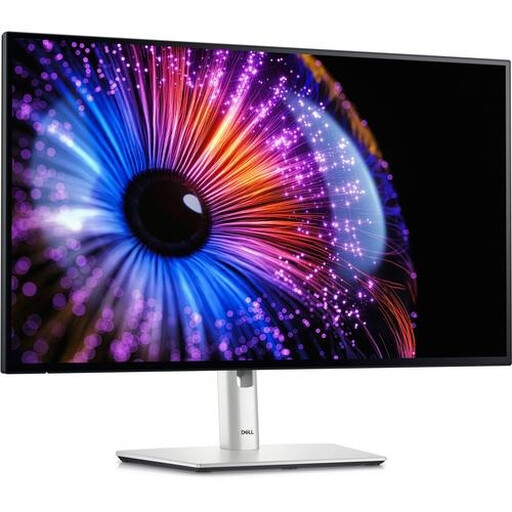 No image available
A 27-inch QHD screen to consider if you want to view catalogue fields and source material on one screen.
2560 × 1440 pixels. The product description mentions an IPS Black panel, Thunderbolt 4 and an adjustable stand.
 No image available
This 27-inch QHD model is worth considering for a setup with catalogue fields and source information.
2560 × 1440 pixels. The product description mentions HDMI, DisplayPort and USB-C connections, along with height, tilt, swivel and pivot adjustment.
 No image available
The product description suggests the screen for viewing multiple applications at once, which may be useful if you want to place several catalogue windows side by side.
3440 × 1440 pixels. The description mentions a USB-C dock, KVM switch, LAN connection and 15 cm of height adjustment.
 No image available
The 27-inch QHD resolution is an option to compare for cataloguing with source material.
2560 × 1440 pixels. The product description mentions an IPS panel, USB-C with 90 W Power Delivery, and height, tilt and swivel adjustment.
No. If a programme or font doesn’t support a character, extra pixels won’t add it. Test sample titles in your catalogue software and check which fonts are available; you can, however, pair a higher resolution with adjusted text scaling.
Adjust the screen height, position, lighting and text size to suit your workspace, and break up long periods of screen-based work. Arboportaal and the Dutch government describe specific employer obligations for applicable screen-based work by employees in the Netherlands; these don’t automatically apply to every individual consumer.
No. Your statutory guarantee is separate from any manufacturer’s or seller’s guarantee. According to ACM ConsuWijzer, the seller must offer an appropriate remedy free of charge if a product doesn’t perform as you could reasonably expect under normal use. The period isn’t automatically limited to two years for every product.
The European Commission states that computer monitors are covered by the energy labelling and ecodesign rules for electronic displays. The energy label uses a scale from A to G; compare the labels and energy consumption of the models you’re considering. These rules don’t require you to choose a particular energy class for cataloguing work.