If you only print black-and-white reports occasionally, compare black-and-white laser multifunction printers. If you print in colour regularly, an ink tank model may be a better fit, depending on your volume. If you scan stacks of A4 documents or share the printer with a team, also check the document feeder, network connections and arrangements for handling confidential documents. Neither option is right for every studio.
Who is this relevant to?
Regular report printers
If you print expense reports regularly, weigh the purchase price against the cost of consumables. First, work out how many pages you actually print in black and white and in colour. The Dutch Consumers' Association discusses this balance between purchase and printing costs.
People scanning receipts and documents
If you scan documents as well as printing them, consider whether a flatbed scanner will do or whether an automatic document feeder would be useful for stacks of A4 pages. Also check that the feeder supports the sizes you want to scan.
People managing a shared printer
If you manage access for several studio users, check the network connections available and agree how to handle documents that may contain personal data. The Dutch Data Protection Authority stresses that appropriate security measures depend on the risks.
What should you look for when buying?
Choose a printer to suit your actual print volume, the types of documents you scan and how studio users share it.
| What to consider |
What should you check? |
Who is this important for? |
| Total cost for your print volume |
Estimate how many black-and-white and colour pages you print each month. Use this to compare the purchase price, refills and any maintenance parts. |
I want to know what my actual print volume will cost, not just what the printer itself costs. Around 40% of consumers prioritise running costs. |
| Scanning receipts and documents |
Work out whether you mainly scan individual receipts or stacks of A4 pages. Check the automatic document feeder and the sizes supported by each model. |
If I scan individual receipts and stacks of documents as well as reports, I want to know which feeding method will suit me. Around 30% of consumers prioritise scanning capabilities. |
| Access for studio users |
Check whether the exact model has Wi-Fi, Ethernet or both, and whether it works with the devices and network in your studio. |
I want to print from devices in the studio without having to keep swapping connections. Around 20% of consumers prioritise shared access. |
| Confidential printouts and scans |
Work out whether you process personal data. If necessary, check the access and printing features of the exact model, and agree who collects printouts and receives scans. |
If expense documents contain personal data, I want to know who can see or receive them. Around 10% of consumers prioritise confidentiality. |
Common buying mistakes
-
Comparing purchase prices alone
The balance between purchase and running costs depends in part on how much you print and whether you need colour. With light use, an inkjet printer may also use ink for cleaning, as the Dutch Consumers' Association explains.
Compare models based on the same estimated monthly volume, and keep black-and-white and colour pages separate.
Remember to factor in toner, ink and any maintenance parts.
-
Assuming an automatic document feeder can handle every receipt
Canon states that the MAXIFY GX4050 has an automatic feeder for 35 sheets of A4 paper. That capacity does not necessarily mean that unusual receipt sizes will feed through it.
Check which original document sizes the exact model can handle and whether you can place individual items on a flatbed scanner.
You may need to place and scan items that cannot go through the feeder individually.
-
Confusing Wi-Fi or Ethernet with secure shared printing
A network connection does not determine who can see confidential printouts or receive scans. The Dutch Data Protection Authority says that appropriate measures depend on the risks.
If you process personal data, review the device settings and agree how printouts will be collected and scans received.
Brands to consider
Brother
The Brother DCP-L2627DWE is an example of a black-and-white laser multifunction printer for printing, scanning and copying text documents.
- Brother lists Wi-Fi, a 250-sheet paper tray and automatic double-sided printing for this model.
- This model does not print in colour. Brother says an EcoPro subscription is not required to use the printer.
Canon
The MAXIFY GX4050 is a colour ink tank multifunction printer with an automatic document feeder.
- Canon lists Wi-Fi, Ethernet, automatic double-sided printing and a feeder for 35 sheets of A4 paper.
- It is an inkjet printer. If you use it infrequently, you will need to pay attention to the print head; the specifications are not an independent performance test.
Epson
The EcoTank ET-2950 is an example of a colour ink tank multifunction printer for those who generally scan documents one at a time.
- Epson lists refillable tanks, scanning and automatic double-sided printing for this model.
- Check whether a flatbed scanner suits your documents and whether you need an automatic document feeder.
HP
The HP Smart Tank 7600 series is another colour ink tank option to compare if you are looking for an automatic document feeder.
- HP lists an automatic feeder for 35 pages and automatic double-sided printing for the series.
- Before buying, check whether the exact model variant available in the Netherlands has the same features.
Joybuy product picks
These product picks include multifunction printers for printing, scanning and copying, with a range of scanning and connectivity options for studio use.
 No image available
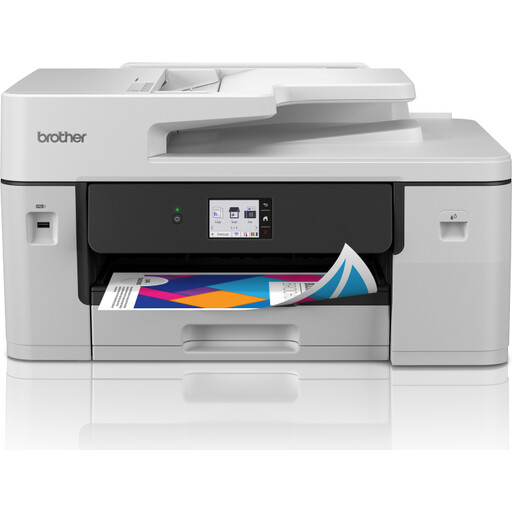
Brother MFC-J6760DW
The listed printing, scanning and copying features make this model worth considering if you handle documents in a shared workspace.
A3 inkjet; automatic double-sided printing; automatic document feeder for 50 sheets; Wi-Fi and Ethernet.
View at Joybuy
 No image available
HP Smart Tank 7305
This model could suit you if you want to print in colour and scan stacks of A4 documents.
Colour printer; automatic double-sided printing; automatic document feeder for 35 sheets; Wi-Fi.
View at Joybuy
 No image available
Canon PIXMA MG2556S
An A4 multifunction printer to consider if you want to print, scan and copy documents.
A4; 60-sheet input capacity; USB 2.0.
View at Joybuy
 No image available
HP Smart Tank 7005
This model could suit you if you want to print in colour and can place documents on a flatbed scanner.
Refillable ink tanks; automatic double-sided printing; Wi-Fi; flatbed scanner.
View at Joybuy
Frequently asked questions
Is automatic double-sided printing the same as double-sided scanning?
No. Check the specifications of the exact model for printing and scanning separately. Canon lists automatic double-sided printing and an automatic document feeder for the MAXIFY GX4050, but that does not confirm that it can scan both sides automatically.
How can you avoid problems if an ink tank printer is used infrequently?
Follow the maintenance instructions for your chosen model. The Dutch Consumers' Association points out that the print heads in inkjet printers can become clogged if they are used infrequently, and that cleaning uses ink. If the printer often sits idle and you only need black-and-white printing, compare it with a laser multifunction printer too.
What should you check about refills and consumer rights?
Check which toner, ink and any maintenance parts are compatible with the exact model. Dutch government information on consumer rights is aimed at private customers, so do not assume those rights automatically apply to a purchase made by the studio as a business.
Does the GDPR set requirements for a shared printer used for expense documents?
If an organisation processes personal data, it must take appropriate technical and organisational security measures. The Dutch Data Protection Authority says that the appropriate measures depend on the risks; this information does not mean that every shared printer must have one particular feature.


